
Xiaomi Mijia Gimbal
Our editorial rating based on product testing.
- Excellent 3-axis stabilization
- Large battery
- Wide range of settings
- Great value for money
- Works as a power bank too
- Simple minimalist design
- Occasional stabilization fluctuations
- Older microUSB connector
As we know it, Xiaomi has various sub-brands focused on specific areas. One of them is Xiaomi Smart Life, the original Mijia, which—among other things—focuses on photo accessories.
We got the Xiaomi Mijia Gimbal with 3-axis stabilization and tested it thoroughly. It’s simple and offers everything you’d expect from a gimbal. For starters, we can safely say that in its price category it has no real competition, as it ranks among the cheapest gimbals on the market.
Where can you buy it?
The stabilizer is available via the online store Banggood. This shop offers fast delivery from a European warehouse, so you can have the package at home in 7-10 days. No additional fees are added.
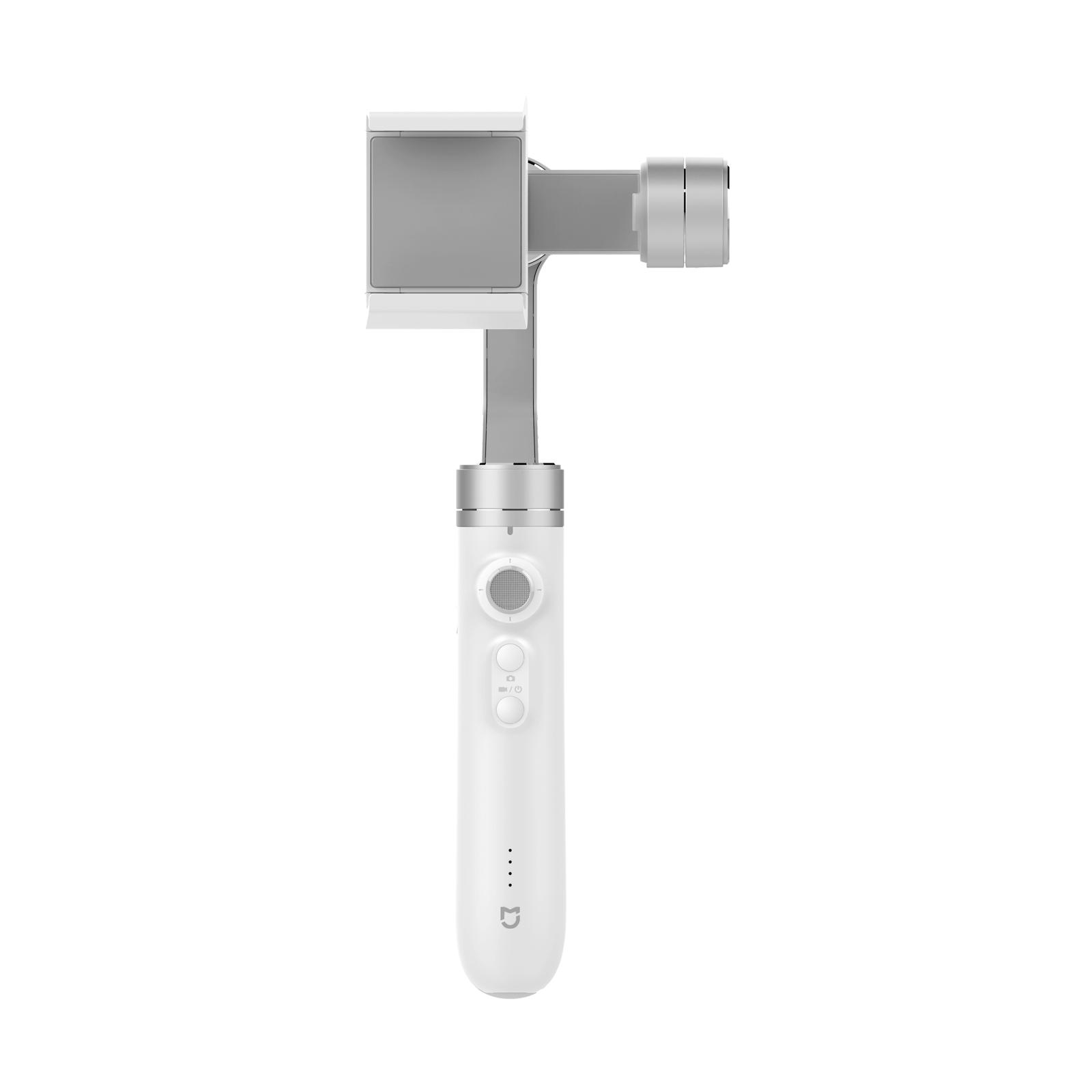
Xiaomi Mijia Gimbal SJYT01FM
 CZ warehouse
TIPExpress delivery from the Czech warehouse without customs duty and VAT.
This product will be delivered to you express from the local Czech warehouse. Delivery from the Czech Republic usually takes 7-10 days and is handled by a courier. When it arrives, you don’t pay any extra fees—no customs duty and no VAT.
Simple packaging
Xiaomi Mijia Gimbal arrives packed in an elegant white box. As you’ll be able to see further on, the whole product is styled in a subtle white color.
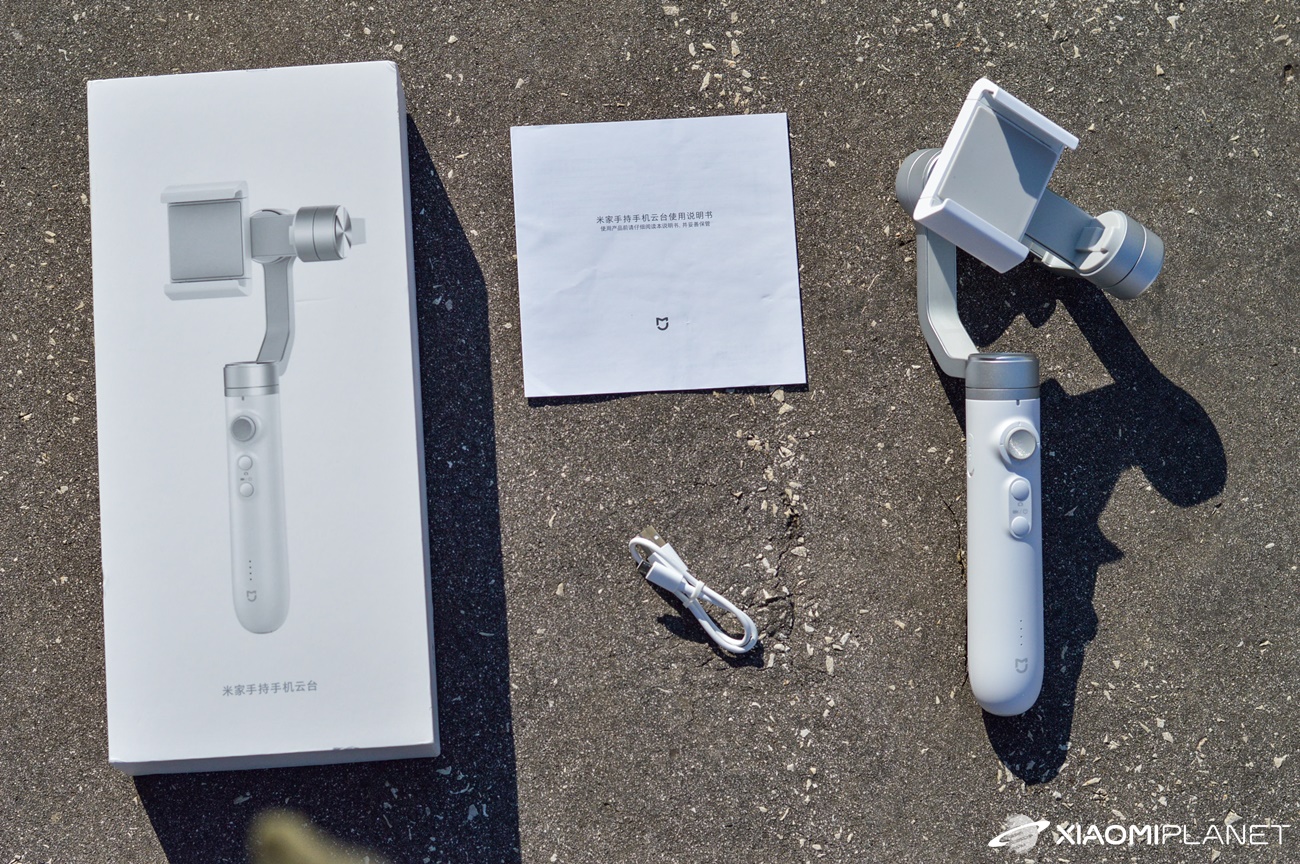
Inside the box you’ll find a stabilizer, a microUSB cable for charging, and a manual for use in Chinese. Everything, including the box, gives a very good, well-organized, and premium impression.
You’ll find a complete user guide in English as a PDF via this link.
Great build quality
As one of the few, the Mijia gimbal can genuinely boast very fine and aesthetic craftsmanship.
Even though it’s made almost entirely of plastic, it’s really solid, sturdy, and a pleasure to use. The advantage of using plastic is low weight—just 476 grams.
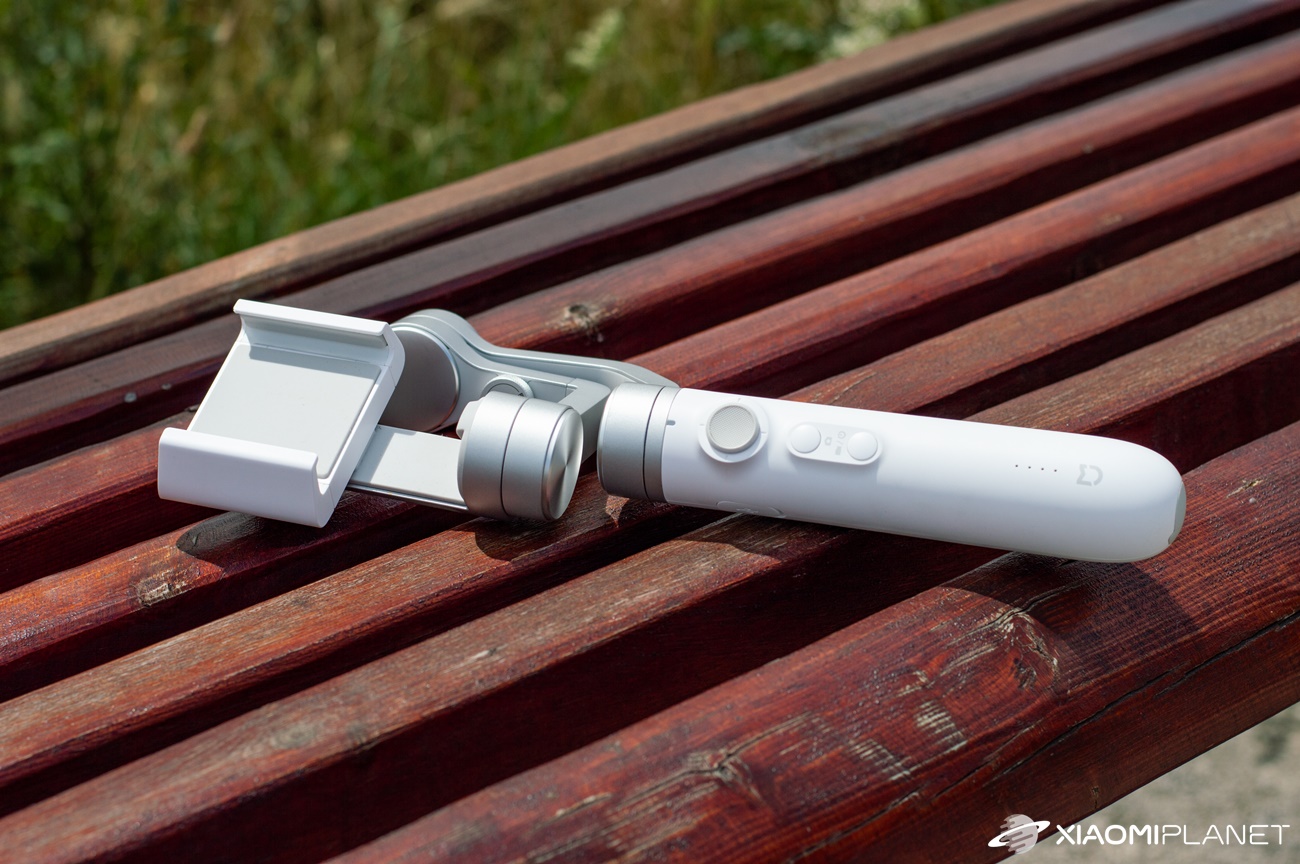
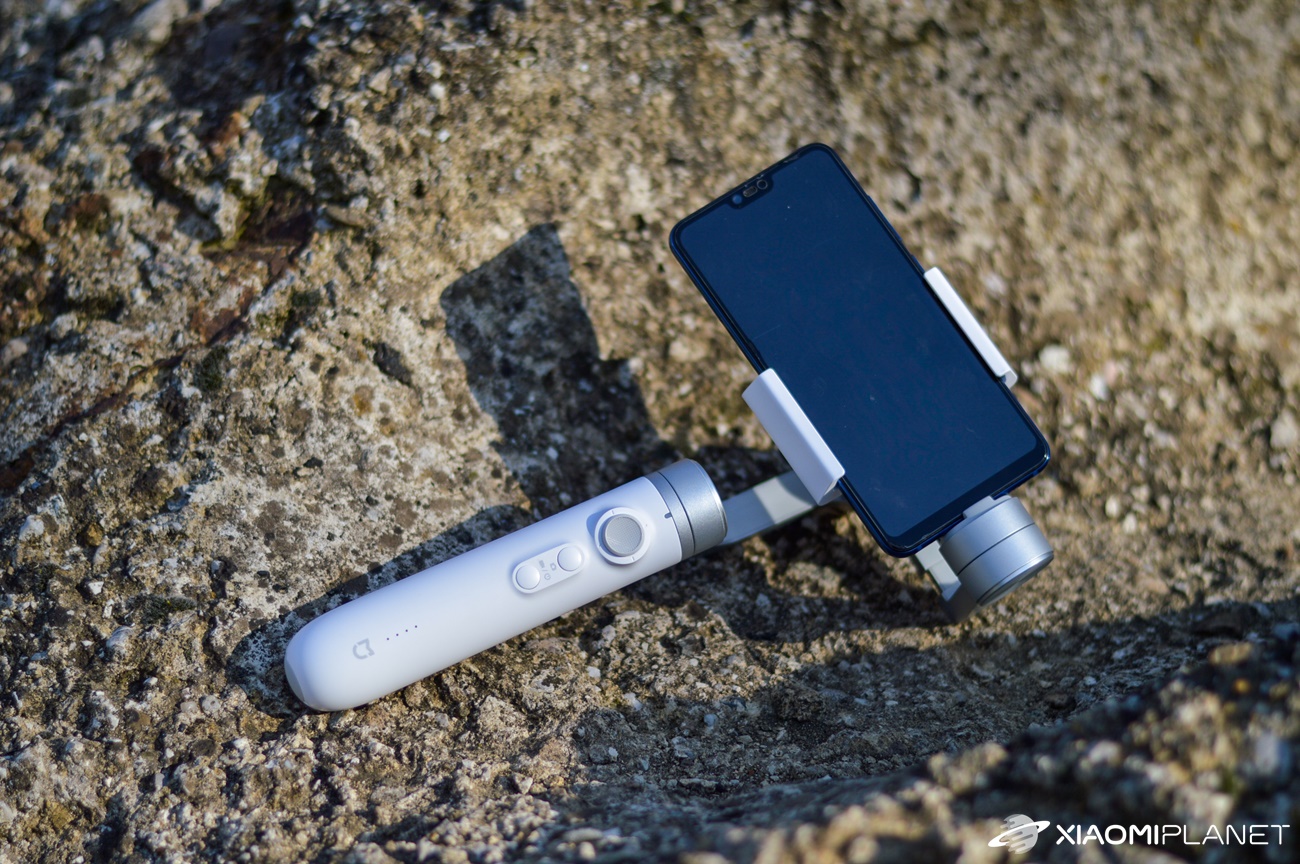
On the front side of the body, you’ll find many control elements. On the top there is a 360° joystick, which lets you control the stabilizer’s movement. Below it there are two buttons: the upper one works as a shutter for taking photos, and the lower one turns on the gimbal and starts recording video.
Above the buttons there’s a built-in light indicator, which we’ll break down in more detail later. At the very bottom you also have 4 glowing lights that show the battery charging status.

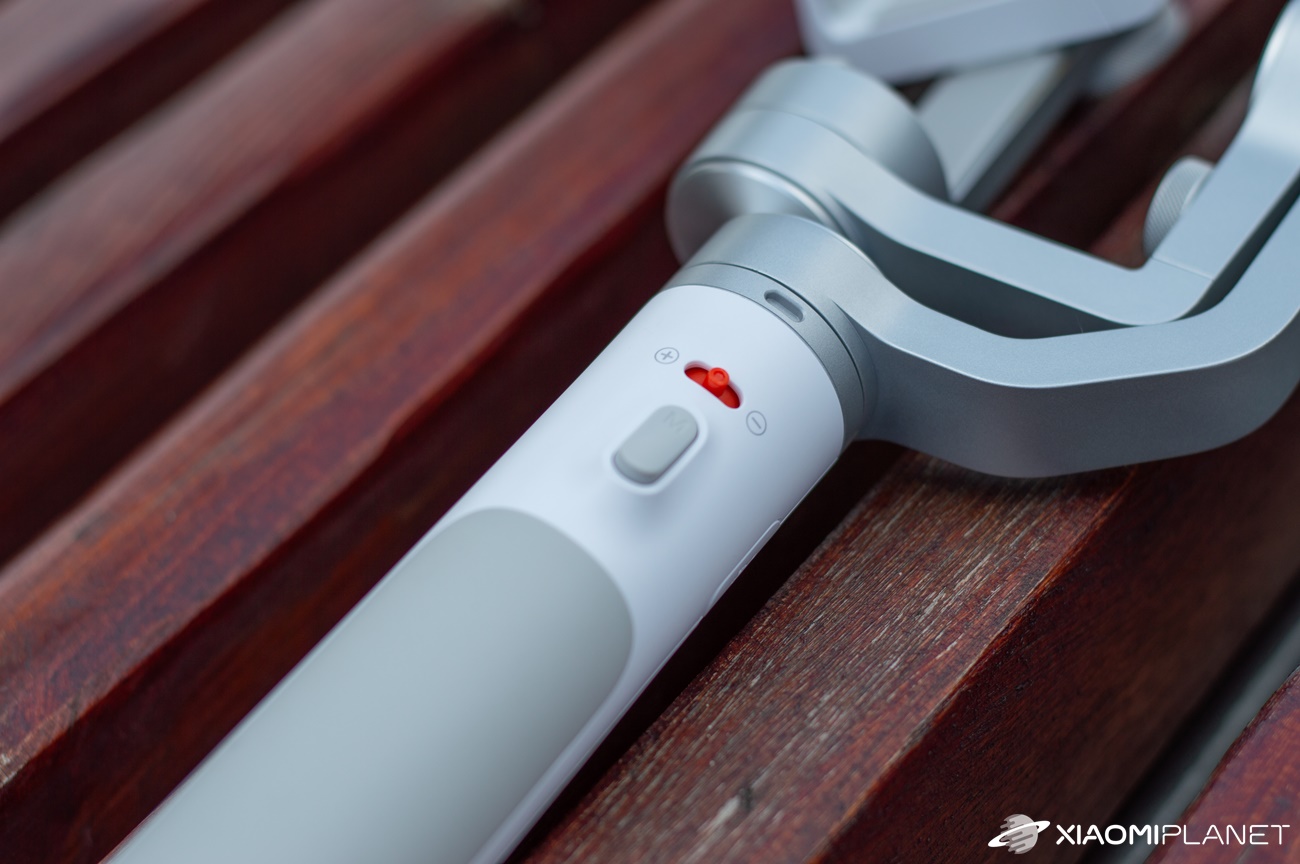
At the back, you’ll find the only colorful element on the entire gimbal. It’s a sliding button used for zooming when taking photos or recording. Under it there’s a special “trigger” button that can be mapped to different functions depending on how many times you press it.
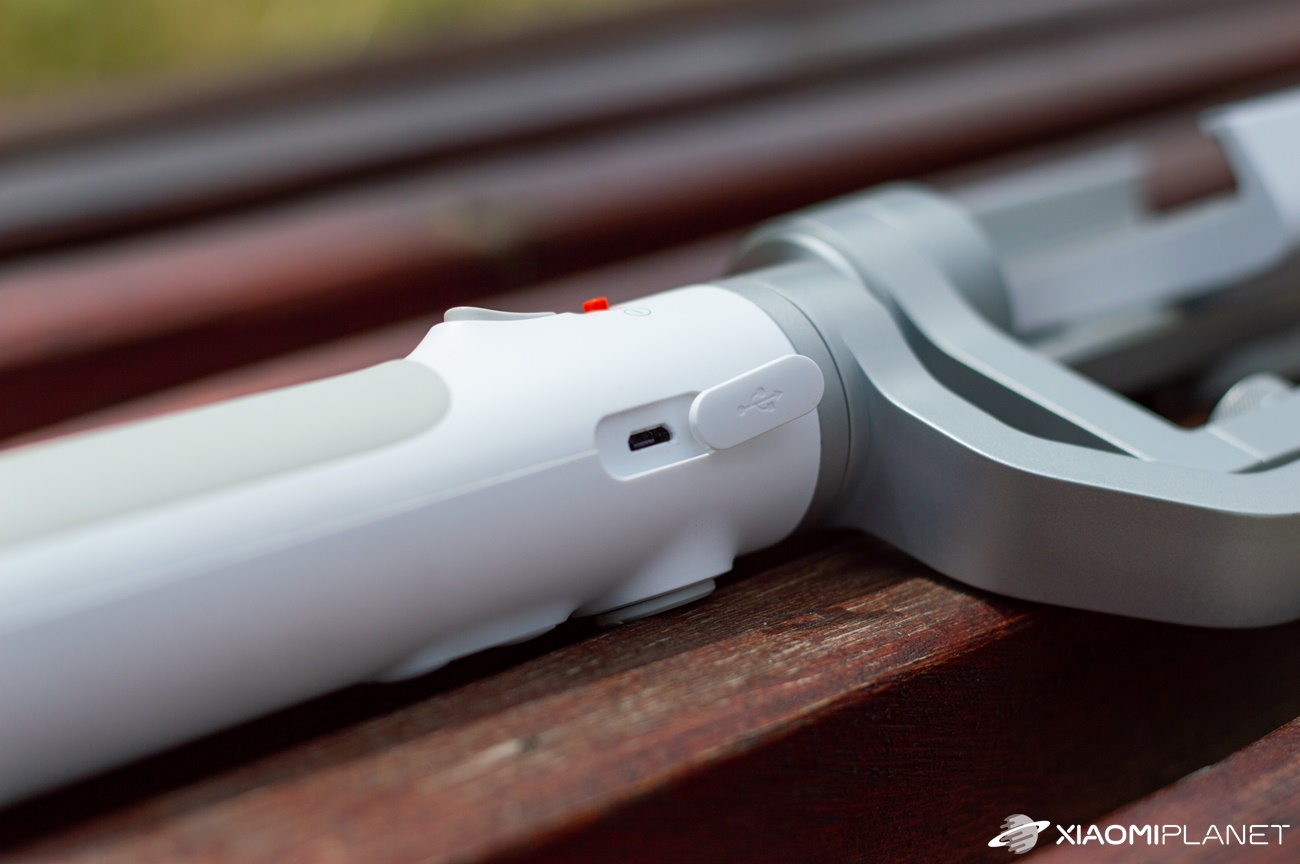
On the side of the device there’s a microUSB connector which, besides charging the gimbal itself, can also serve as a power bank. The built-in battery has a capacity of up to 5000 mAh, and if you skip the smartphone-charging function, it will easily last for 16 hours of operation. Powered at 2A / 5V.
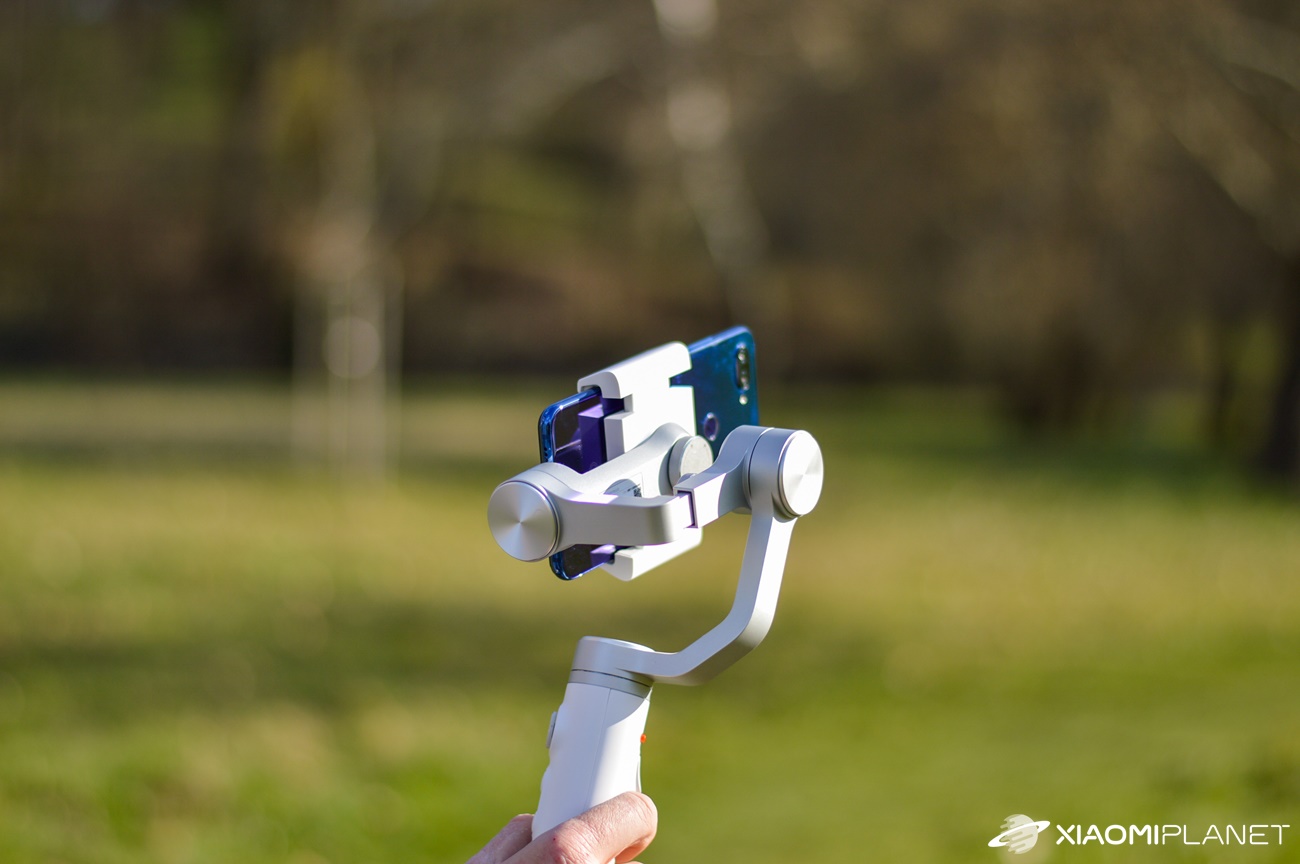
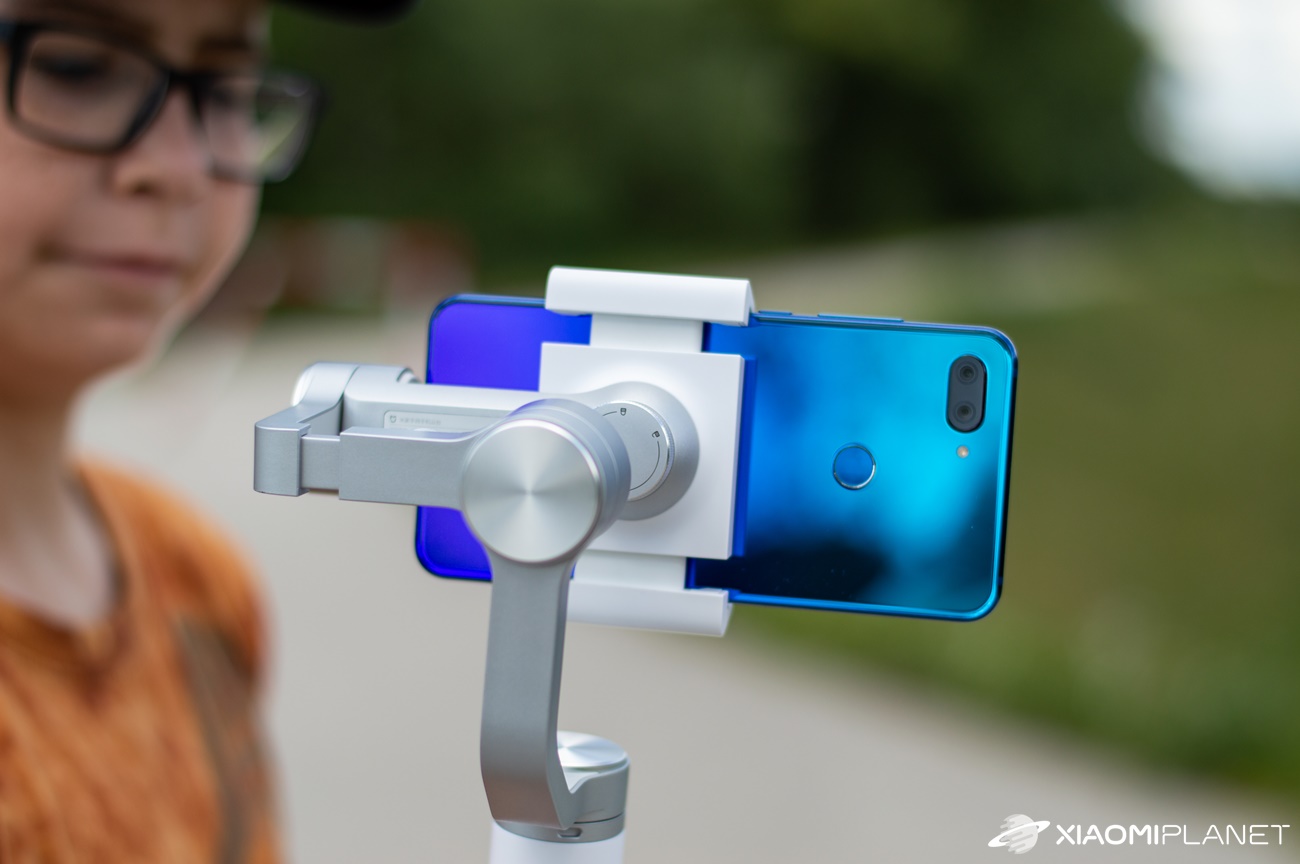
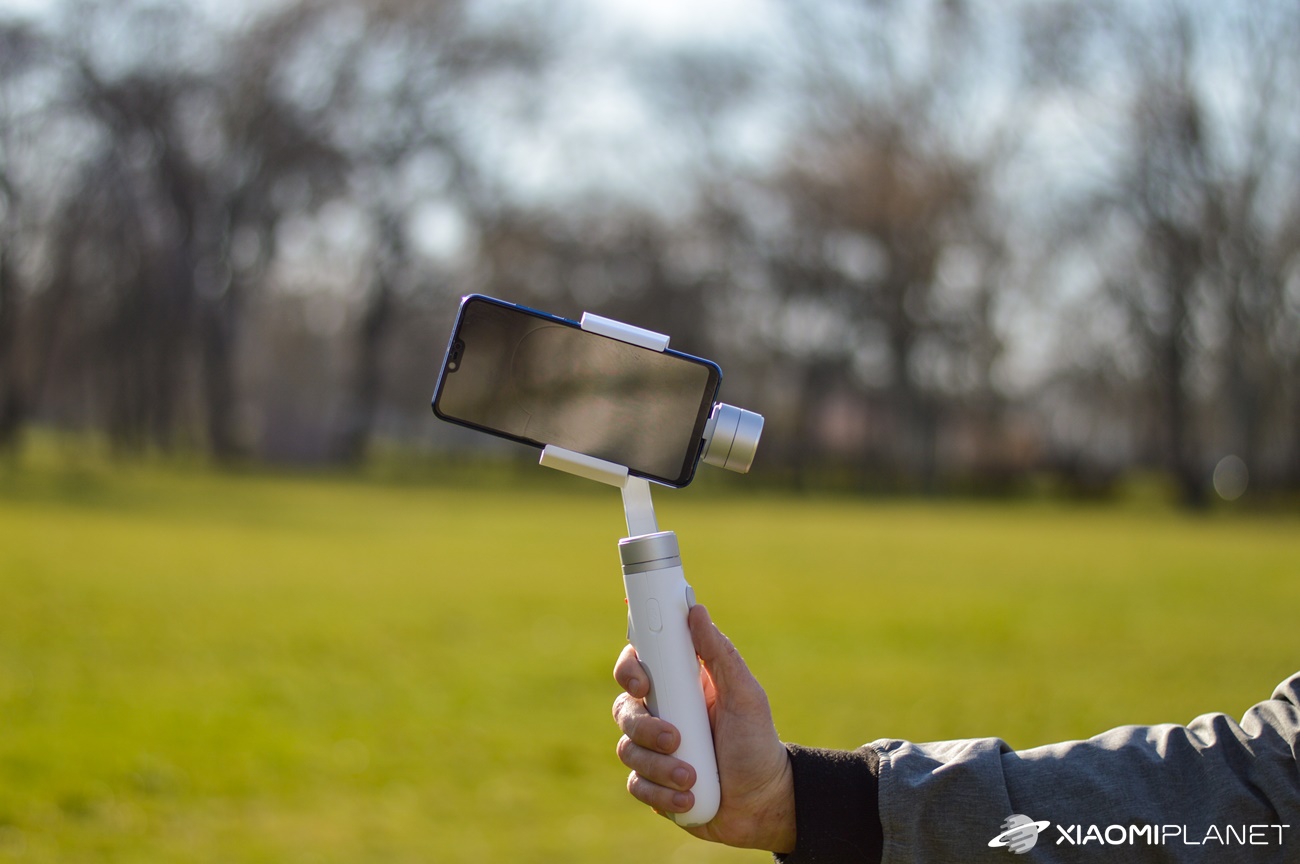
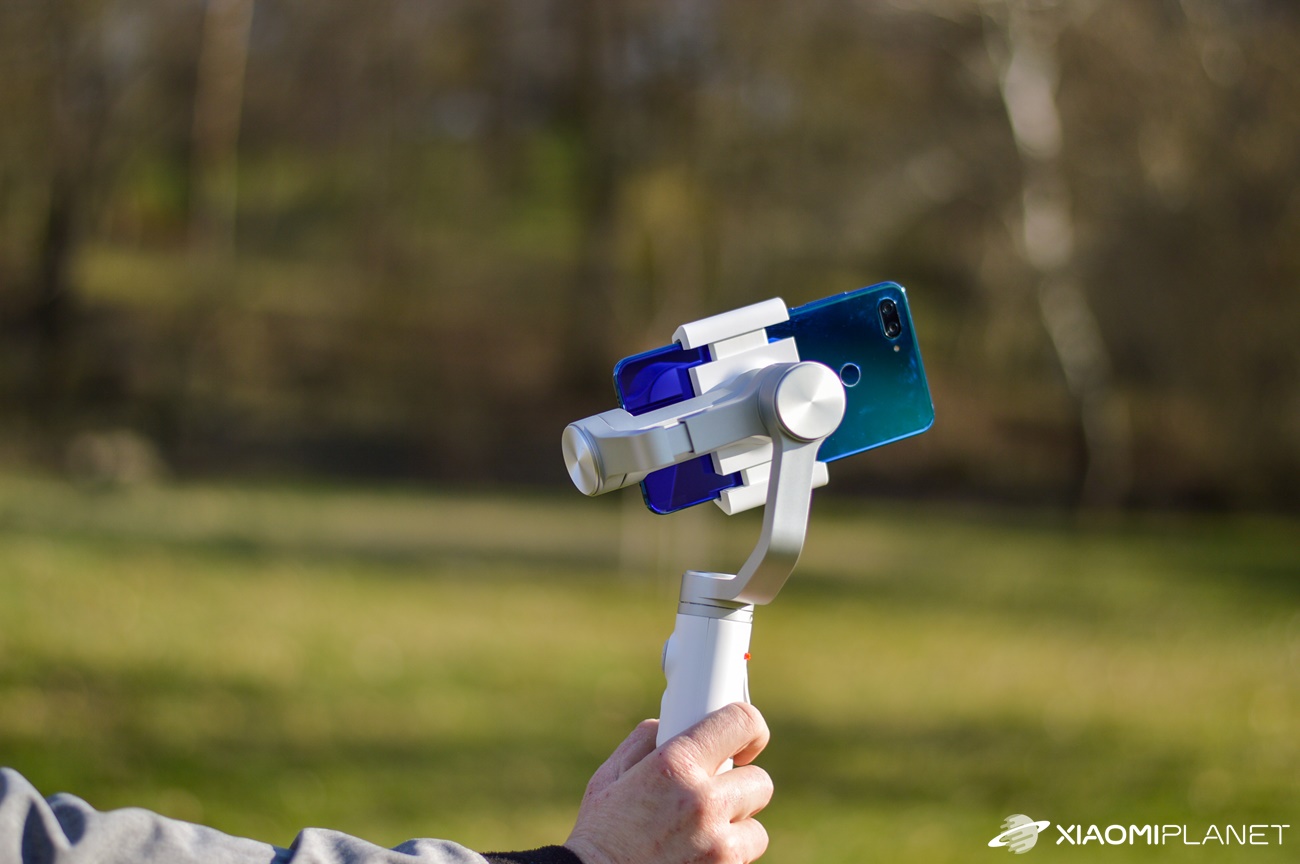
The smartphone mounts in a standard way, like you know from car holders. Simply pull the top and bottom parts apart and the phone will click into place by itself. The phone on the gimbal is held really firmly, so you don’t have to worry about it falling out.
All contact points with the phone are rubberized to prevent scratching your smartphone or the action camera that’s also compatible with the gimbal. After inserting the smartphone, you need to center it. For this, there’s a screw thread that, once loosened, lets you extend the gimbal arm.
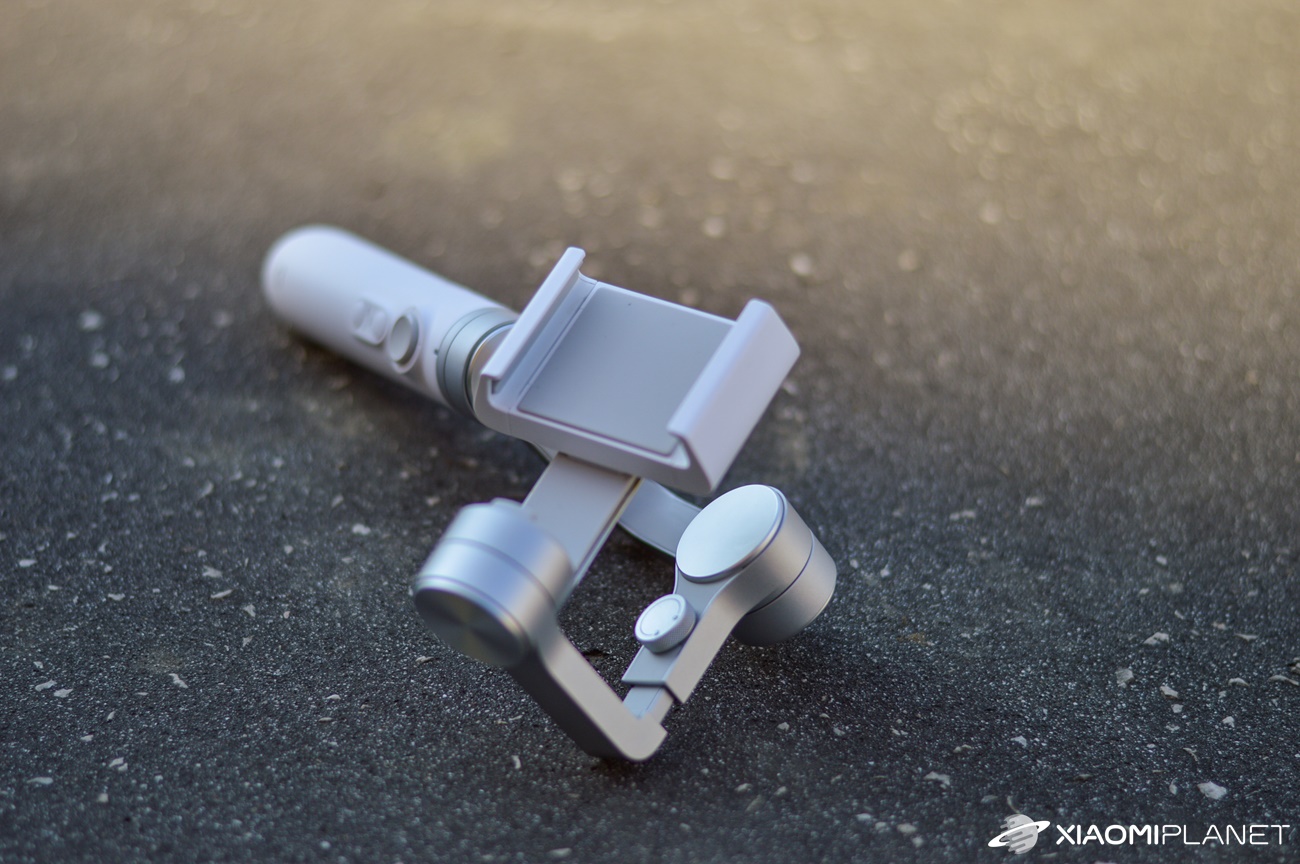
This step is very important, because with the correct centering you’ll help the motor a lot and achieve better battery life. The Xiaomi Mijia gimbal can work with smartphones up to a maximum weight of 200 grams and a width from 56 to 86 mm.
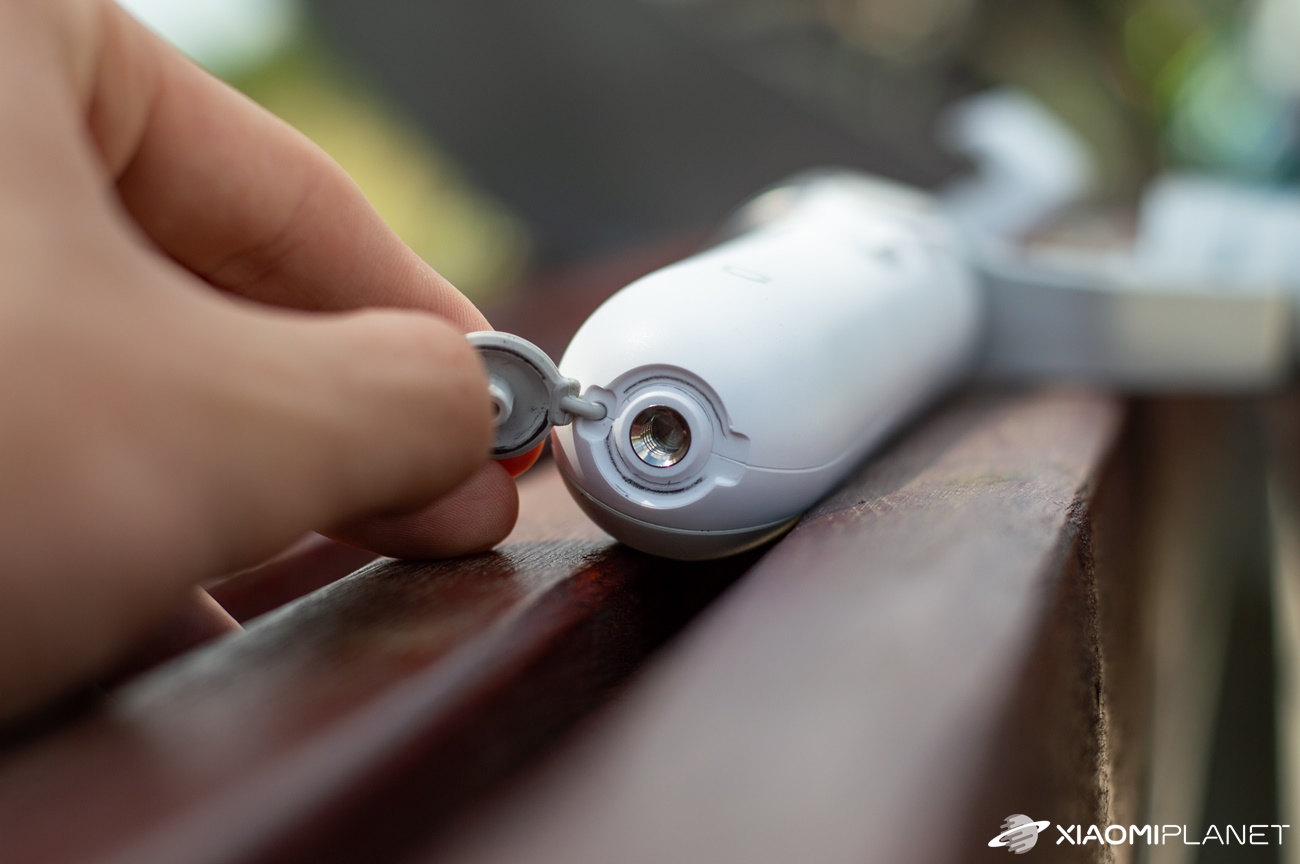
At the bottom there’s just the standard screw thread you’ll also find on tripods.
Connecting to the smartphone
The Xiaomi Mijia stabilizer, as well as all others, lets you connect the gimbal to your phone. The connection is made via Bluetooth 4.0, using the Mi Gimbal app.
In the included manual—even though it is completely in Chinese—you’ll find a QR code that, once you scan it, will take you to a link where you can download and install the app. The app used to be available on Google Play and the App Store as well, but currently it isn’t there anymore.

The Android app can be downloaded using this link from the official FIMI website https://fimiservice-newus.mi-ae.com/downapp/downFimiApp.html
Manufacturer website: https://www.fimi.com/mi-smartphone-gimbal.html
First, you need to turn on the gimbal. The mentioned light indicator will blink blue at this moment. Immediately after launching the app, you’ll need to sign in with your Google or Mi account and then select the region you’re in.
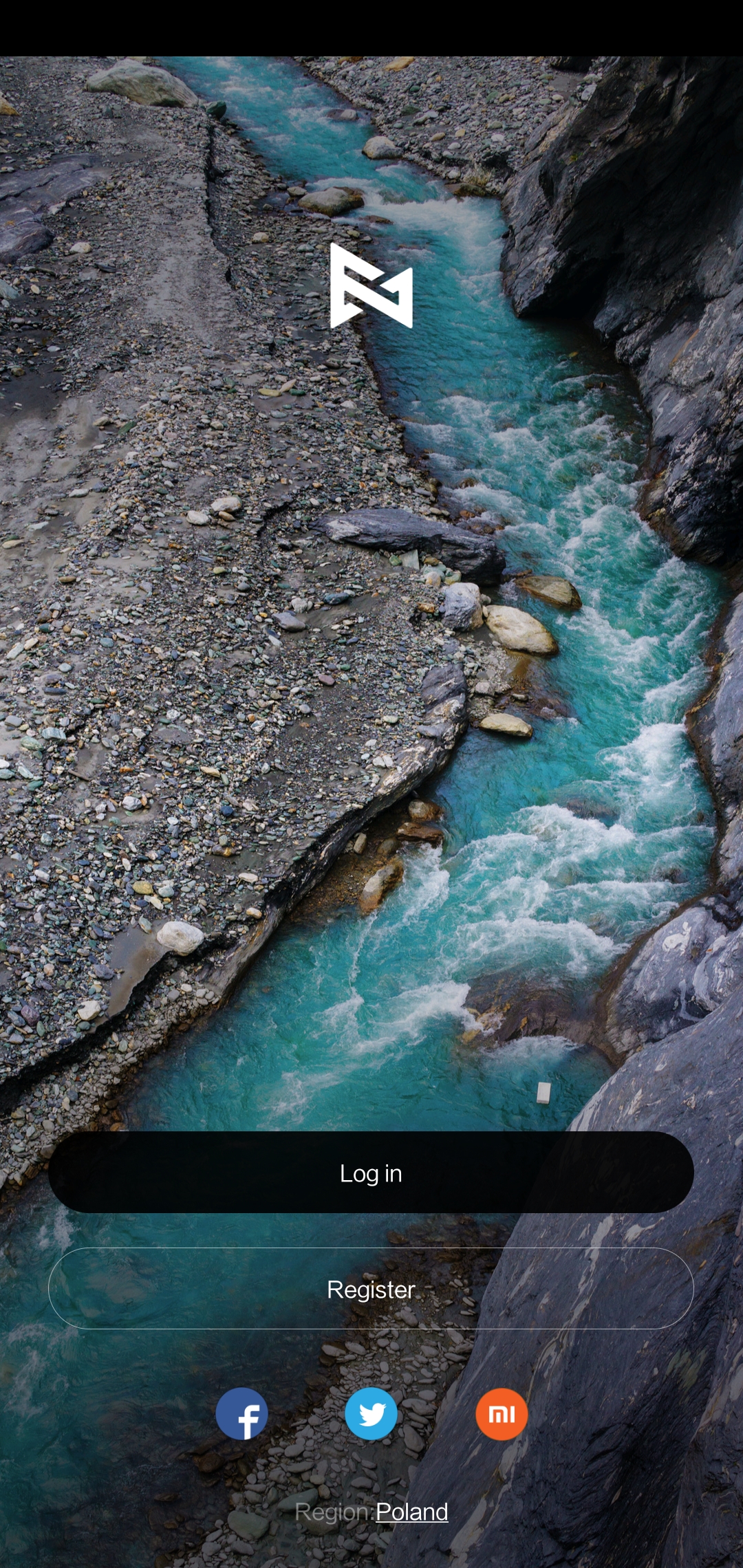
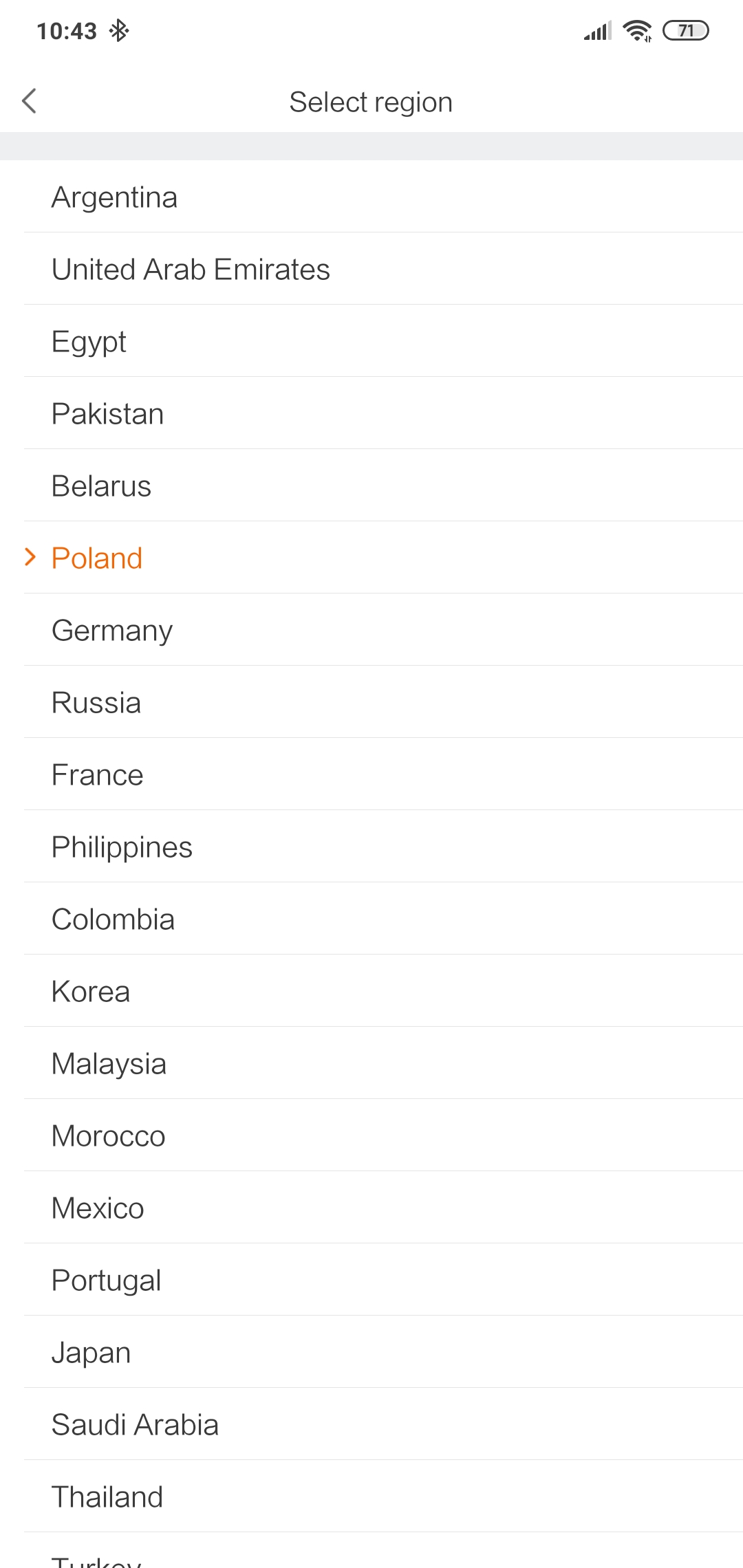

Since we couldn’t find Slovak there during testing, we selected the Poland region. You’ll also need to enable the GPS service. After that step, you’ll be in an environment similar to a photo app and you’ll be able to see a live preview of what your camera is capturing.
In the top-left corner, you’ll see a Bluetooth icon. After tapping it, a list will open where the gimbal ready to connect should appear within a few seconds. The device name in our case was MiGH_020124.
As for connectivity, during use we didn’t have a single problem with poor connection or a weak signal, even though we’re using the older Bluetooth 4.0. After a successful connection, the indicator light will be blue.
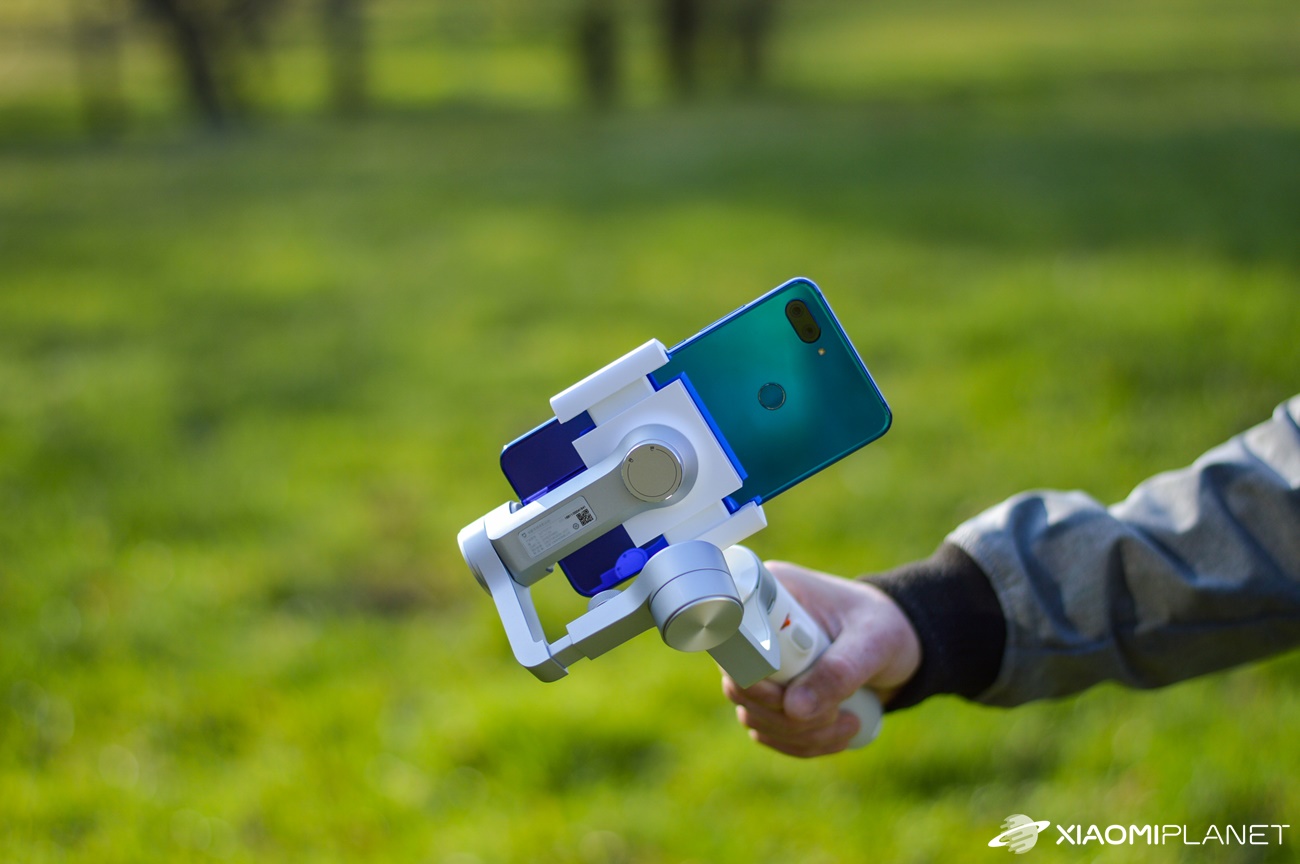
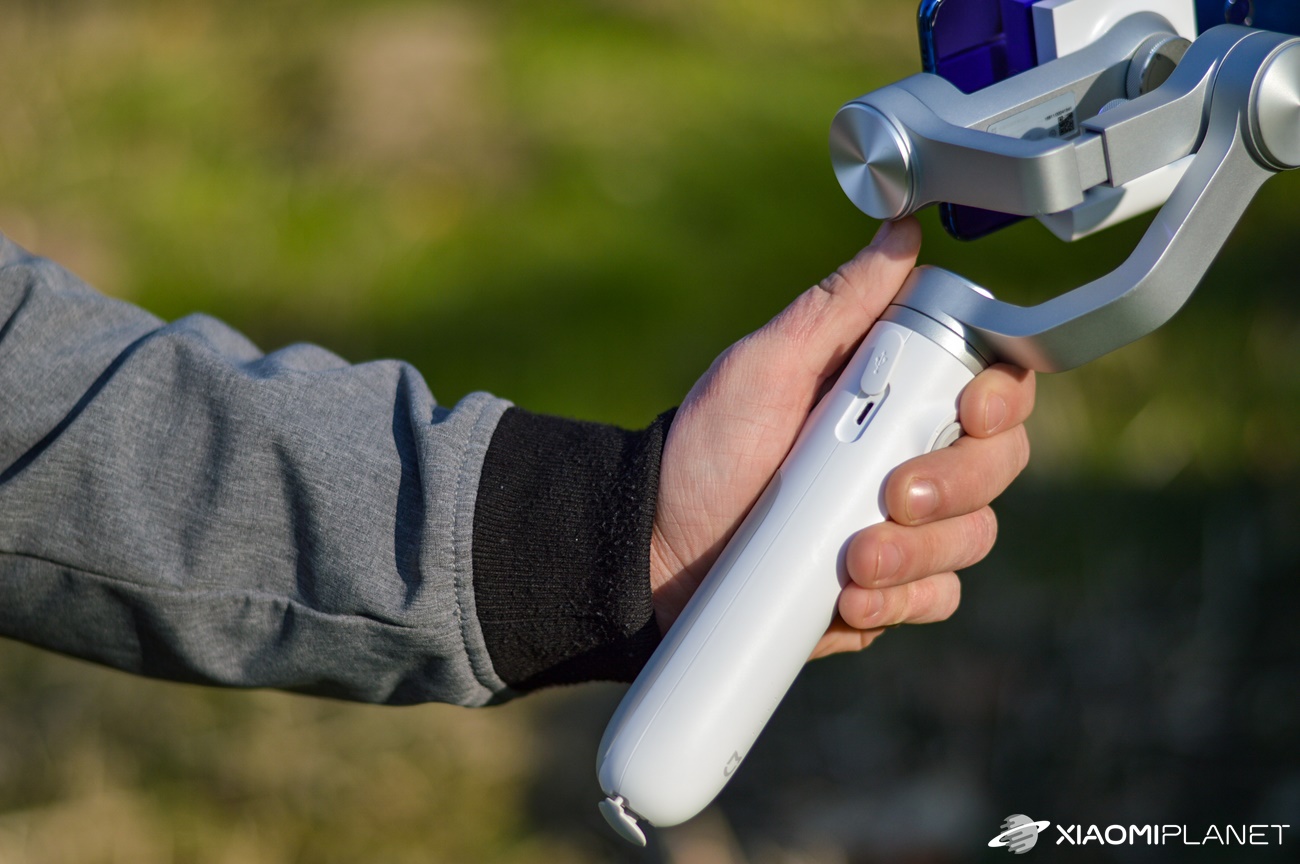
The gimbal can work in 4 basic modes. The first is the classic horizontal mode, the second is vertical. In the third mode, you can flip the gimbal upside down, and the last—fourth—is the so-called „flashlight“ mode.
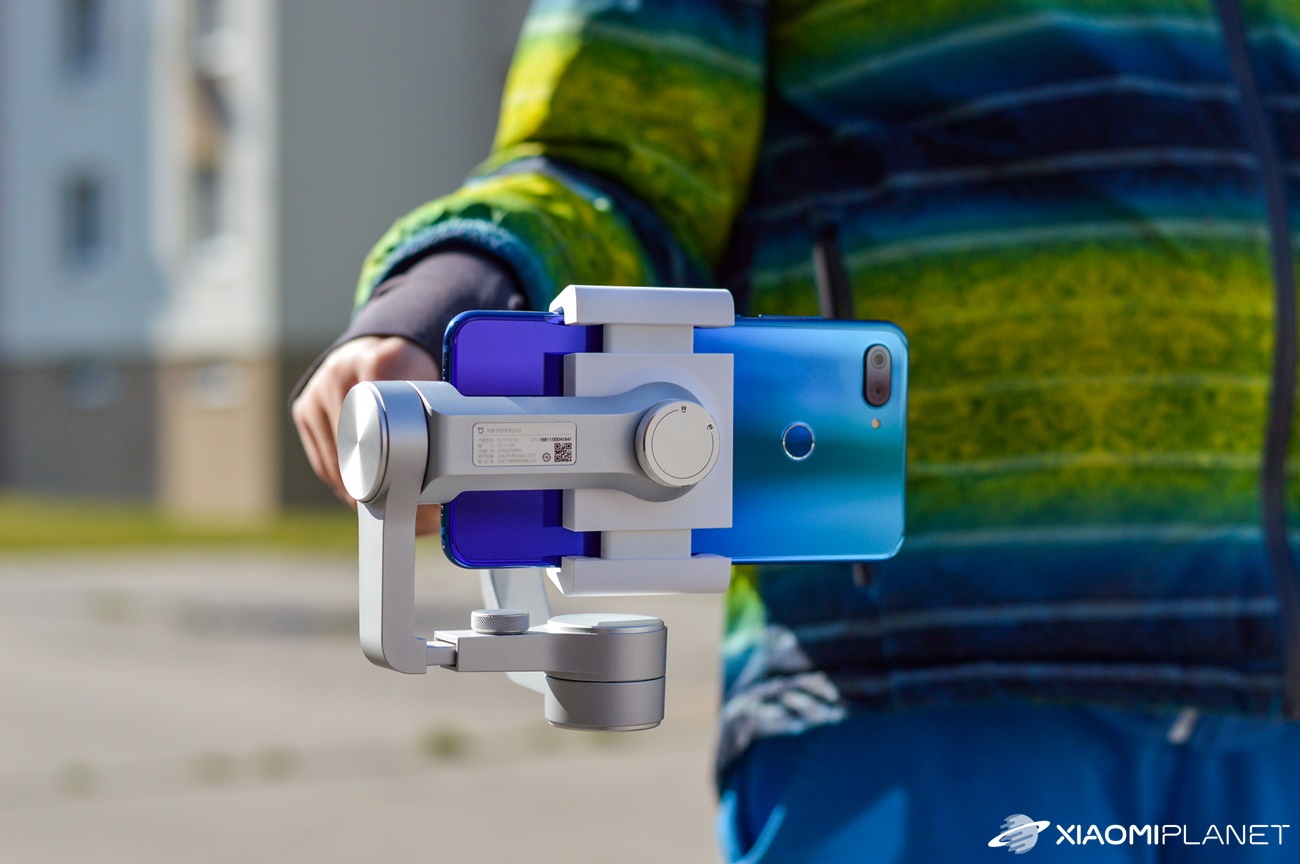
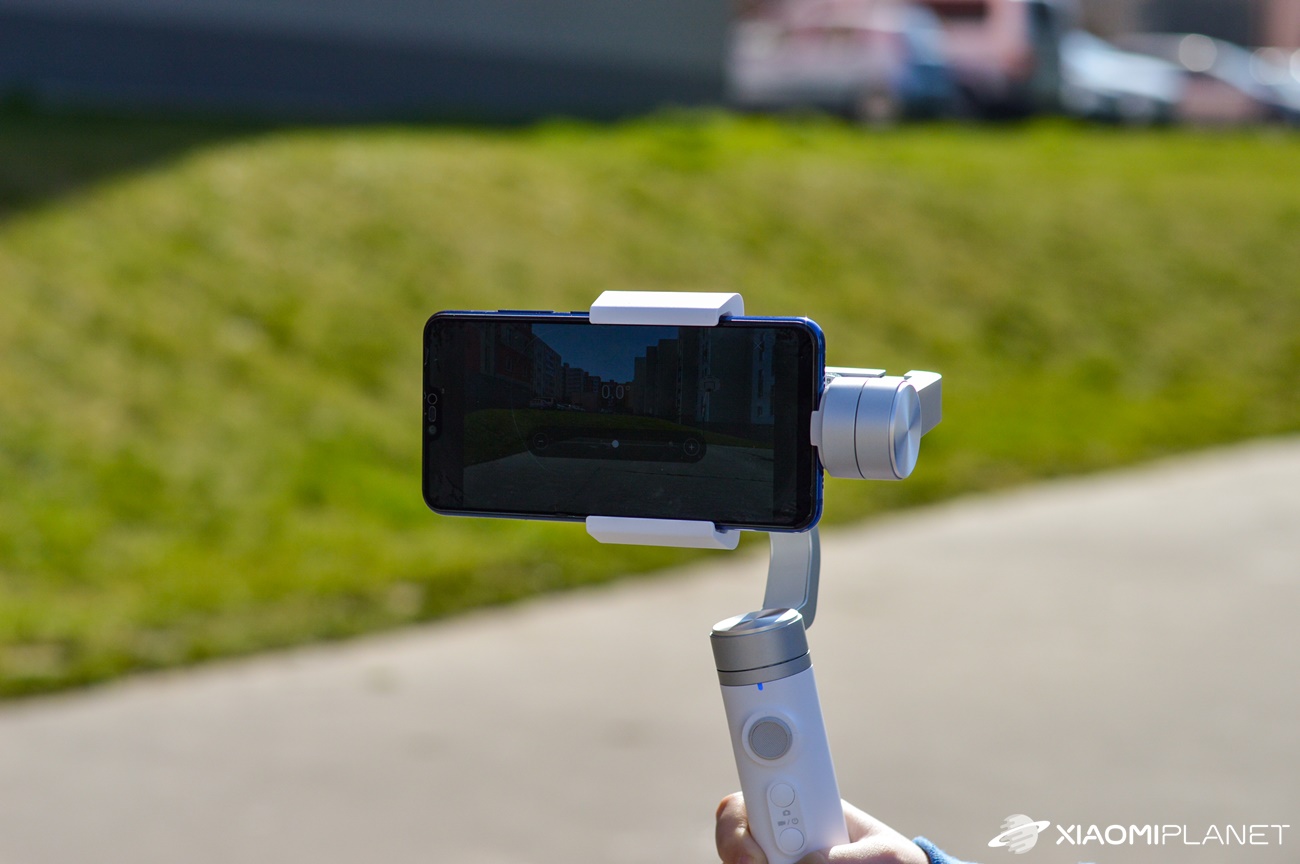
We tested the gimbal with an older Mi 8 Lite smartphone. In the app, you can record at resolutions of 4K (3840 x 2160 pixels), Full HD (1920 x 1080 pixels), and HD (1280 x 720 pixels), with a maximum adjustable frame rate of 30 FPS. If you want to record at 60 FPS, you’ll have to use the built-in camera app directly on your smartphone.
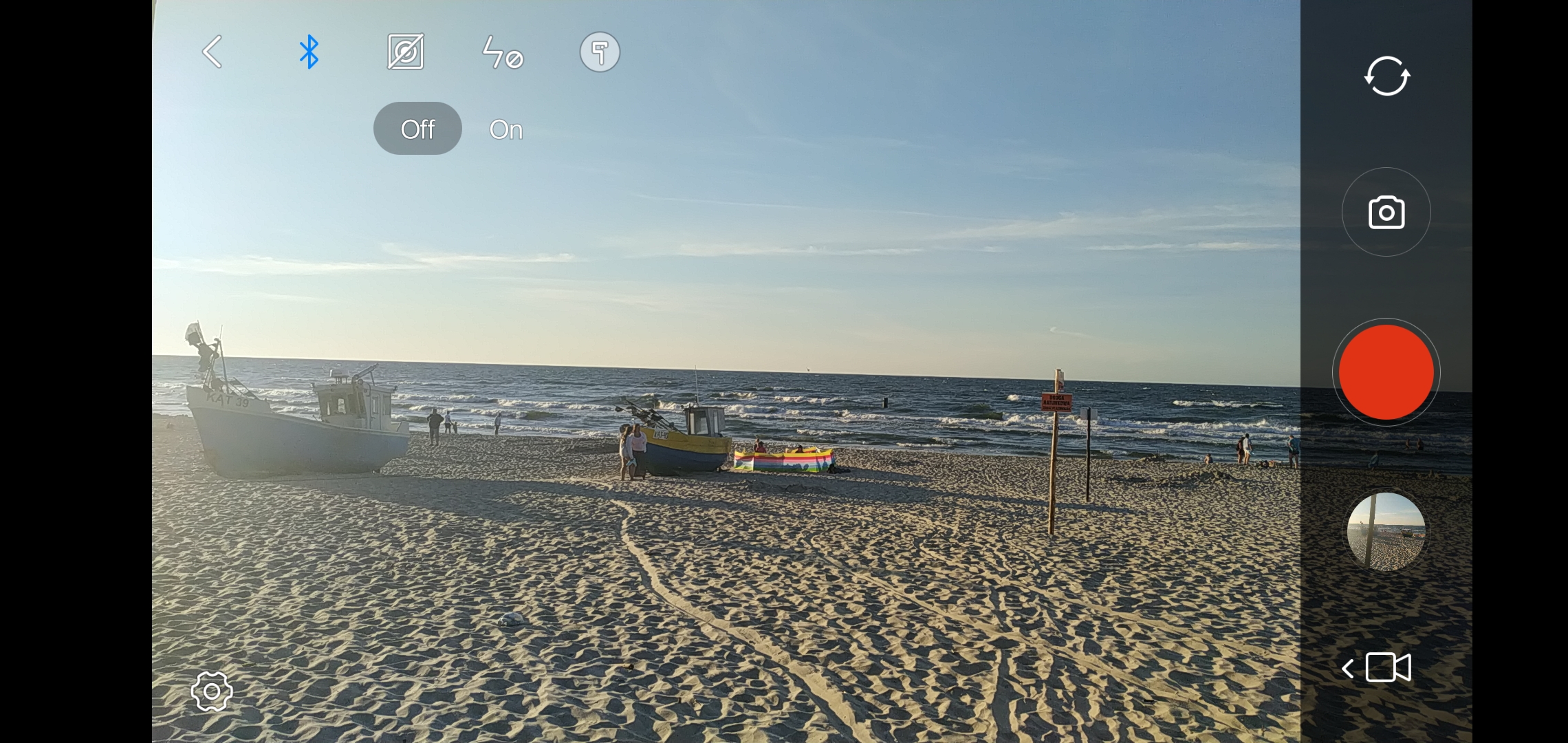
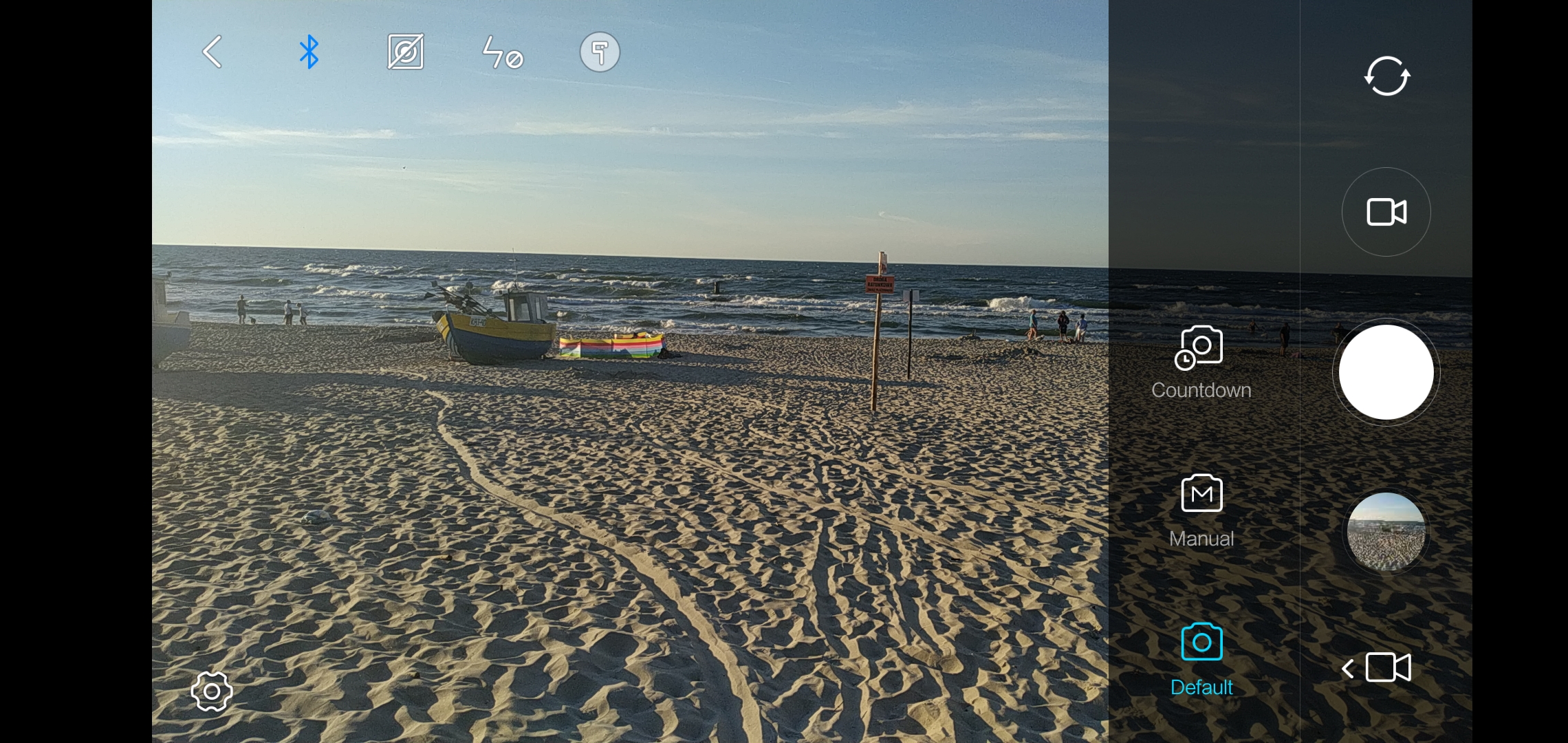
The app interface is quite clear and offers plenty of features. As you can see in the screenshot, the app has almost the same interface as the phone’s photo app. Below, we’ll describe the individual functions that we, as amateur videographers, appreciated.

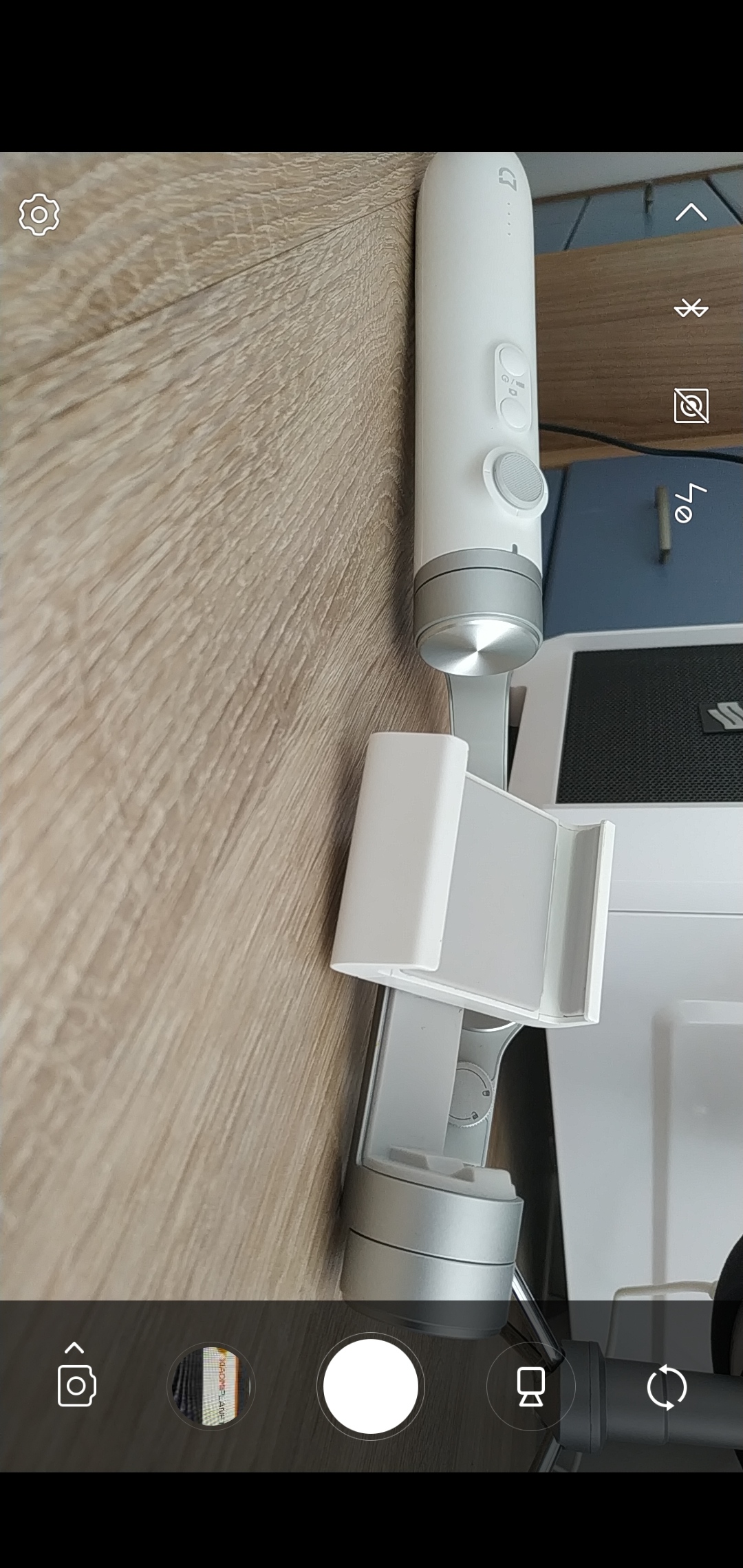
The first one is object tracking. After selecting this function, the gimbal will track the objects you mark while they’re moving. Simply draw a rectangle with your finger over the selected object, and the gimbal will handle the rest for you.
A very useful feature when filming kids, pets, or anything else that moves around. You can also use it when you want to capture a nice, elegant shot and need the tracked object to stay in the frame. Just be careful when the object—or you—moves too fast. In that case, the gimbal’s tracked subject may slip out of view.
Two other very interesting features are “Time lapse” and “Move lapse”. Both are designed to create a sped-up video—the kind you’re used to with time lapse.
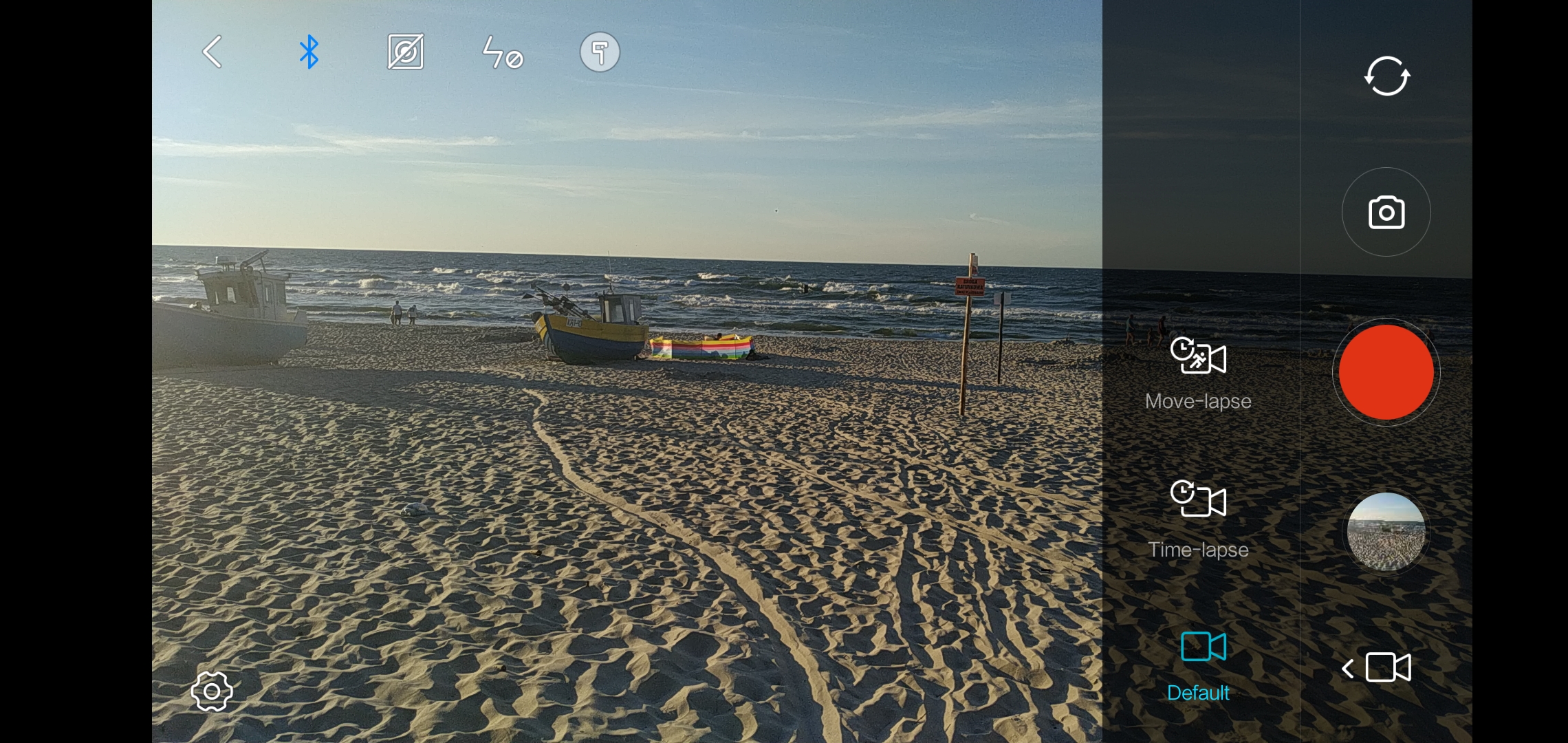
The difference is that Move lapse automatically captures the image based on the selected gimbal positions. In practice, that means you can choose multiple positions, add them to the shooting sequence, and the stabilizer will do the whole recording for you. With this feature, you can easily get perfectly shot time-lapse video.
The slow-motion feature is also available, but it’s limited to use with iPhone devices—so if you have Android, you won’t find this option in the menu.
For photo shooting, the app doesn’t offer many options. The only thing you have available is a manual mode where you can adjust only white balance and the timer. For the timer, you can set an interval of 3, 5, 10, and 15 seconds. There’s also an option to turn the flash on or off.
An extremely useful feature is gimbal protection. If the motors are blocked for a short time, the gimbal will automatically shut off all its stabilization motors. A very appreciated function if the gimbal is not balanced properly, falls over, or somehow turns on by itself.
After thoroughly checking all possible obstacles, by double-clicking the trigger button, the gimbal will center itself again and be ready to use. During this gimbal protection, the indicator light will be glowing red.
There’s also a shut-off timer here. After a few minutes of inactivity, the gimbal will turn itself off.
More detailed gimbal settings
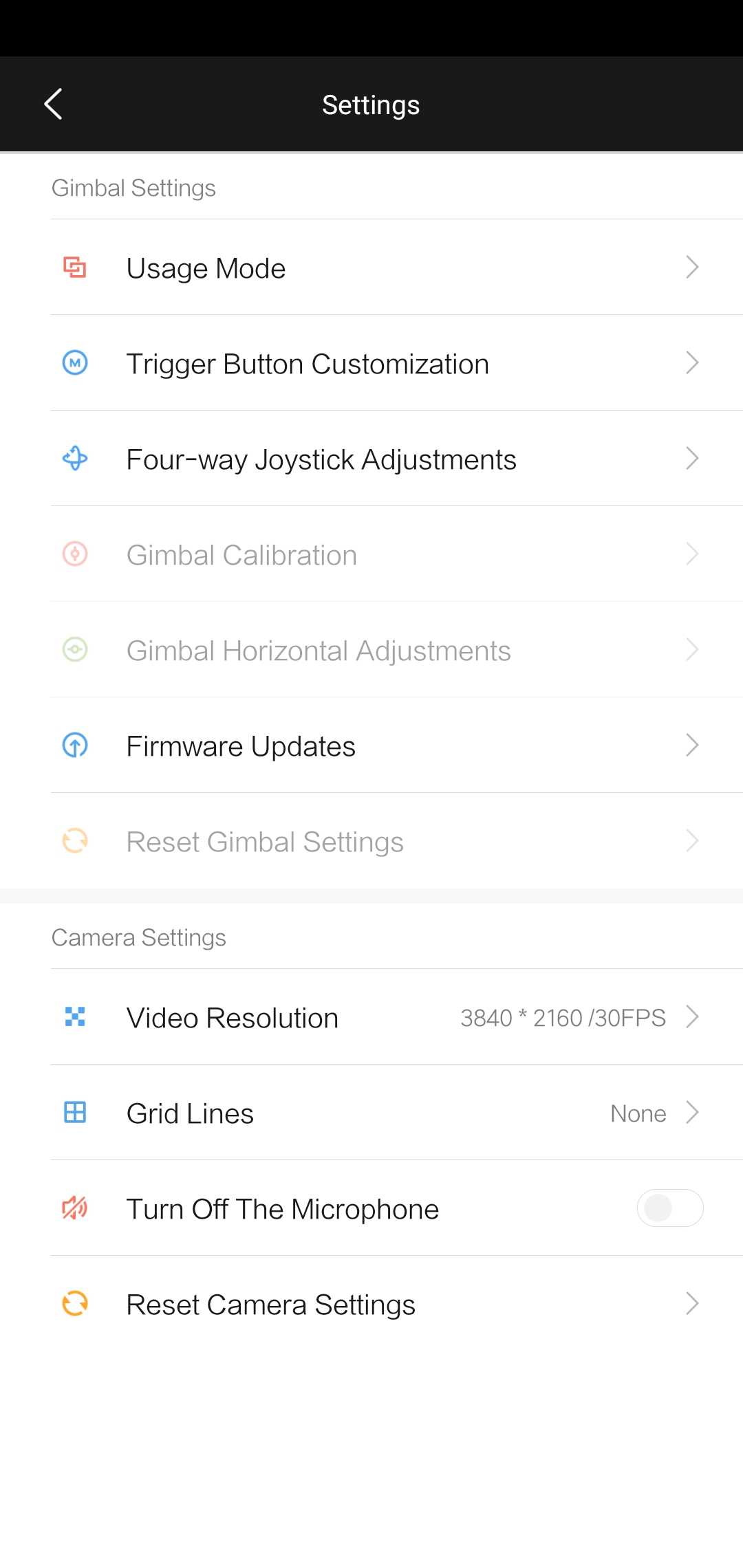
In the Settings section, you can easily configure the gimbal to suit your needs in just a few clicks. Let’s go step by step. After clicking the first row, a menu will pop up where you can choose between three setup options.
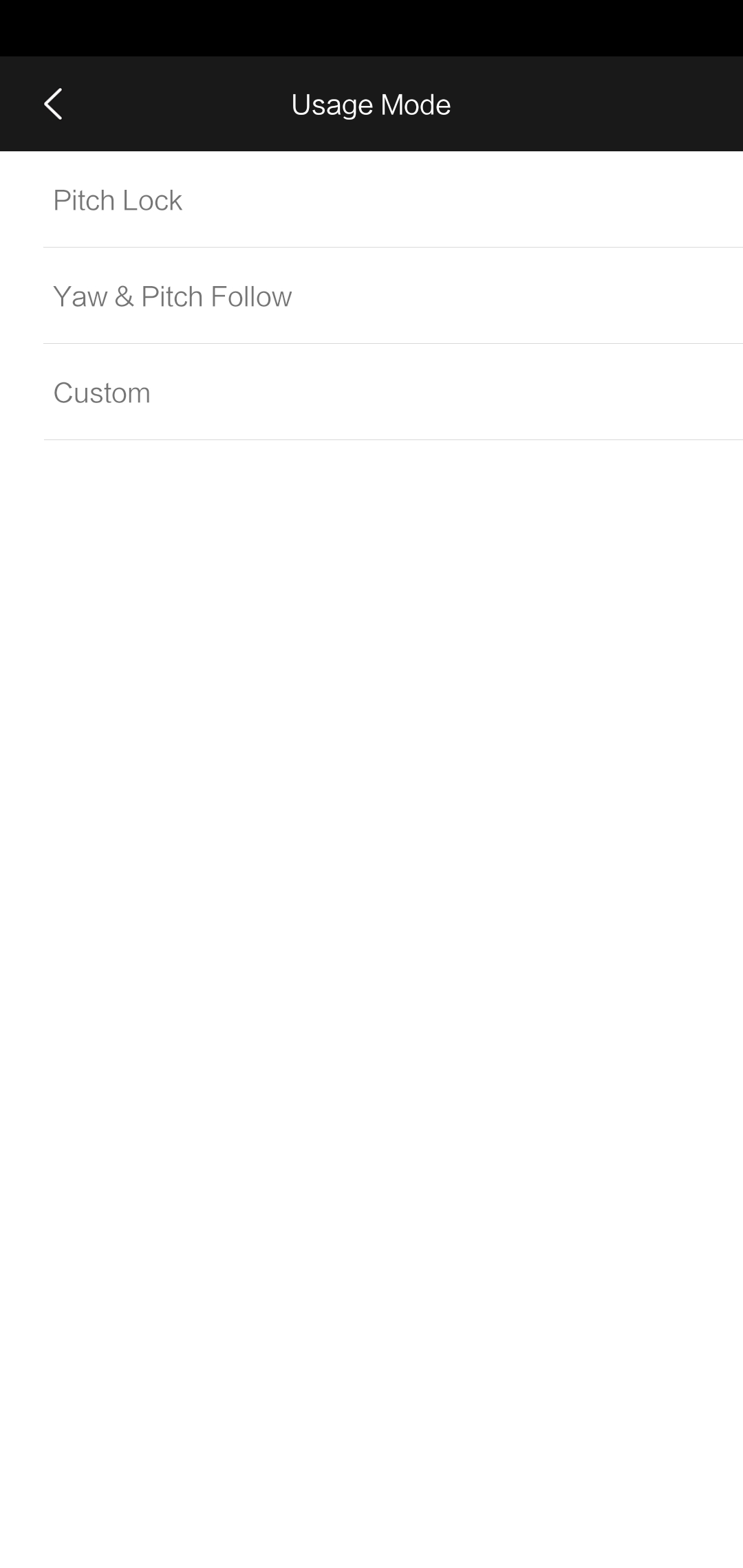
The first one, “Pitch Lock”, locks the gimbal position aimed at a single spot. The second, “Yaw & Pitch Follow”, is similar to the previous one, but in this mode the gimbal locks all motors, so it will track the moving position precisely. The “Custom” option lets you set the tracking speed in the previous modes.
The second section in the settings is “Trigger button”. In this section, you can map a wide range of functions to it. The trigger button works in 3 different types. The first type is when you press the button once.
Then you can set whether you want the gimbal to take a photo, lock the position, start and stop video recording, or start tracking your movement—as we mentioned with the Pitch Follow function. If you press the button twice in a row, the gimbal will center itself and move to the home position.
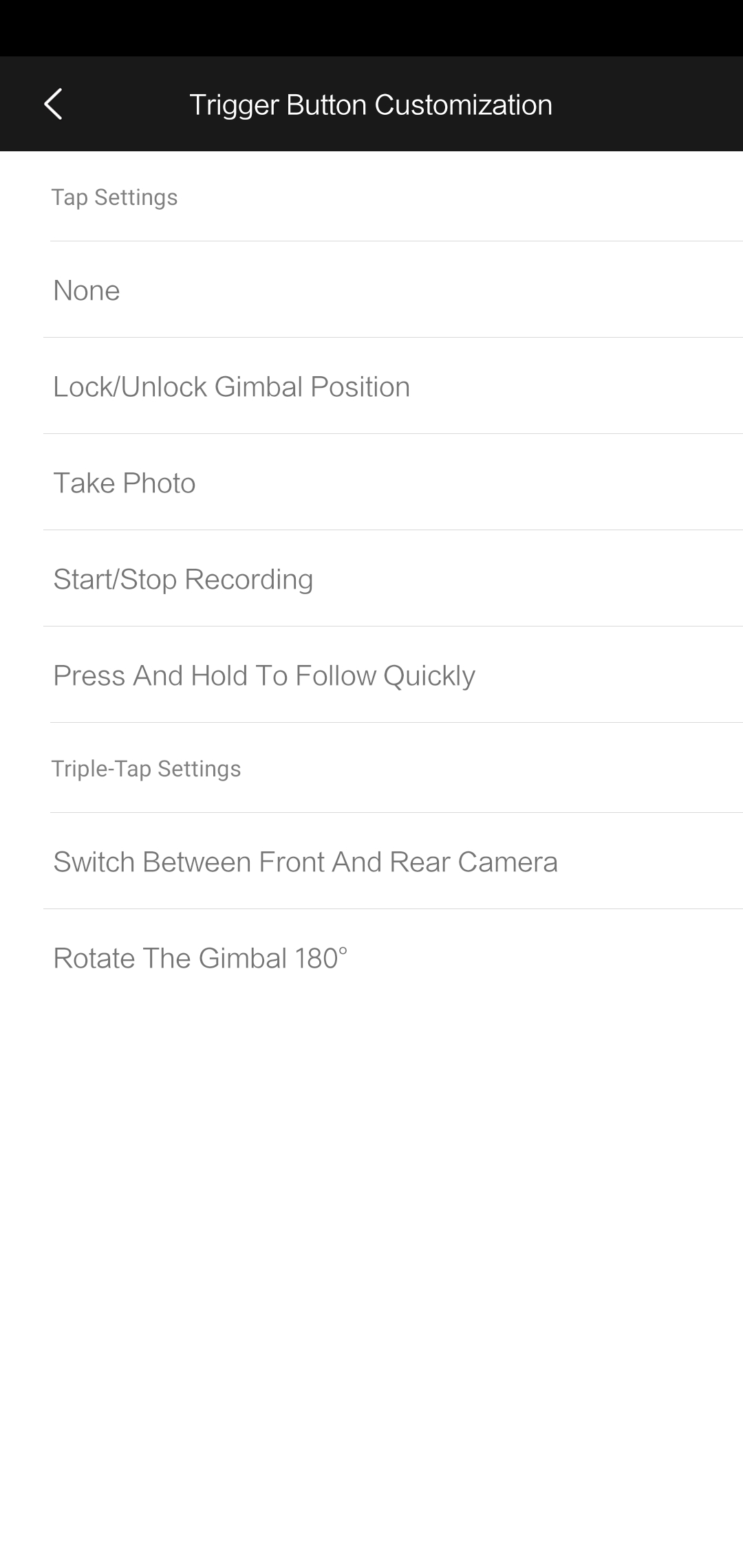
If you press the button three times, the gimbal will either rotate by 180° or switch recording between the front and rear cameras. The downside is that switching the camera doesn’t work while recording. If you want to say something in the video, use the gimbal rotation feature by 180° instead.
After clicking the third row, you can simply change the gimbal rotation speed. The rotation speed is given in degrees per second, °/s. If you want to shoot slow, cinematic footage, you can choose the lowest possible speed of 10 °/s, or if you want a fast, responsive response and speed, you can choose a speed up to 100 °/s.
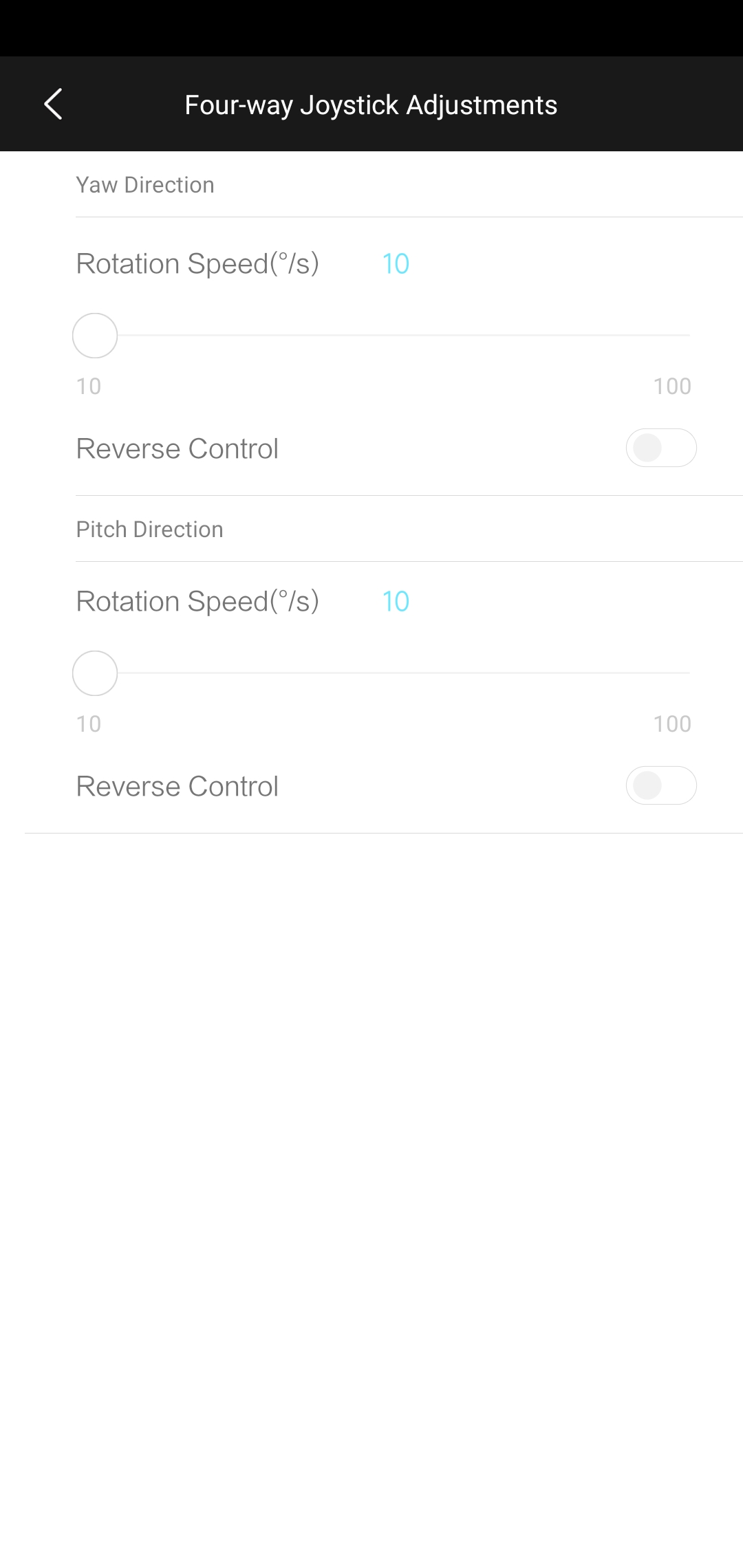
In addition to changing the rotation speed using the motors, you can use the inverted control function. That means if you want to tilt the phone to the lower position, you’ll need to move the joystick in the opposite direction—so upwards. Personally, it confused us more during filming, so we decided to keep this feature turned off.
As part of the fourth setting, you can set the horizontal tilt level. The maximum tilt level is 10° for each side. We didn’t use this option because we wanted a horizontal video, and when the tilt differs, the gimbal centers the whole scene for you.

Another item in the settings is gimbal calibration. After you start the calibration, the individual motors gradually turn off and on, and that’s how they calibrate. The whole process is done automatically by the Mijia gimbal. All you need to do is hold the gimbal steady without moving it.
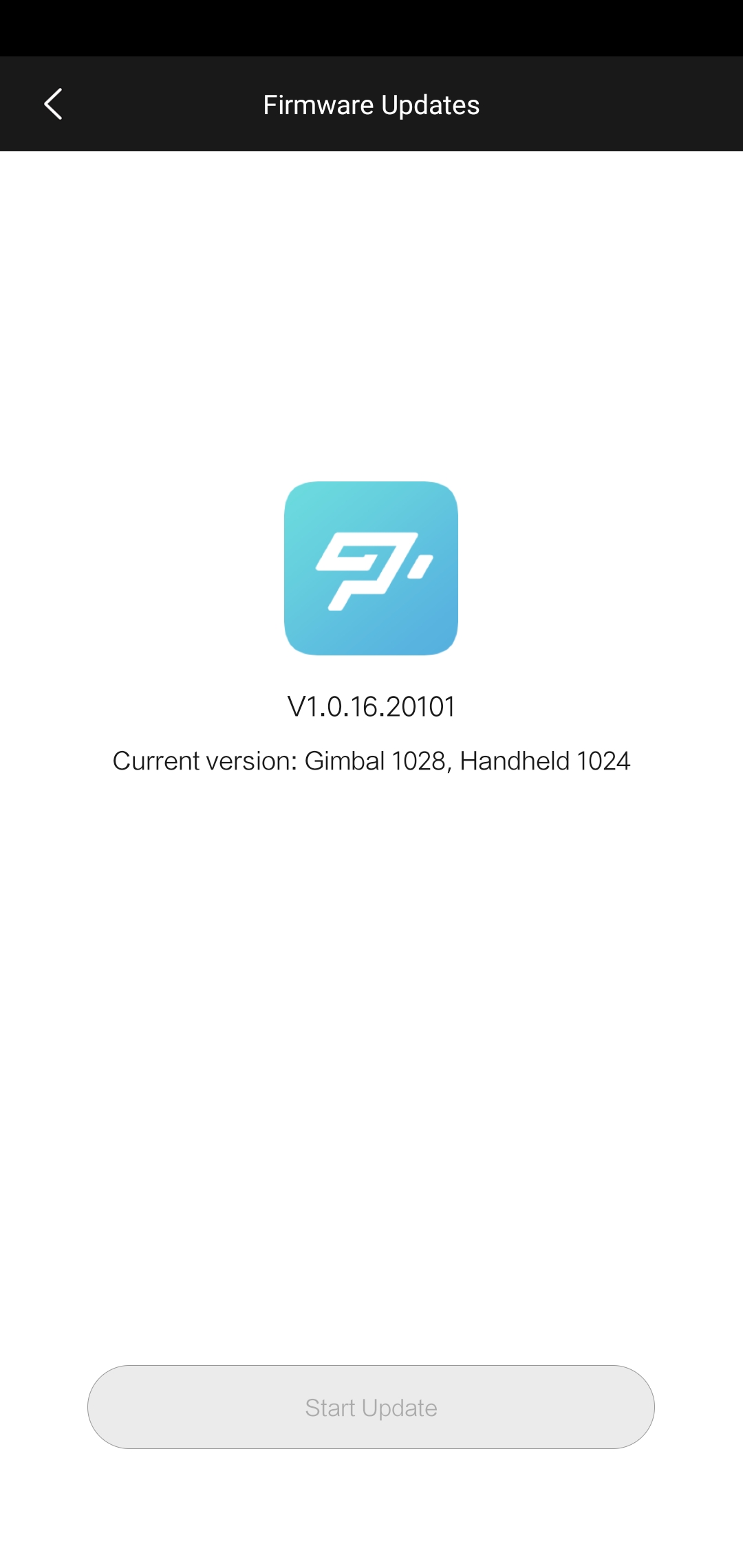
The second-to-last line is for firmware updates. After the first startup, it’s a good idea to check several times in a row whether a new version is available. The latest available version at the time of testing was V1.0.16.20101.
At the end of the first part, there’s only the option to reset all gimbal settings back to the factory state. Updates will remain saved.
Video settings
So far, we’ve covered the gimbal settings themselves. Now we move on to the settings of your phone camera.
In the first line, you can set the resolution of the video capture. You can choose from 4K (3840 x 2160 pixels), Full HD (1920 x 1080 pixels), and HD (1280 x 720 pixels). We recommend selecting the highest resolution—in this case, 4K—for the best results.

Second, and also a very useful feature, is the grid. The grid is used very often for overall composition orientation, but especially for shooting photos or filming in the golden ratio.
With the grid, you can easily divide the entire image into thirds to get the best possible result. Available options include classic 3×3 rectangles, rectangles with diagonal lines, diagonals, or a center rectangle.

The second-to-last feature within the video output settings is the option to turn off recording audio. This comes in handy when you’re in a noisy and distracting environment, and you don’t want the surrounding sound in your video.
The last option is there to reset all the settings related to video.
This is a summary of all the possible settings found in the app. The settings are great when you know how to use them properly. If you have any questions about gimbal settings, feel free to write in the comments, and we’ll be happy to help if we can.
Filming with it is real fun
Next, we move from the settings to the actual user experience and an evaluation of the gimbal’s performance.
To start with, it needs to be said that using the gimbal is a lot of fun. The gimbal opens up new possibilities and perspectives you could only dream of without it. Suddenly, the video gets a whole new feel, and the overall video experience is much stronger.
The image stabilization feature works really well. In this price category—where the Xiaomi Mijia Gimbal sits—it’s clearly the winner. The nicely smooth and stable video you can shoot with this gimbal is several levels better than without any kind of stabilization at all.
Watch our comparison videos:
The number of features the Xiaomi Mijia Gimbal has is genuinely useful and practical in the field. However, it’s worth mentioning that sometimes the gimbal has trouble handling certain tilts and angles, and you may end up with a jerky, unnatural movement.
You can also see this jerky movement in our video demo, where near the end the gimbal slightly drifts to the right. But this issue appears really rarely, and in most cases the gimbal does its job brilliantly.
Don’t miss the best coupons 📩
Subscribe and we’ll email you new coupons before they expire. We only send it once a month — no spam.