Verdict: IMILAB EC2
Our editorial rating based on product testing.
- quality build
- design
- water resistance
- two-way audio transmission
- wide-angle image
- occasional false alerts
- weaker night vision
- delay in recording start after motion detection
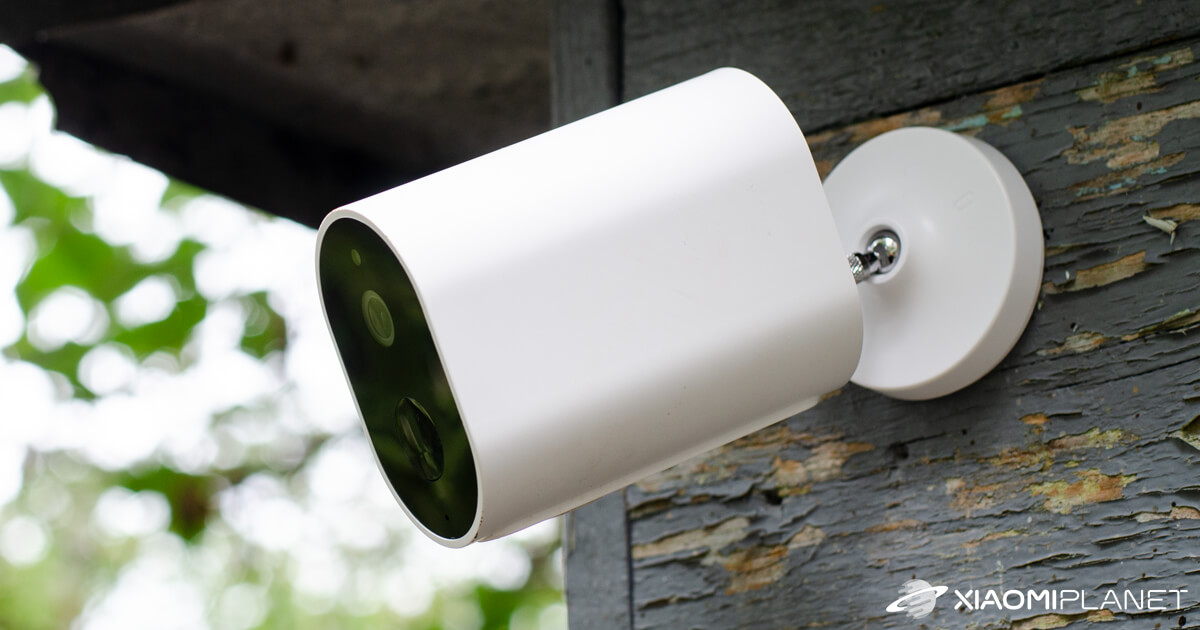
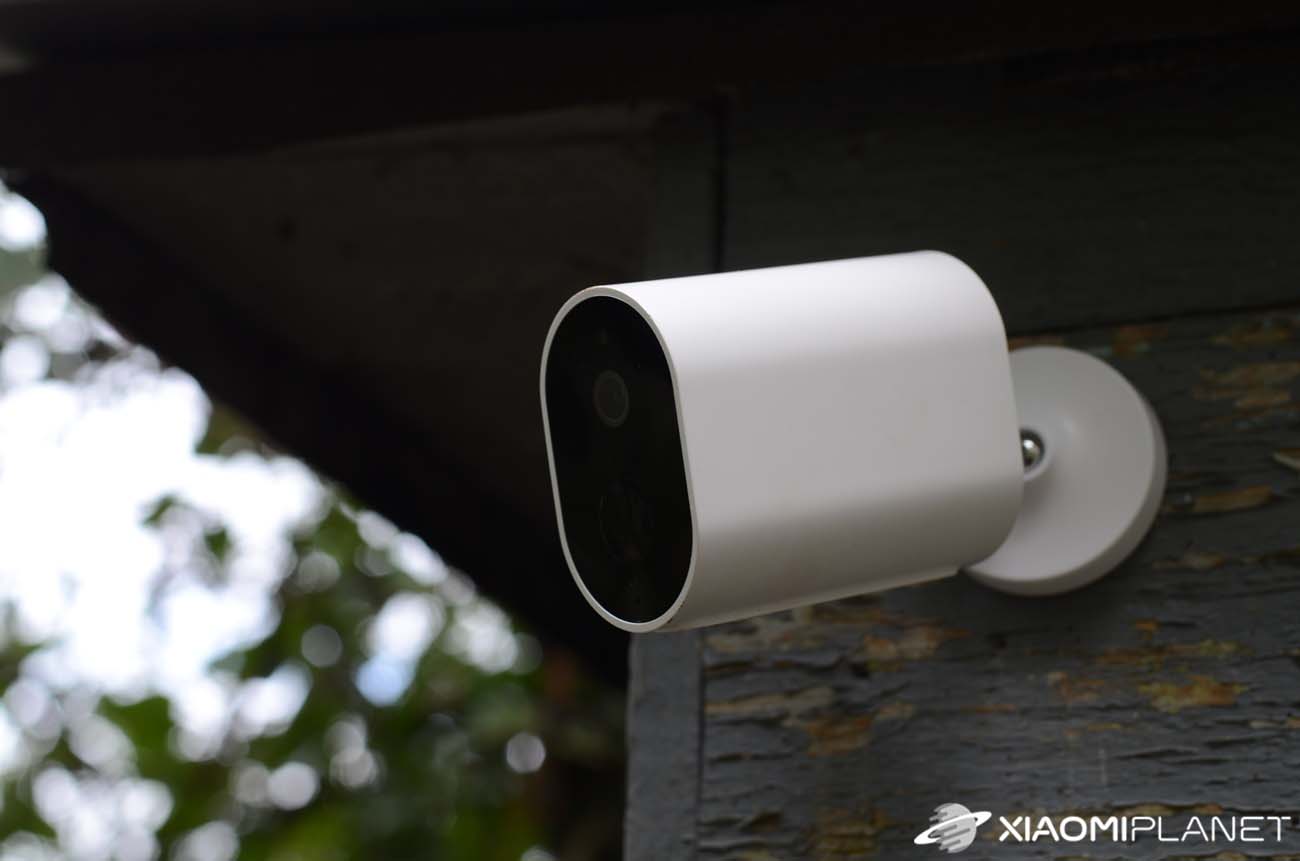
This time we bring you a detailed review of the IMILAB EC2 wireless outdoor camera. It offers water resistance, night vision, a motion sensor, AI support, and a battery with very good endurance.
IMILAB is a company focused on smart home products. It is one of the first brands to be included in the Xiaomi ecosystem. Thanks to AI integration, the company offers home security products such as security cameras.
Price and availability
We bought the IMILAB EC2 camera from the popular seller Banggood. At the moment, various bundles are available, some also in a Czech warehouse. You can buy the camera separately or together with a gateway. There are also several sets to choose from, with multiple cameras in the package (2 to 4).
Imilab EC2 camera European version

TIPFast delivery from the Spanish warehouse with no customs duty and VAT.
This product will be delivered to you quickly from a local Spanish warehouse. Shipping from Spain usually takes 7-10 days and is handled by a courier. When it arrives, you don’t pay any extra fees—no customs duty, no VAT.
TIPShipping absolutely free.
For this product, shipping is available completely free of charge. However, this is the slowest delivery method and the item may take 20 days up to 1 months to arrive.
When ordering from the Chinese warehouse, AliExpress will add the customs duty in your cart—approximately 3,70 € per order. When you receive the package, you won’t pay anything extra.
Basic specifications
First, let’s go through some of the manufacturer’s stated specifications and features.
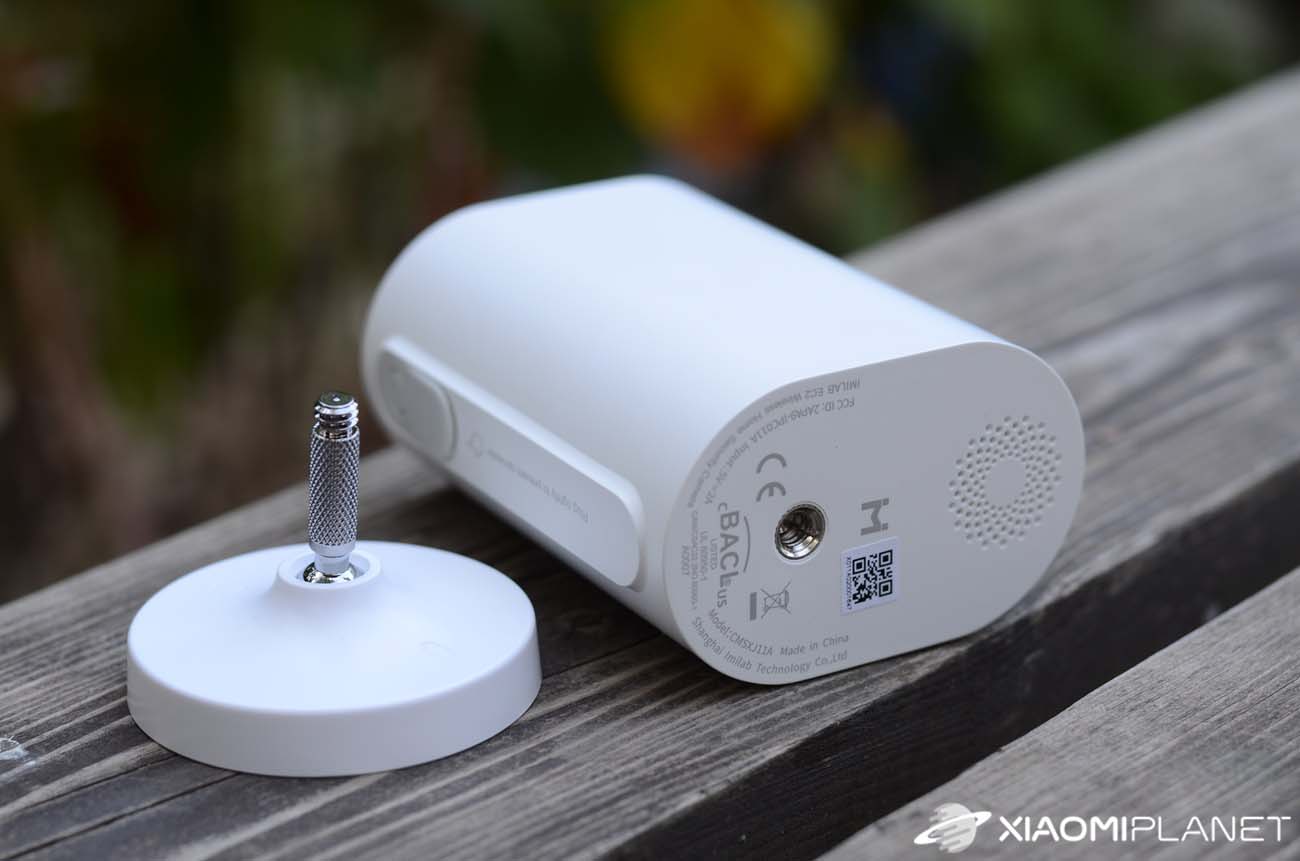
The camera measures 47 x 73 x 140.4 mm and weighs 270 g. It can record video in FullHD resolution 1920 x 1080 px. The sensor has an aperture of F2.6, and the camera is water-resistant with IP65 certification.
It has WiFi connectivity (2.4 GHz) and supports two-way audio. It can save videos to a microSD card with a maximum capacity of 64 GB. The memory card is not included in the package.

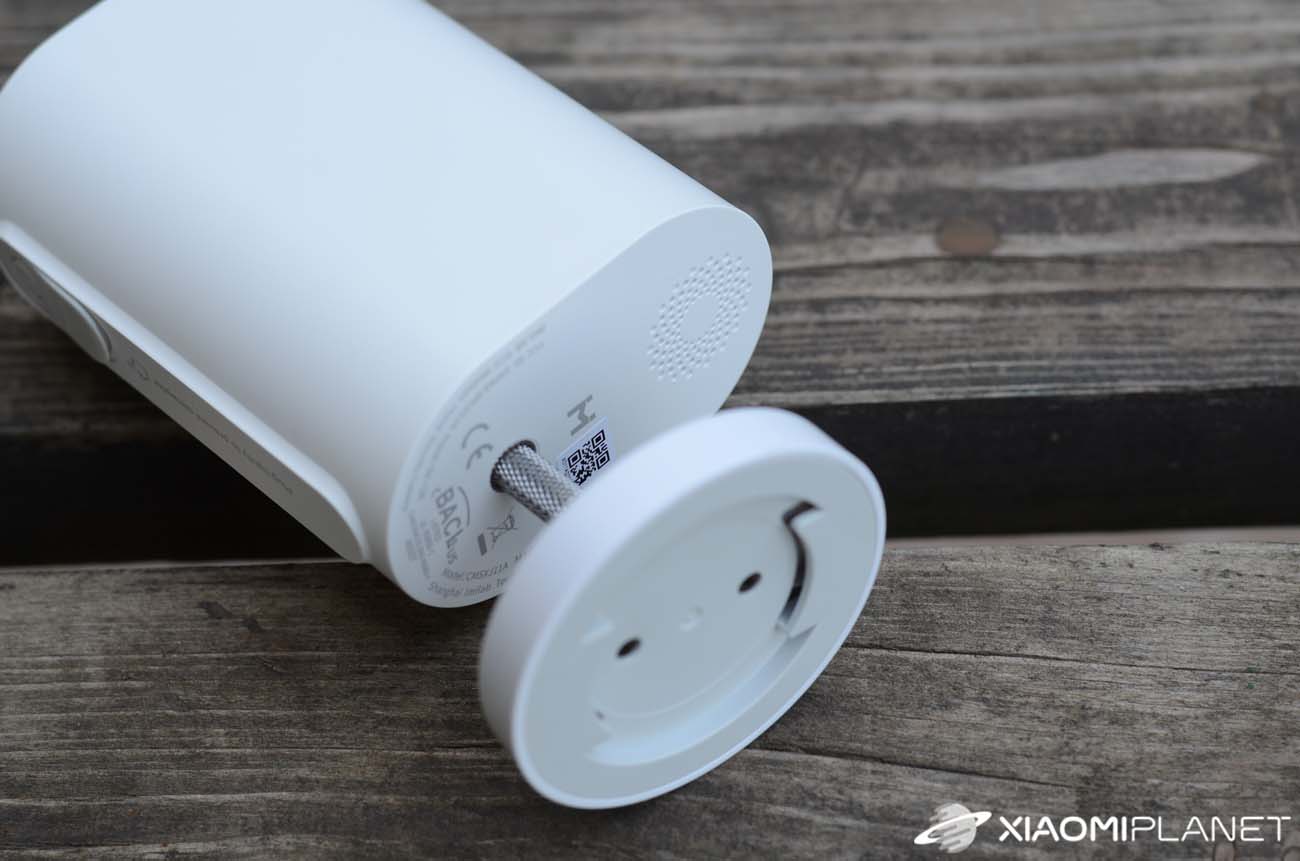
The built-in battery in the camera has a capacity of 5100 mAh. The manufacturer states battery life of up to four months on a single charge, which is a very attractive value. On the front of the camera, under the lens, there is a PIR sensor, and of course night vision is included as well.
The manufacturer mainly highlights the use of artificial intelligence, which can distinguish animals from people and therefore send an alert only when it detects human movement in its field of view.
In our review, we also tested this feature, among others. Take a look with us at how the IMILAB EC2 camera performed in our hands-on test.
Package contents, build quality
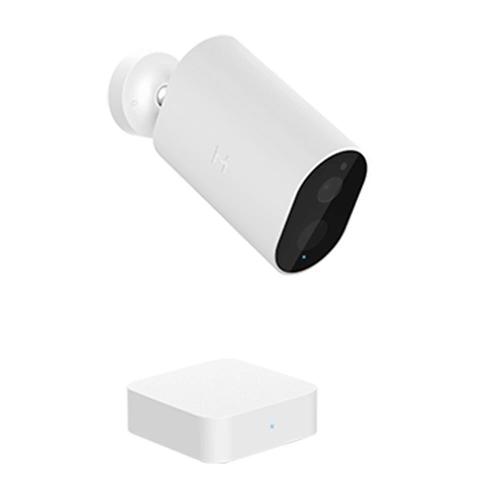
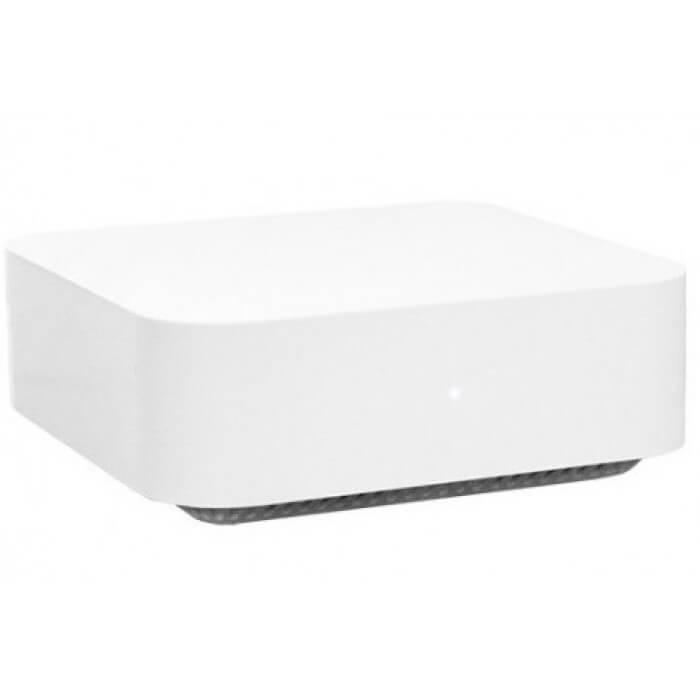
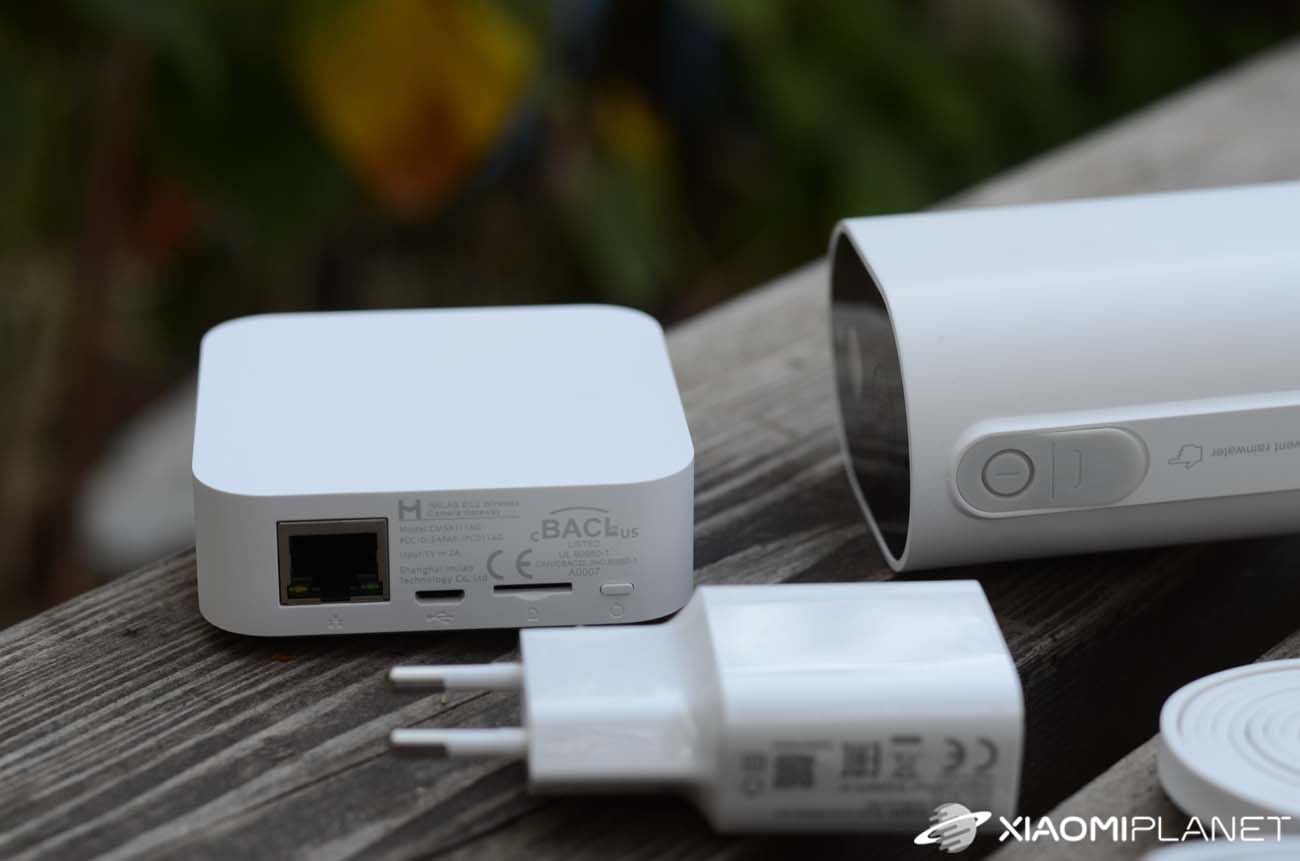
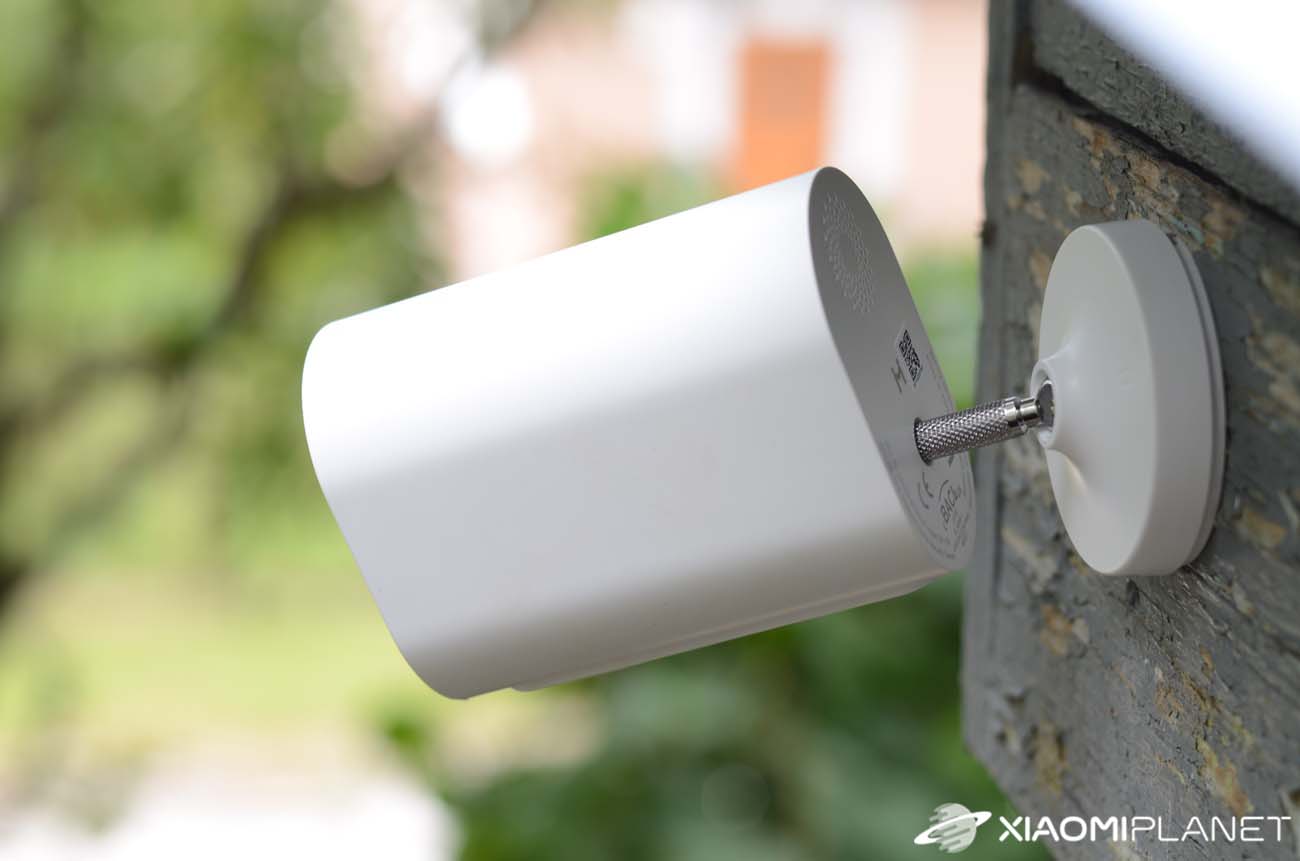
For our test, we received the version that also includes a gateway in the package. Besides the camera itself and the gateway, the package contains a mount for the camera with a joint, a charging cable with an EU adapter, a set of two screws and wall plugs, and a LAN cable.
As a gift, the package also included a self-adhesive ring for those who want to attach the camera to glass or another smooth surface without drilling.
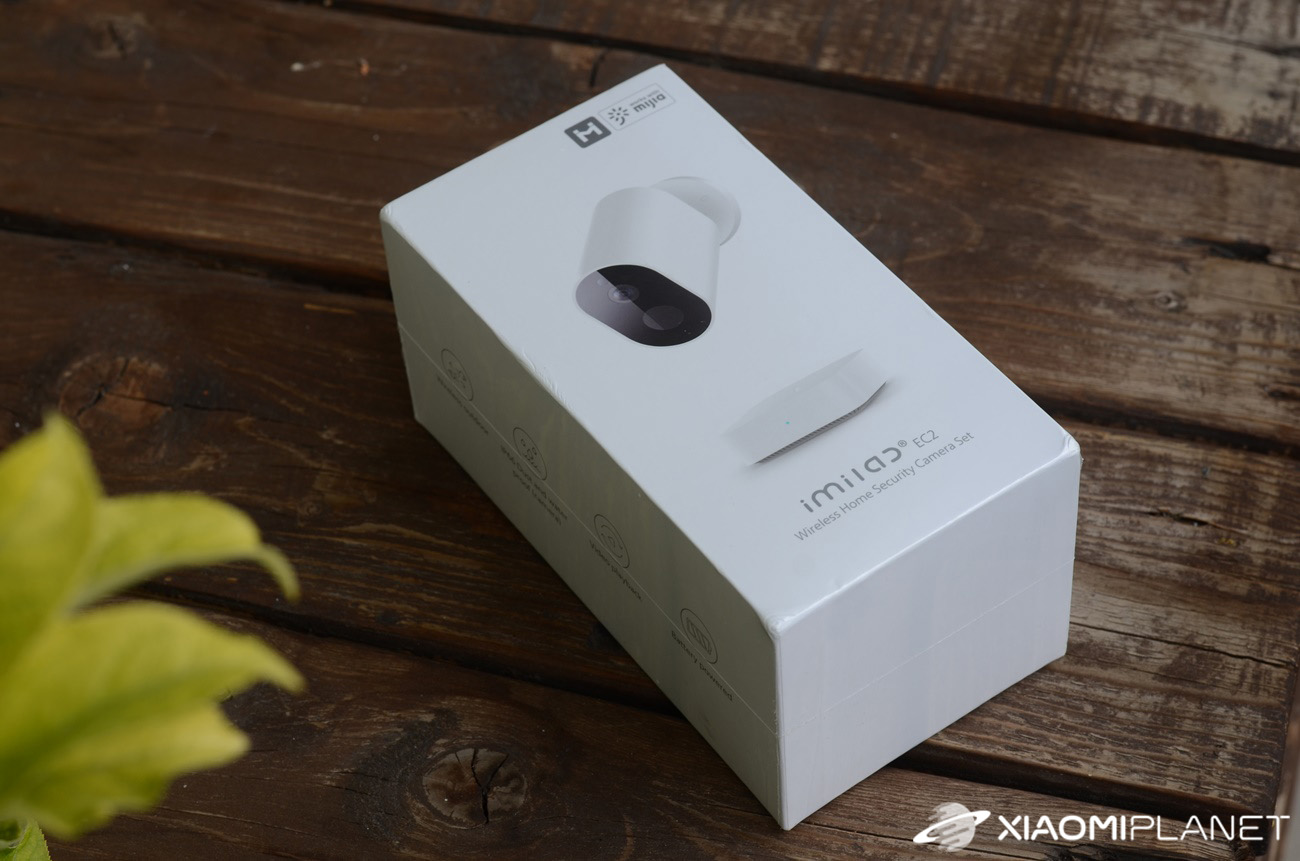

The camera was packed very carefully. The first impression after unboxing was excellent; the camera feels high-quality, and the package includes everything you need.

Pairing with the Mi Home app
We first paired the camera with an Android smartphone, though it also supports iPhone. For that, you need the Mi Home (Xiaomi Home) app, available in the Google Play store.
We followed the attached instructions, where you can easily add the gateway to the app using the provided QR code. The second option is to manually search for the available devices in the app for IMILAB EC2 Wireless Camera Gateway.
Since it’s the European version of the camera, the Mi Home app works with European servers, and during setup you can safely choose Slovakia, the Czech Republic, or Germany.
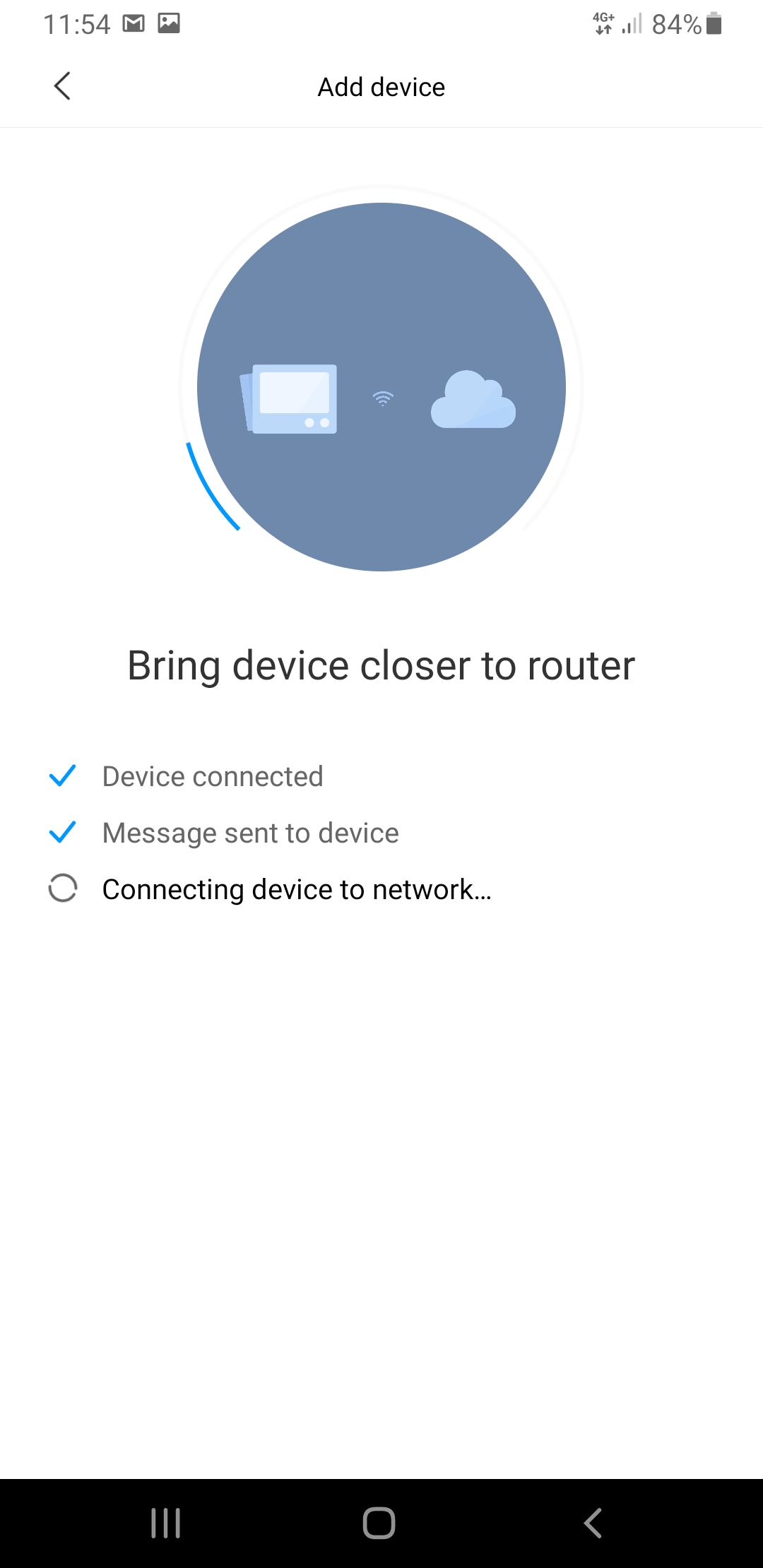
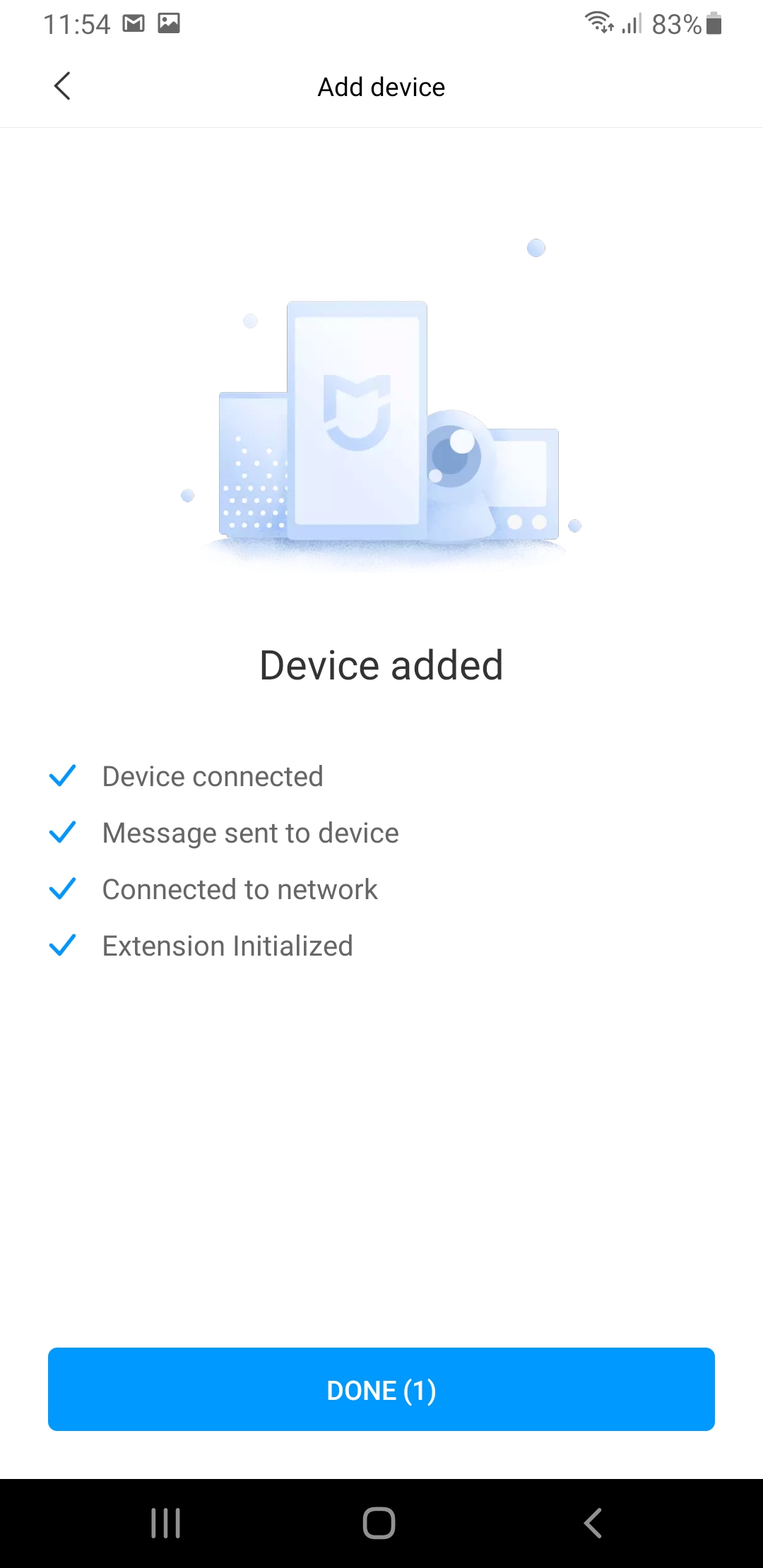
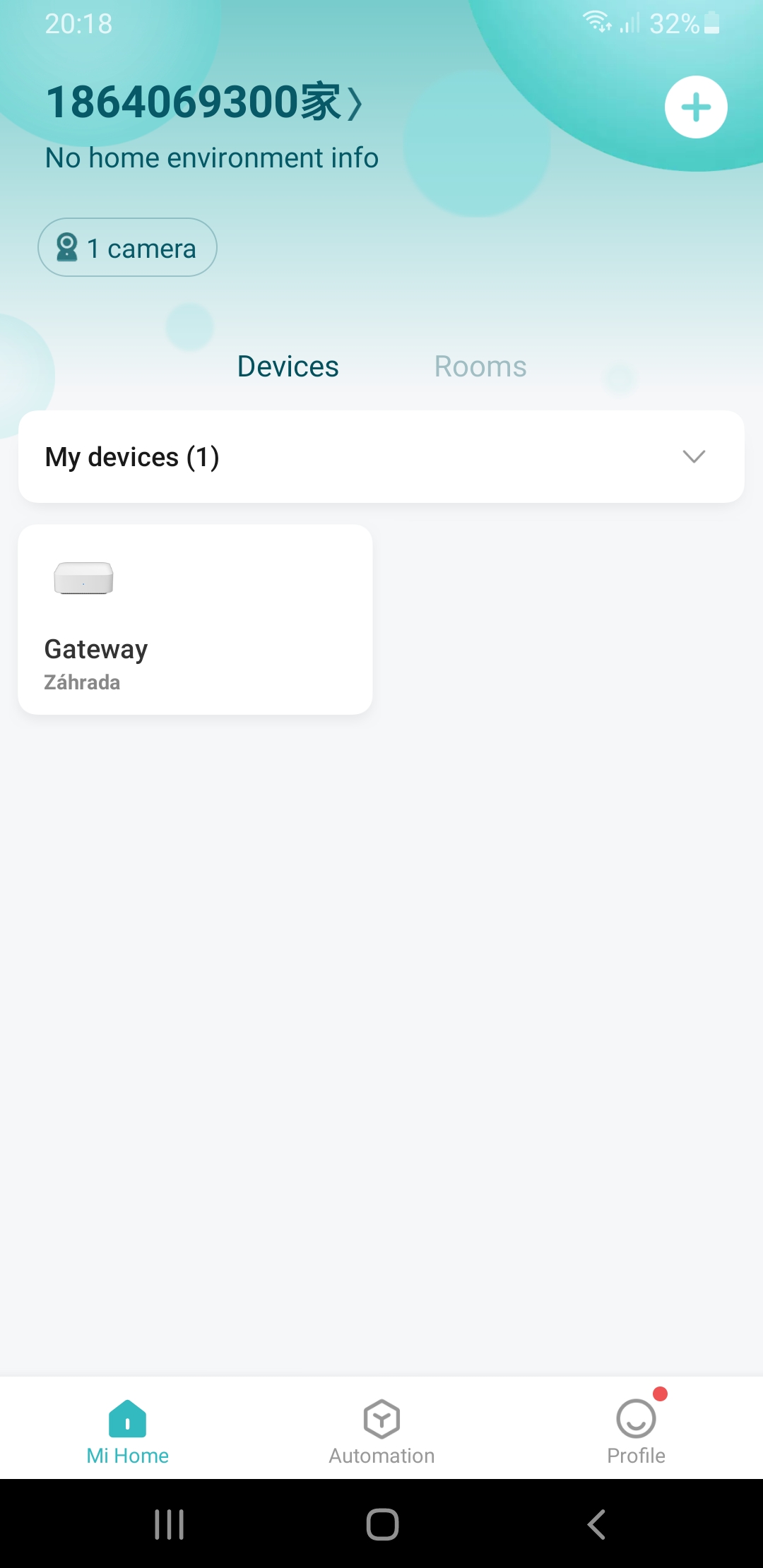
The gateway is powered via the microUSB cable. You can use the one included in the package along with the adapter, or any smartphone cable.
During the first pairing, it’s recommended to place the gateway close to the WiFi router. Alternatively, if you don’t have WiFi available, you can use the included LAN cable.
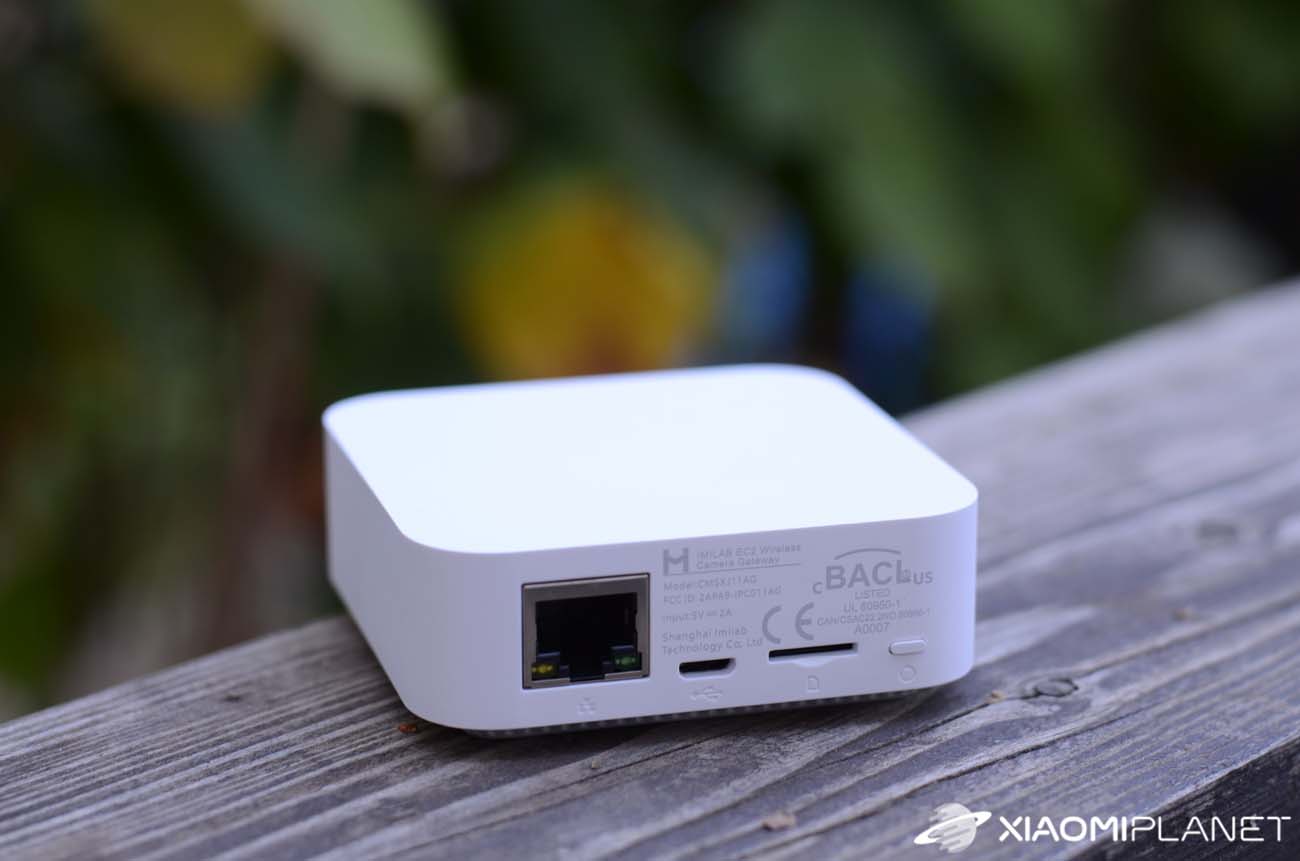

The pairing itself is very easy. Just reset the gateway by pressing and holding the button on the back for a long time until the status LED starts blinking orange. The app will ask for the WiFi network password, and within a few seconds the gateway will be paired and visible in the app.
After pairing, the app will automatically offer to add the camera. Pairing the camera is just as simple. For our first try, though, it didn’t work.
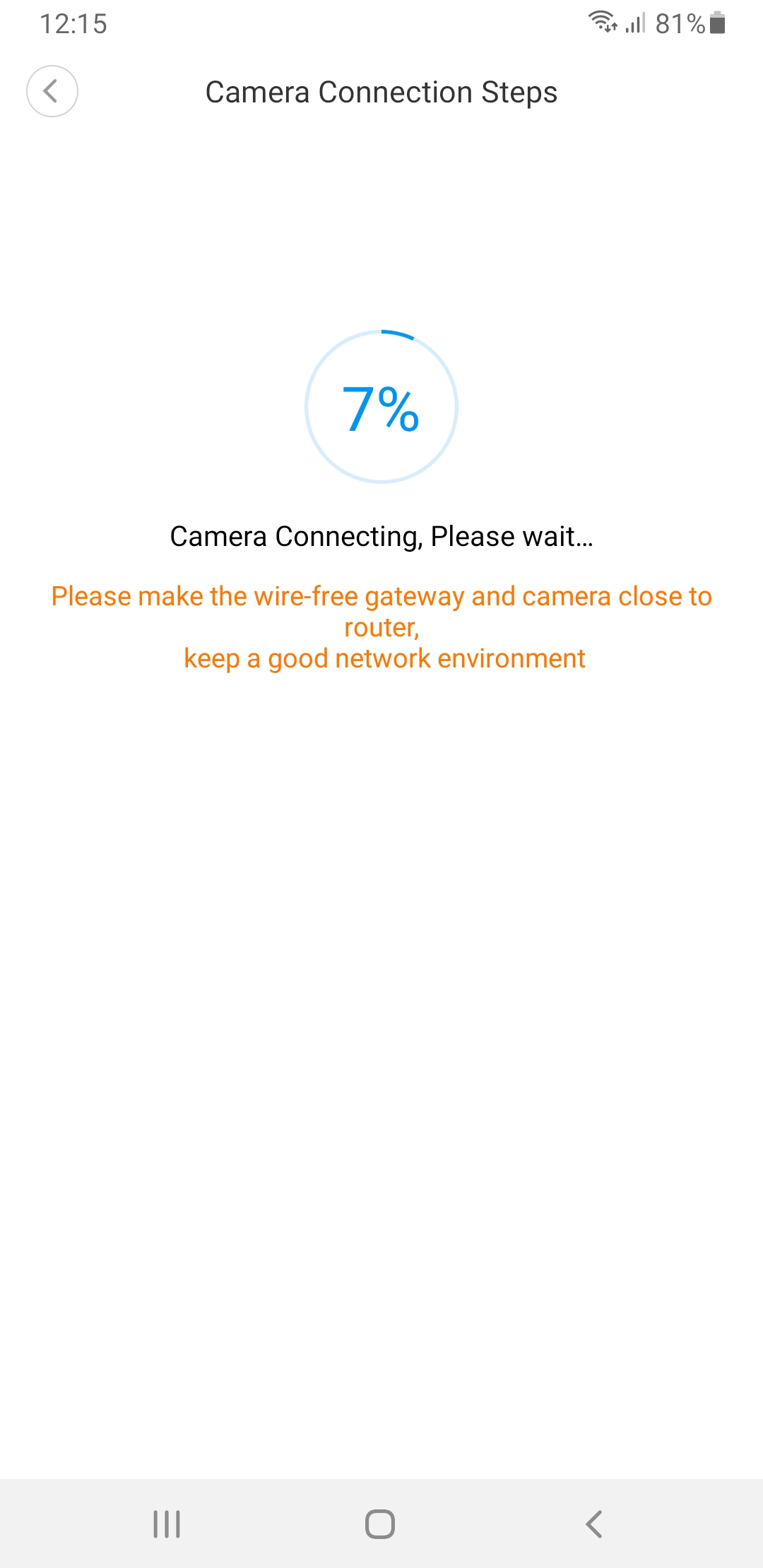

The app will ask you to press and hold the button on the camera for two seconds until the LED starts blinking blue. After two seconds of holding the button, the LED went off. On the second attempt it lit up blue but didn’t blink. We had to reset the camera by pressing and holding the button on the camera for a long, 10-second time.
In the app, you can name both the gateway and the camera however you like, and also set the room where you’ll see it in Mi Home.
IMILAB EC2 camera installation
First, we tested the camera in the garden near the cottage. Since this property is located outside the city in a garden area, sometimes something would disappear from there.
That’s why this place is perfect for testing a security camera. For quite some time, we’ve been considering some kind of protection.
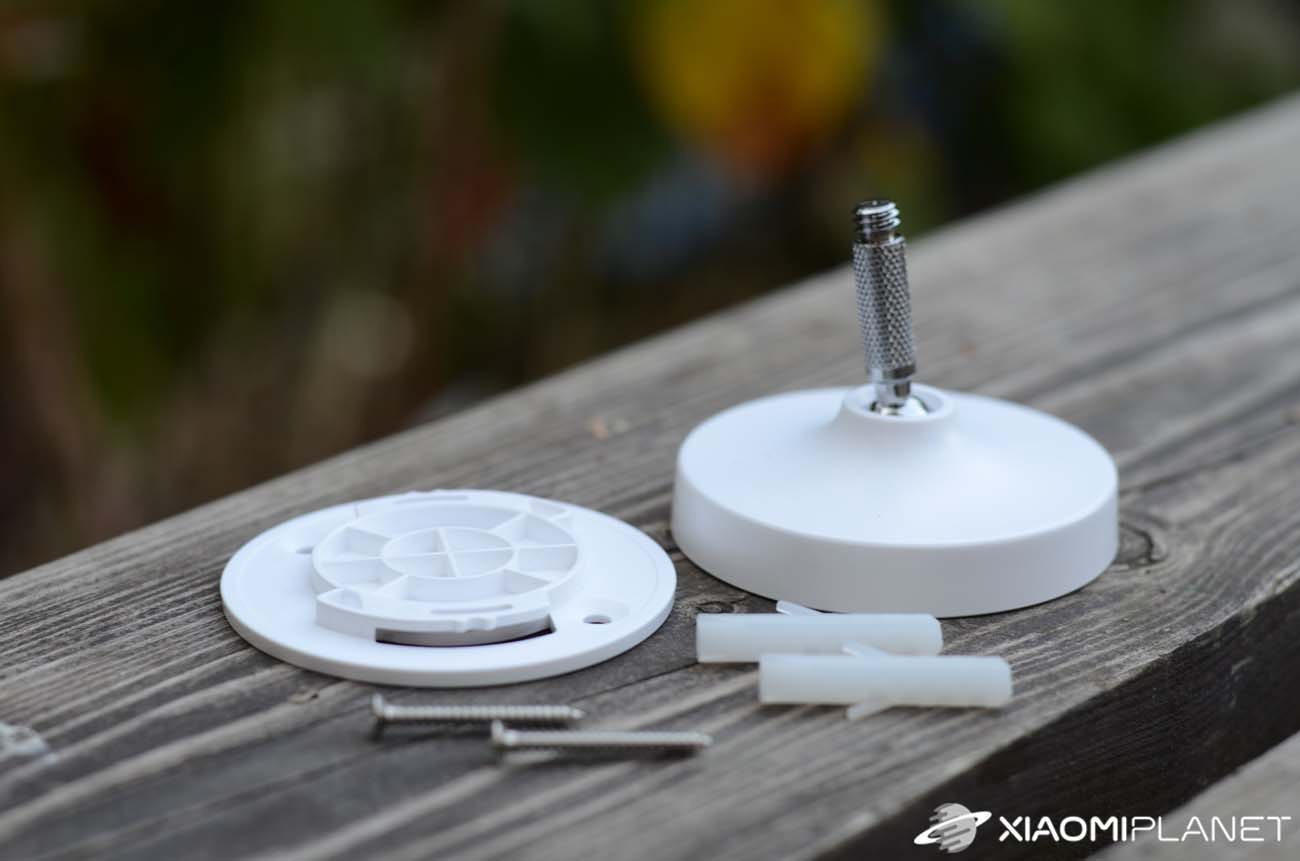
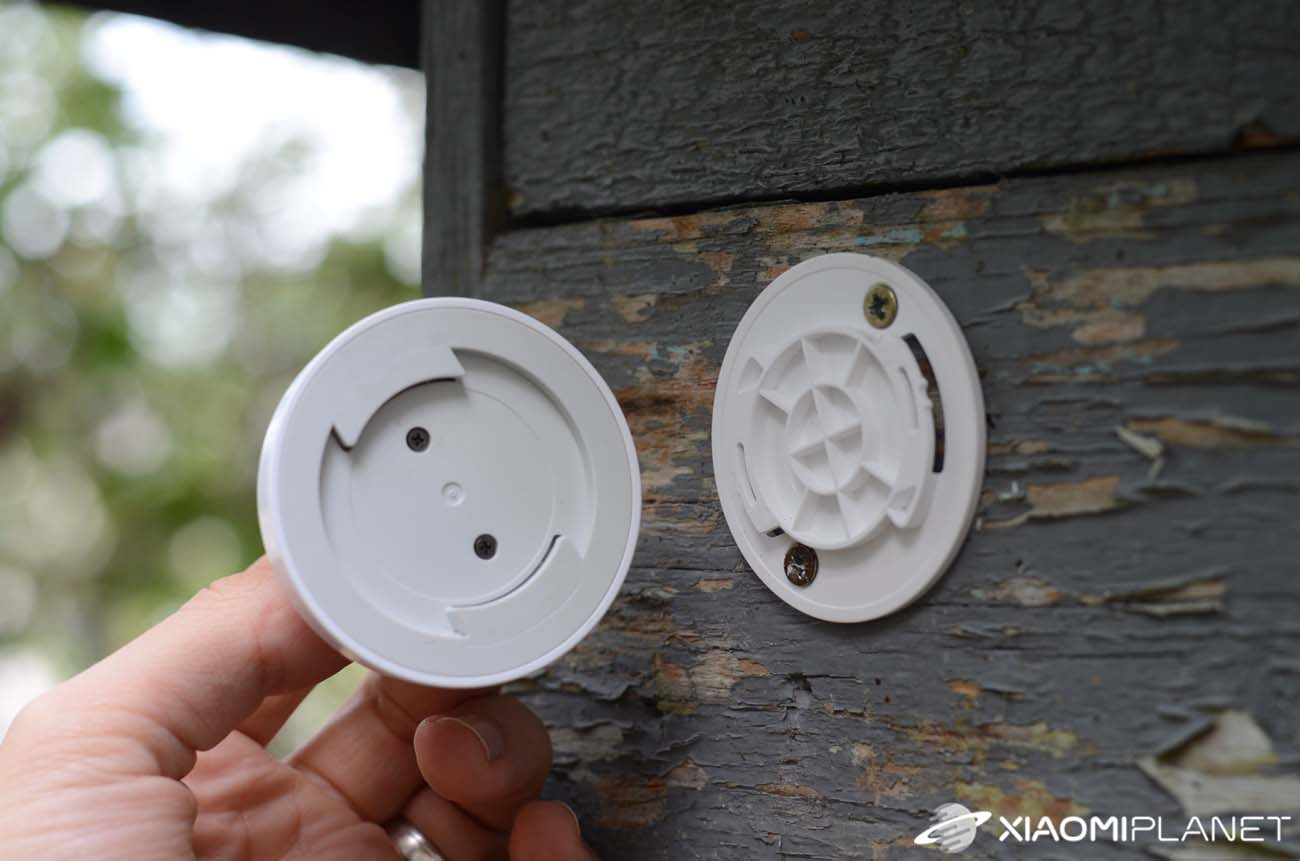
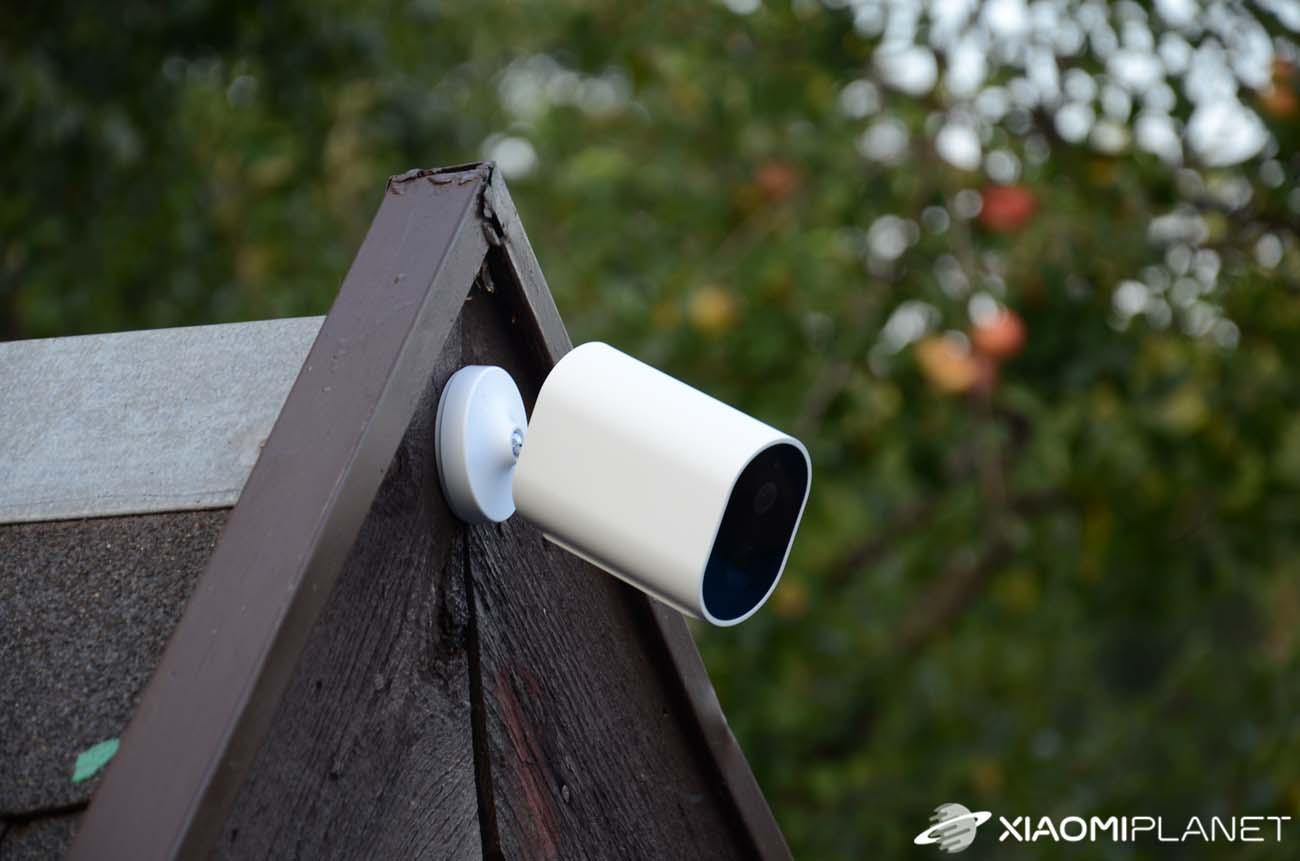
As we already mentioned in the introduction, the package includes two wall plugs with screws. We chose a suitable spot on the cottage, at a sufficient height, so we could capture the largest possible area of the garden.
However, when mounting the bracket on the cottage wall, the very first screw snapped. We recommend getting higher-quality screws and wall plugs from a hardware store.
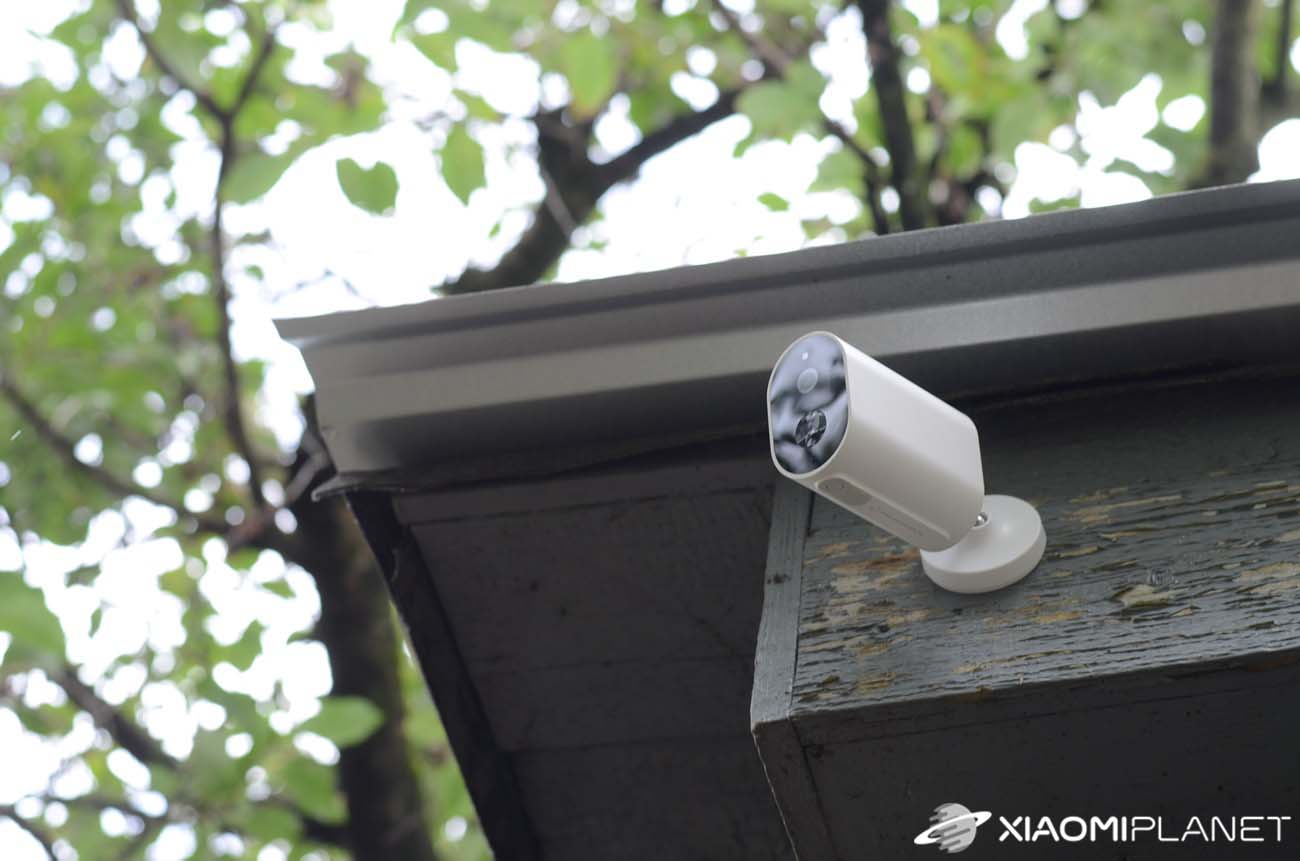
Once the bracket is secured, the camera simply screws onto it. The distance between the gateway and the camera should be at most 15 meters with no obstacles (the value stated by the manufacturer in the manual).
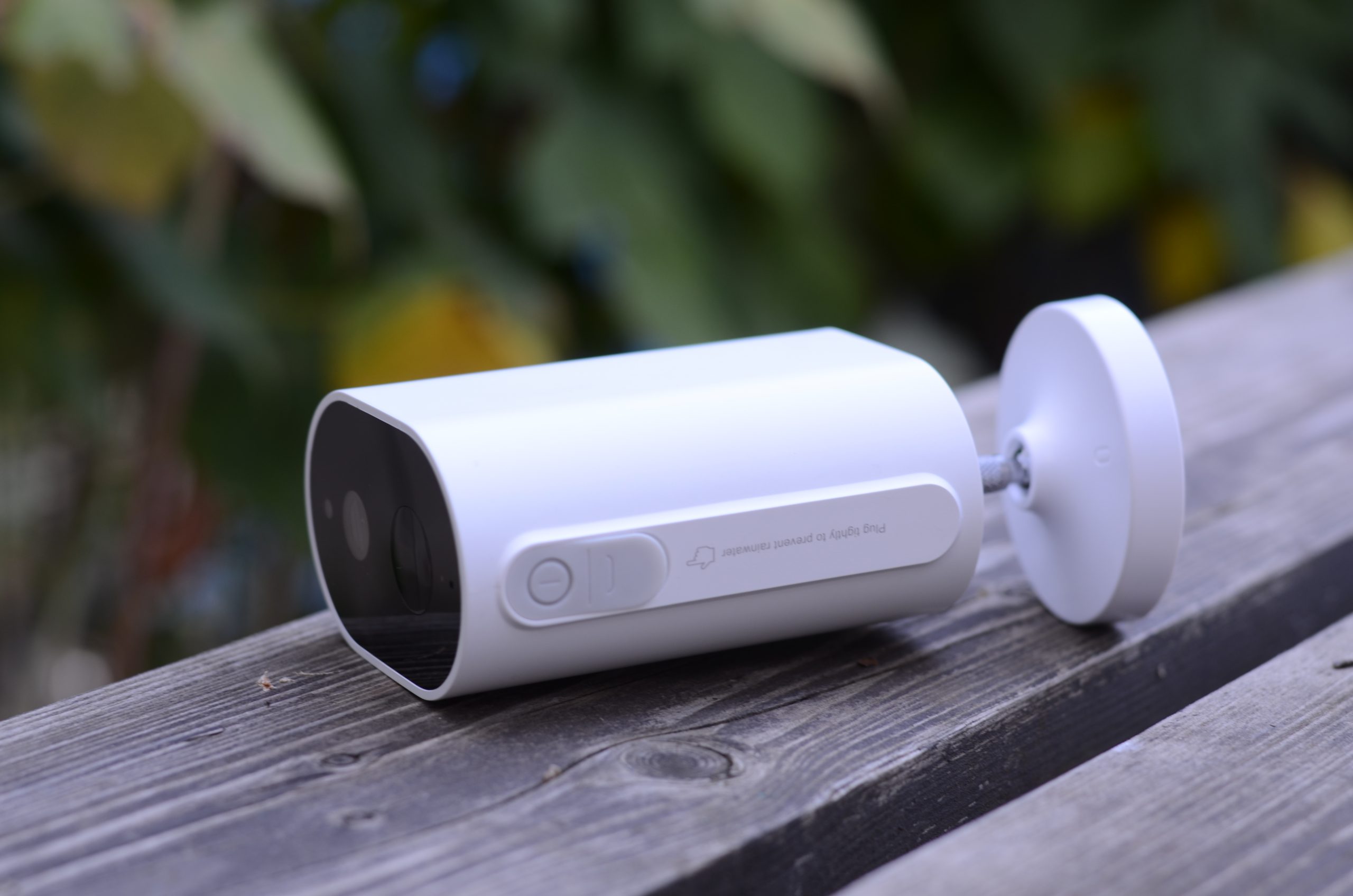
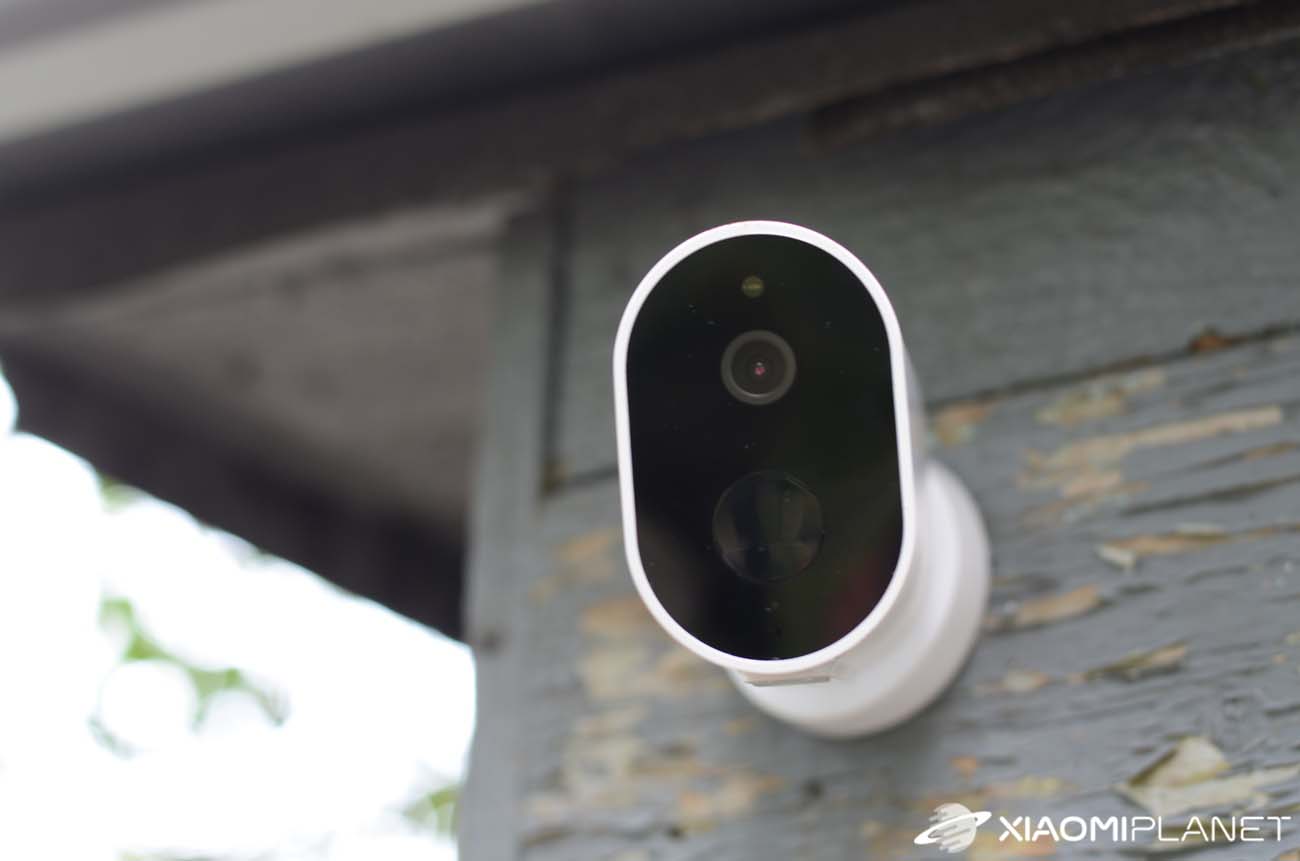
The installation is so simple. The advantage is that the camera is wireless, so we didn’t need to run a cable to connect it to the home network.
We placed the gateway inside the cottage near the router. Even at a distance of 30 m between the gateway and the camera, we didn’t notice any problems. It wasn’t completely open space without obstacles—there were 2 walls between the camera and the gateway. So the range is clearly higher than the manufacturer states, and we consider that a very positive result.
Mi Home app and camera monitoring
The Mi Home app is clear and easy to use. Your smart devices that you’ve paired with it are neatly organized into the rooms you’ve set up.
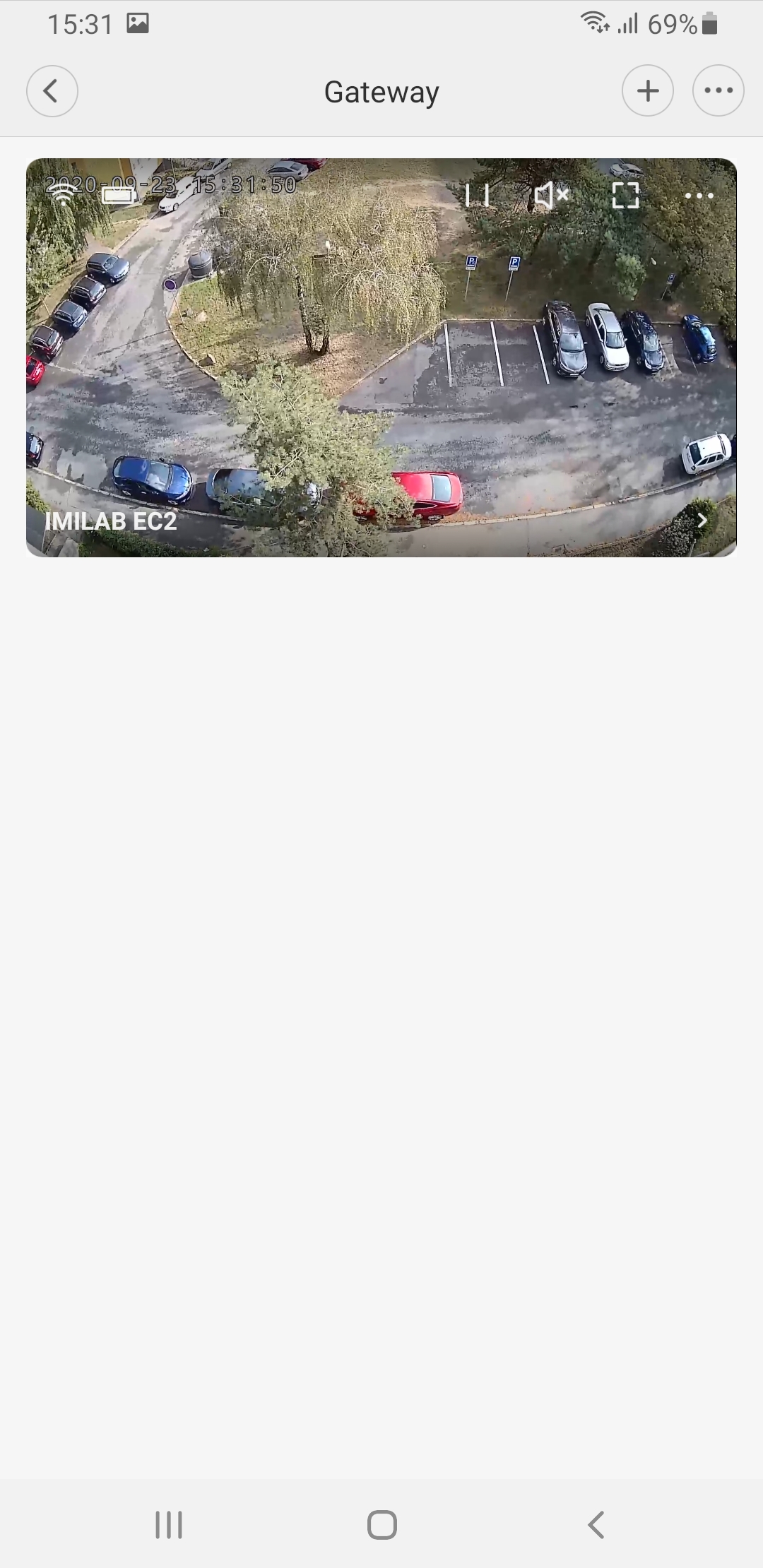
Since the camera connects to the gateway, not directly to the app, on the home screen we had the gateway. After tapping its icon, the connected camera appears. If you had more cameras, you’d see them all on this screen, where you can watch the live stream by pressing the play icon in the middle of the preview.
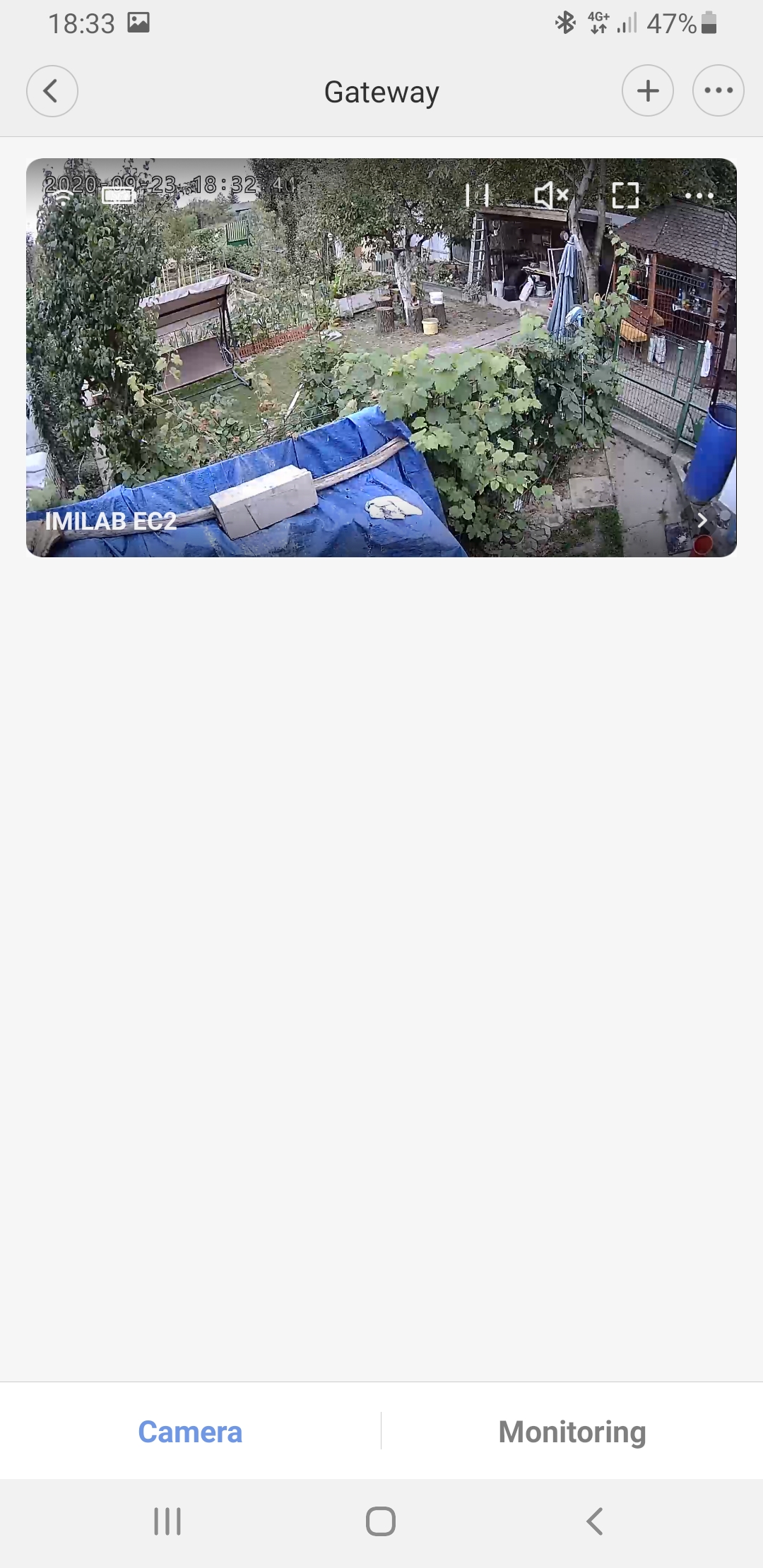

Here, besides the video image itself, you can also see the battery and signal status. You can turn the sound on or off, switch to full-screen mode, or go to the settings. The special thing is that in the small preview you get a slightly wider view in all directions compared to the view switched to full-screen on your smartphone.
It worked the same way on another phone of a different brand. After downloading the video to the phone, the framing was fine and not cropped.
Live stream monitoring
After selecting the IMILAB EC2 camera in the Mi Home app, you’ll see two tabs – Monitoring and Live. Let’s first take a look at the second tab, Live.
As the name suggests, you can watch the camera feed in real time here. There’s also a full-screen mode, but again it offers a slightly cropped view. You can choose from 3 video quality levels – Speed, Fluent, and HD. The image is quite good even at the lowest quality (Speed). However, in HD mode the image may not be fully smooth, depending on your internet connection.
At Speed quality, the data transfer is roughly around 72–80 KB/s. At Fluent, it’s about 130 KB/s, and at the highest HD quality, around 170 KB/s.


When watching live, the audio is disabled by default. You can enable it easily by clicking the sound icon.
In this mode, the app lets you take photos and start video recording. The photos created this way are saved directly to your smartphone and also to a microSD card, if available.
The last option in Live mode is two-way audio transmission through the camera. Since IMILAB EC2 has a built-in speaker in the back, you can use it to talk remotely with a person who’s near the camera. We’ll cover the sound quality later.
Video monitoring and recordings
The monitoring menu is for recording videos. If multiple cameras are connected to the app, you can choose whether you want to view recordings from all cameras or only some of them. You can also filter by individual days. In this menu, you can play videos back or save them to your phone.
Motion detection and alerts
Perhaps the most interesting feature of security cameras is the ability to detect motion and send alerts to the camera owner. IMILAB also stands out with its leading AI technology, which should be able to recognize whether the detected movement is a person or just movement by an animal, or any other kind of motion.
But here there was a slight disappointment. The camera can of course detect motion, but it doesn’t always distinguish whether it’s a person.
We have two dogs in the yard, and unfortunately the camera identified them as people several times. What’s worse, we were getting alerts about human movement even with stronger wind and when leaves were moving in front of the camera. Luckily, it didn’t happen too often.
Here you can see the video that the camera likely recorded based on the dog’s movement.
IMILAB AI isn’t completely perfect, and it doesn’t always recognize whether it’s movement by people, animals, or objects. What’s interesting, though, is that on some windy days we received notifications, and on other equally windy days we didn’t get any notification about movement. So there’s still room for improvement in this area.
However, it’s not the only issue. When we visited the garden, we expected instant notifications. Sometimes, though, the camera detected us a few seconds later—after we arrived. We’ll cover this problem in more detail in the next section.
Motion detection issues
We tested the IMILAB EC2 camera in other places as well. We installed it in the family house yard so that a gate with a staircase—used as a back entrance to the property—was in view.
First, we recorded a video manually to show you how the testing went. A person walked along the property fence, opened the gate, went up the stairs, and passed in front of the camera.
In the second video, you can see what the camera recorded on its own based on motion detection. We expected to see this person open the gate and walk up the stairs. Unfortunately, that movement was not captured.
Since the camera recorded the motion so late, we tried what would happen if we simply ran past in front of the camera quickly.
We repeated the same test as before with one difference – the person was running. Here are the results. The camera detected the motion, but started recording too late. It did not catch the running person in the video.
After several different tests, we can clearly say that there’s a noticeable delay between motion detection and the start of recording. The camera also can’t recognize motion at the edges of the frame.
How do notifications appear?
Notifications show up in the usual notification bar of your smartphone. In this kind of notification, you’ll see the time when motion was recorded and whether the camera detected a person.
It happened to us several times that we received the notification on our smartphone with a big delay. For example, the motion alert that the camera recorded at 11:16 arrived to us at 11:22.
We recorded the biggest delay when the camera identified motion at 11:12, but the notification from the app appeared only at 13:02. However, we saw such a large delay only once over a few days of testing.

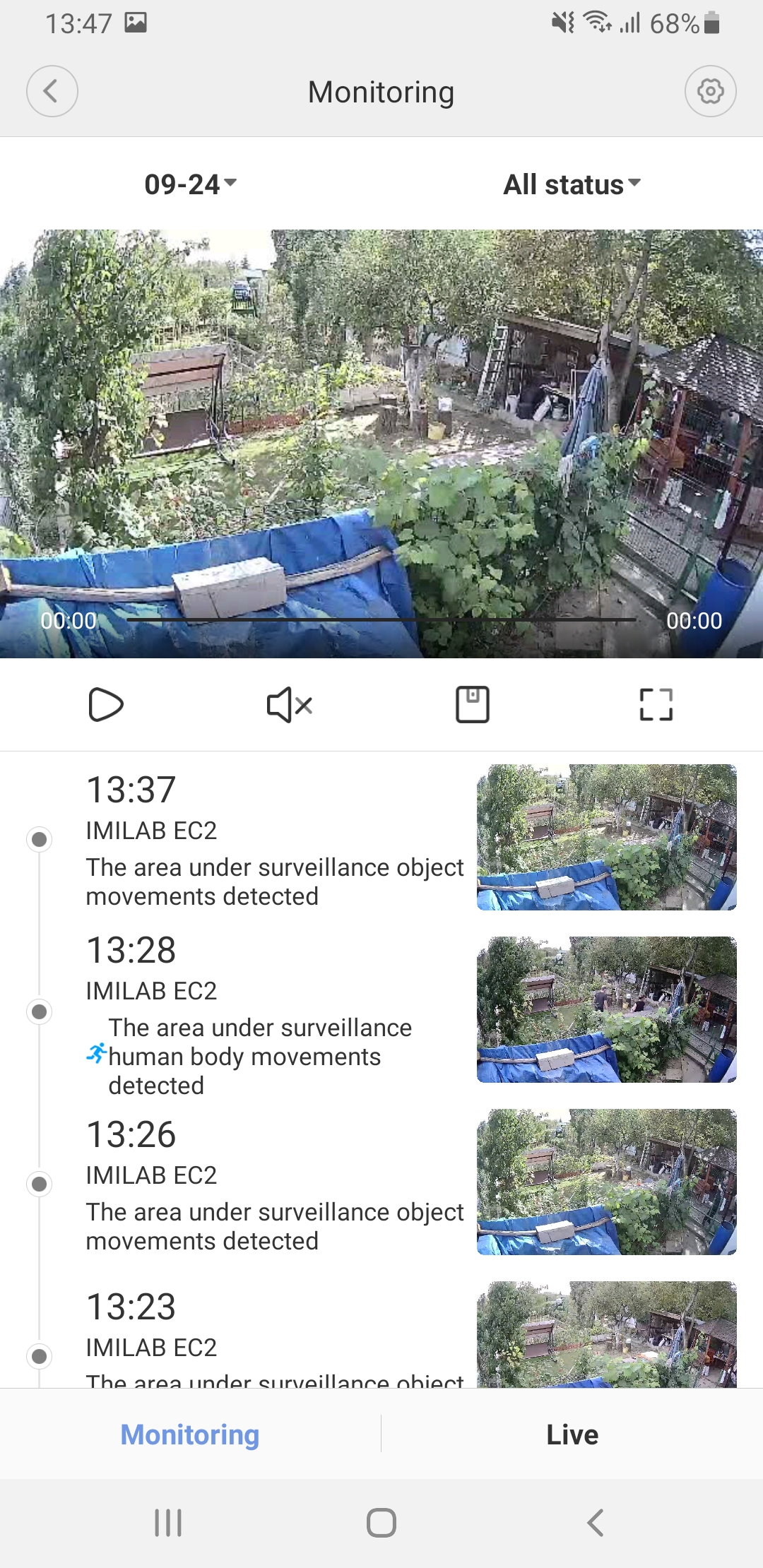
After clicking the notification, the Mi Home app opens and plays the recorded motion video.
Monitoring settings
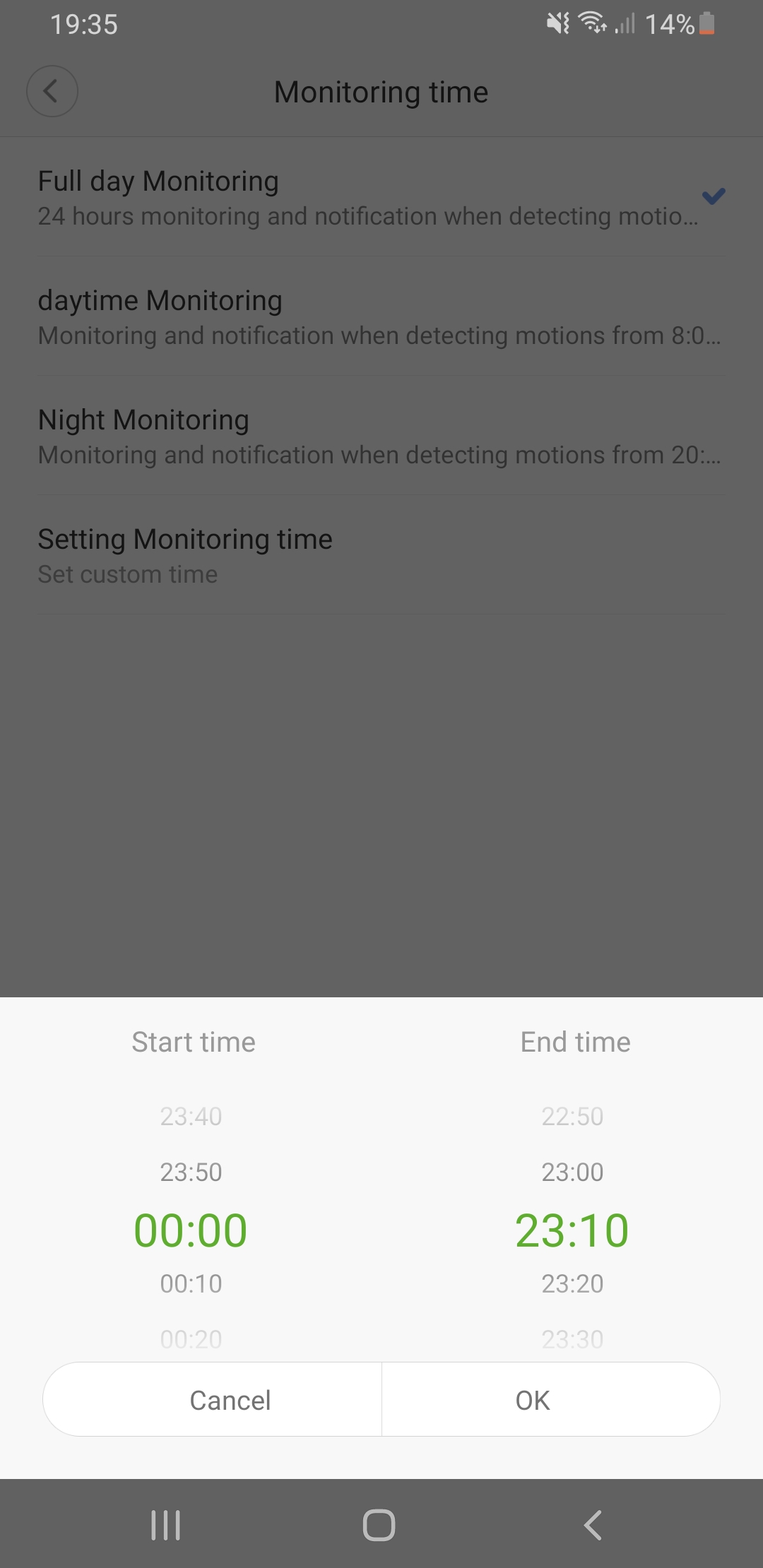
As for monitoring settings, there aren’t many options here. Once you enable the room monitoring assistant, there are only a few settings you can customize. The first one is the time when the space should be monitored.
You can choose between 24-hour monitoring, daily (from 8:00 to 20:00), night (from 20:00 to 8:00), and in the last option you can set a custom time, when the days should be monitored.
Next, you can set the interval after which monitoring should restart following the previous motion detection. There are only 2 options: 1 or 2 minutes. The default setting is 1 minute. With this setting, there’s a warning that if you lower this interval, battery life will be shorter after one charge.
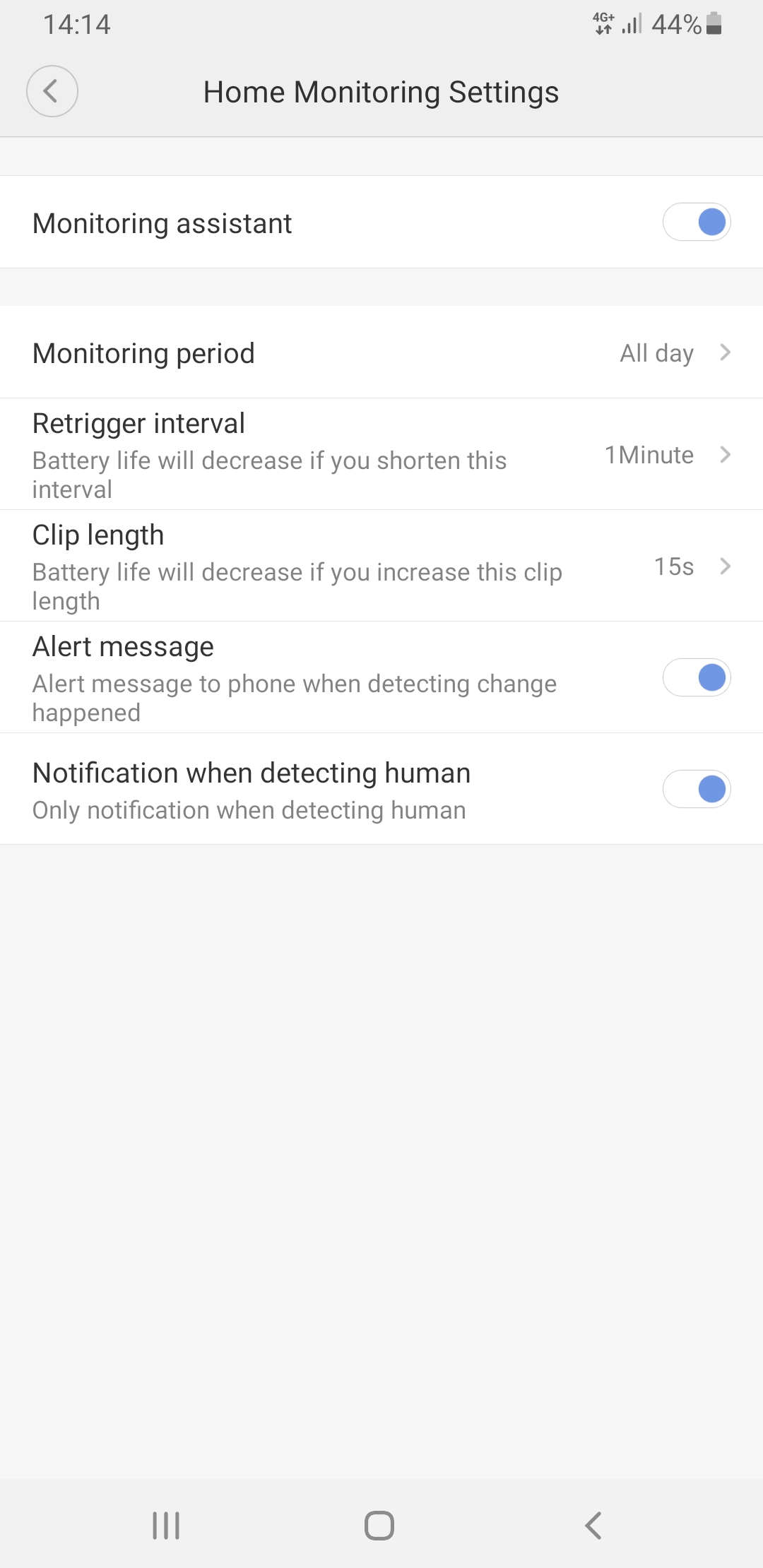
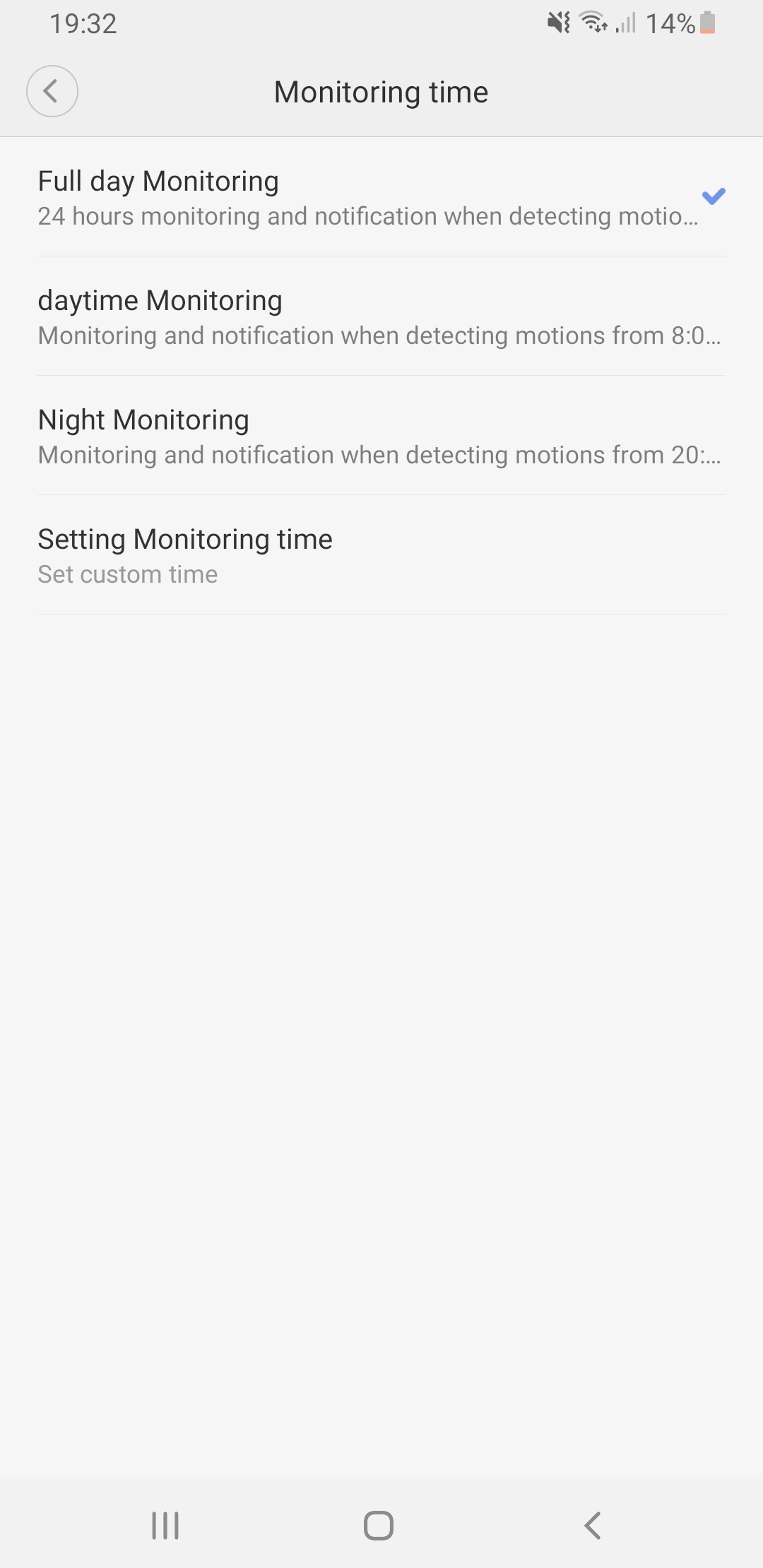
The last two options relate to the type of notifications. The first allows alerts when the camera detects motion, and the second option should send notifications only if the camera recognizes a person.
During our test, the Mi Home app offered an firmware update for the gateway. This update added the ability to set the length of the video that should be recorded when motion is detected. Before the update, the video length was 10 seconds, with no option to customize it.
After the update, you can set the video length to 10, 15, 20, 25, or 30 seconds. We rate this step very positively, since many people complained specifically about the lack of this setting.
More settings
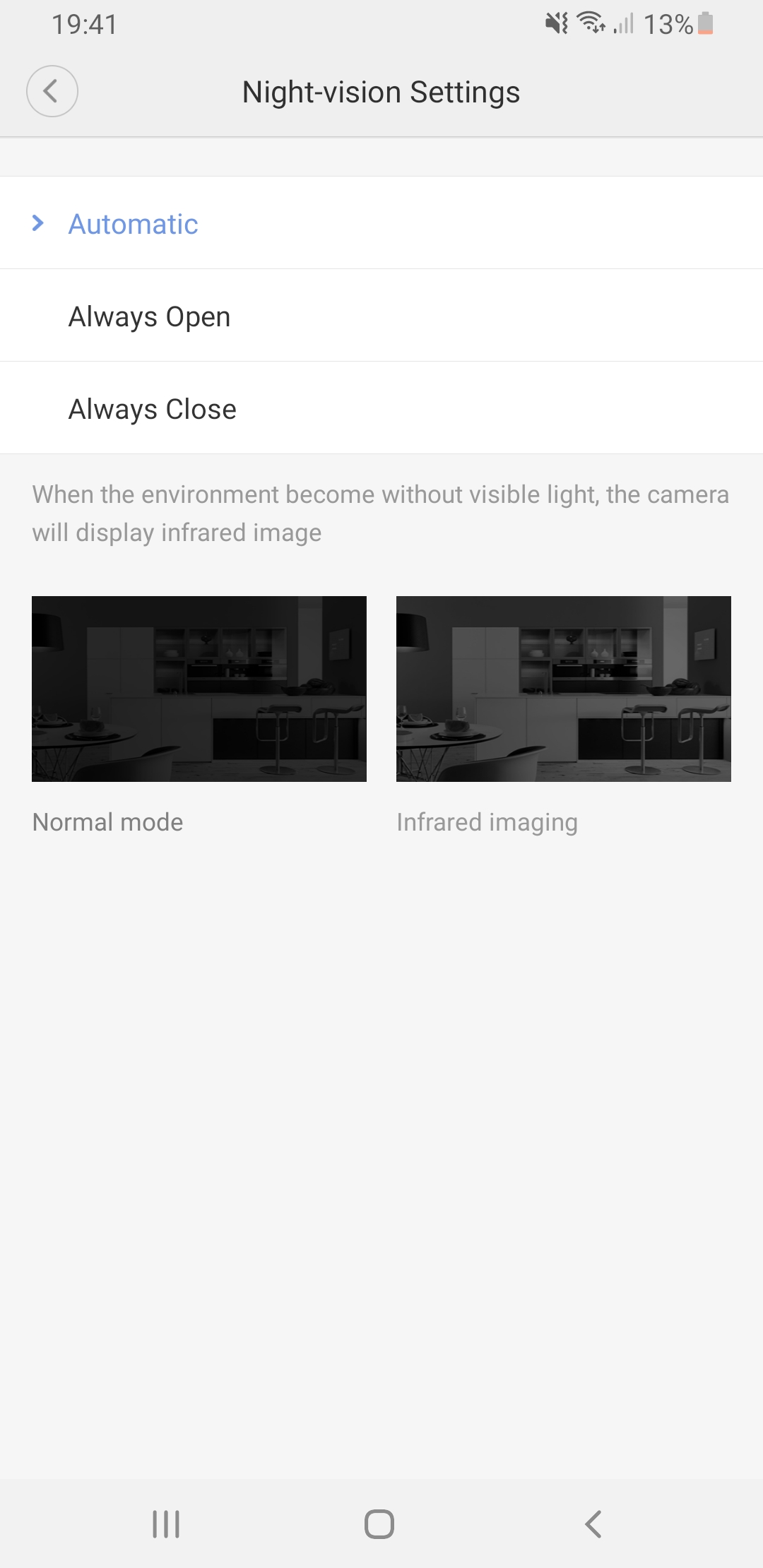
In the additional settings, you can switch between night mode options. It can be activated automatically, kept on all the time, or turned off.
In the camera settings, there’s also a gallery. Here, your photos are saved, as well as the videos recorded through live camera monitoring.
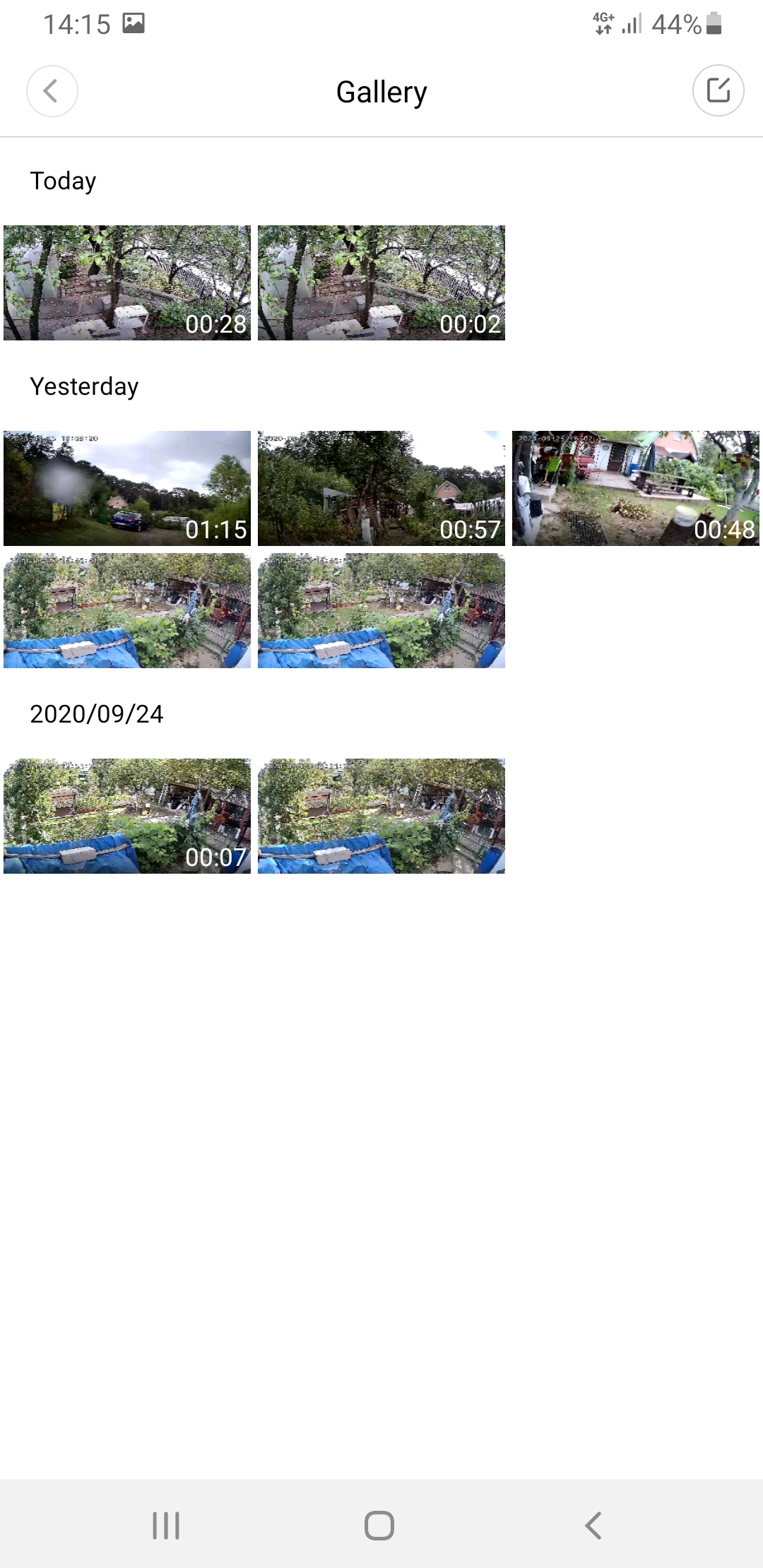
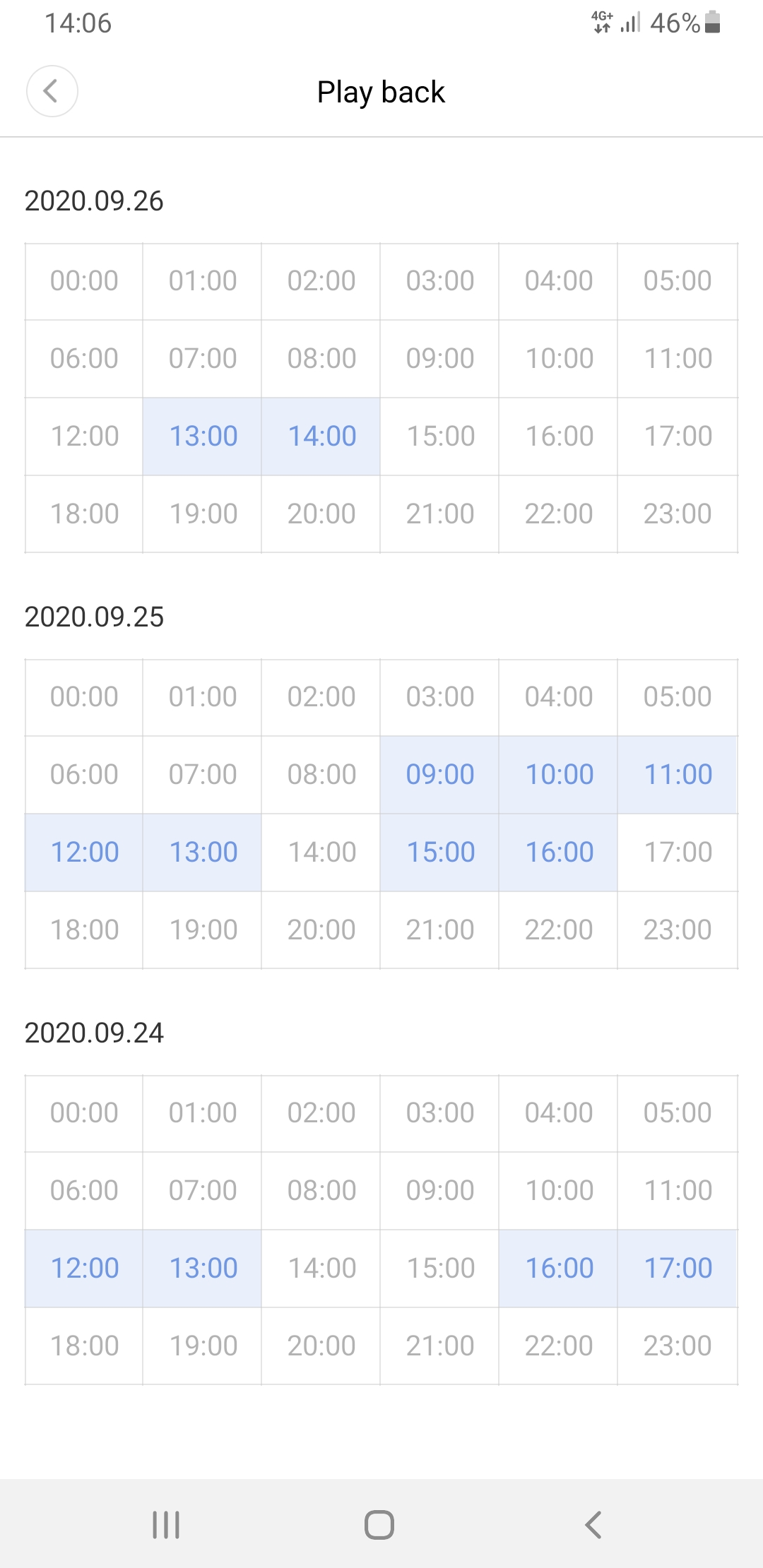
The videos recorded based on motion detection in the area are located in the “Play back“ section, where they’re neatly sorted in a calendar by the days and hours when they were captured. After you click a specific hour, you’ll see the videos that were saved at that time.
In the settings, you can also change the camera name and check the battery status in percentages. After six days of intensive use, the battery drained by 15 %.
Our test only lasted a few days, so at the moment we don’t have the confirmed battery life per the manufacturer’s stated claim (3-4 months). However, we’ll charge the camera to 100% and continue using it to monitor the garden. After the first full drain, we’ll add the real battery life to the review.
Night vision
The video quality recorded in the dark isn’t among the best. Naturally, you can see objects that are right in front of the camera the most clearly. More distant objects are visible much worse.
For the night vision test, we first pointed the camera at the garden. In the video attached below, you can see the arriving person.
In the second test, we pointed the camera directly at the cottage’s front door, from where the tested person came out.
As you can see from the videos provided, it would be hard to tell who it is. However, the camera’s purchase price needs to be taken into account. Those that offer good image quality even in night video mode cost significantly more.
Sound and its quality
IMILAB EC2 offers two-way audio transmission thanks to the built-in microphone and speaker. But what’s the sound quality like? In the videos the camera records, the sound is good and clear. You can clearly hear the barking of dogs, people’s voices, and the spoken word near the camera.
The built-in speaker in the camera is worse. It’s very quiet, and there are no settings that let you increase the volume. We tried talking through the camera. On the phone we could hear the sound excellently, but from the camera itself the audio is very muffled.
To hear the person speaking on the phone, we had to be very close to the camera. In a noisier environment, it’s very difficult to understand the spoken words.
Many people use cameras like this as a baby monitor for crying. For that purpose, the camera would work well. If you want to talk to a child through the camera, though, it may be a problem.
When transmitting audio this way, we recorded a sound delay of about 2 seconds. Also, in the videos recorded when motion is detected, the last 1 to 2 seconds have no audio.
Sharing the camera among multiple users
The Mi Home app offers the option to share a device or even an entire room. To share, you just need to enter the identification information of the person who must have a Mi account and the Mi Home app.
After that, the person you want to share with will receive a notification. Once the sharing is accepted, your device or room will appear in their app.
We shared the camera this way with multiple mobile phones, from which we could watch recordings or live footage. This feature pleasantly surprised us.
Conclusion
The IMILAB EC2 camera is better suited for less demanding users. However, considering its price, it offers quite good video quality during the day, a usable two-way audio transmission, and motion detection.
That said, we did uncover a few drawbacks, such as delayed start of recording after motion detection, poorer audio output quality from the camera, and weaker night vision.
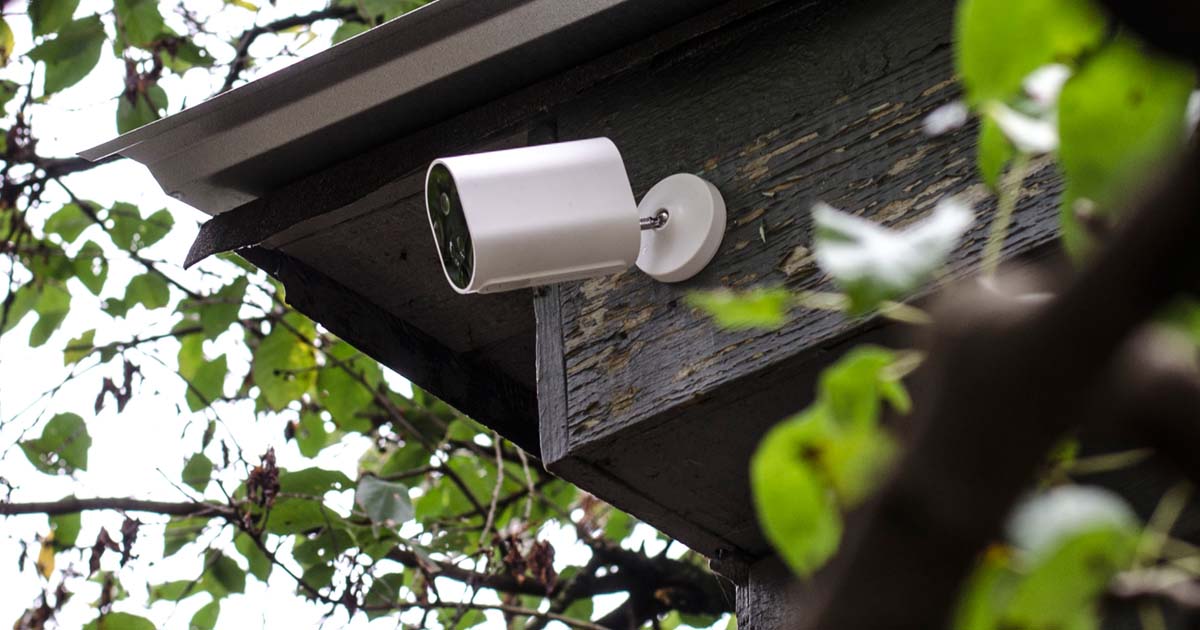
Because of these shortcomings, we don’t recommend this camera for more demanding users who want to secure their property or another object seriously. For serious security, you need to invest more.
Battery life on cold winter days also remains questionable, when the temperature stays below freezing for a long time. As you surely know, such temperatures are not good for batteries.
Imilab EC2 camera European version
TIPFast delivery from the Spanish warehouse with no customs duty and VAT.
This product will be delivered to you quickly from a local Spanish warehouse. Shipping from Spain usually takes 7-10 days and is handled by a courier. When it arrives, you don’t pay any extra fees—no customs duty, no VAT.
TIPShipping absolutely free.
For this product, shipping is available completely free of charge. However, this is the slowest delivery method and the item may take 20 days up to 1 months to arrive.
When ordering from the Chinese warehouse, AliExpress will add the customs duty in your cart—approximately 3,70 € per order. When you receive the package, you won’t pay anything extra.
The advantage of an integrated battery, which means you don’t have to run cables to the camera, can also turn into a disadvantage if you need to charge the camera often. After all, if you place it somewhere less accessible, charging can be a problem since you have to disassemble the camera or bring an electrical power source to it.
Don’t miss the best coupons 📩
Subscribe and we’ll email you new coupons before they expire. We only send it once a month — no spam.