
The MIUI overlay from Xiaomi includes several types of ads and recommendations. Yes, ads in apps you’re forced to use, such as the music player, web browser, when checking installed apps, and so on. However, there’s a simple guide that lets you eliminate them.
An ad recommendation in Xiaomi’s MIUI graphics overlay
There are several options for eliminating app suggestions and other ads on your Xiaomi, Redmi or POCO device. One solution, for example, is enabling Private DNS, which we’ve already described to you in a separate article on our website XiaomiPlanet.sk. You can find it at the following link.
In practice, though, the only thing you need to remove ads is to know your way around your smartphone’s settings. It’s true that the manufacturer buries the option to turn off ads and recommendations quite deep in the settings, and choosing it during the first startup of the phone would be a bit more transparent. Still, don’t despair—thanks to a few simple steps, you can definitely handle it yourself.
Turn off the system app MSA
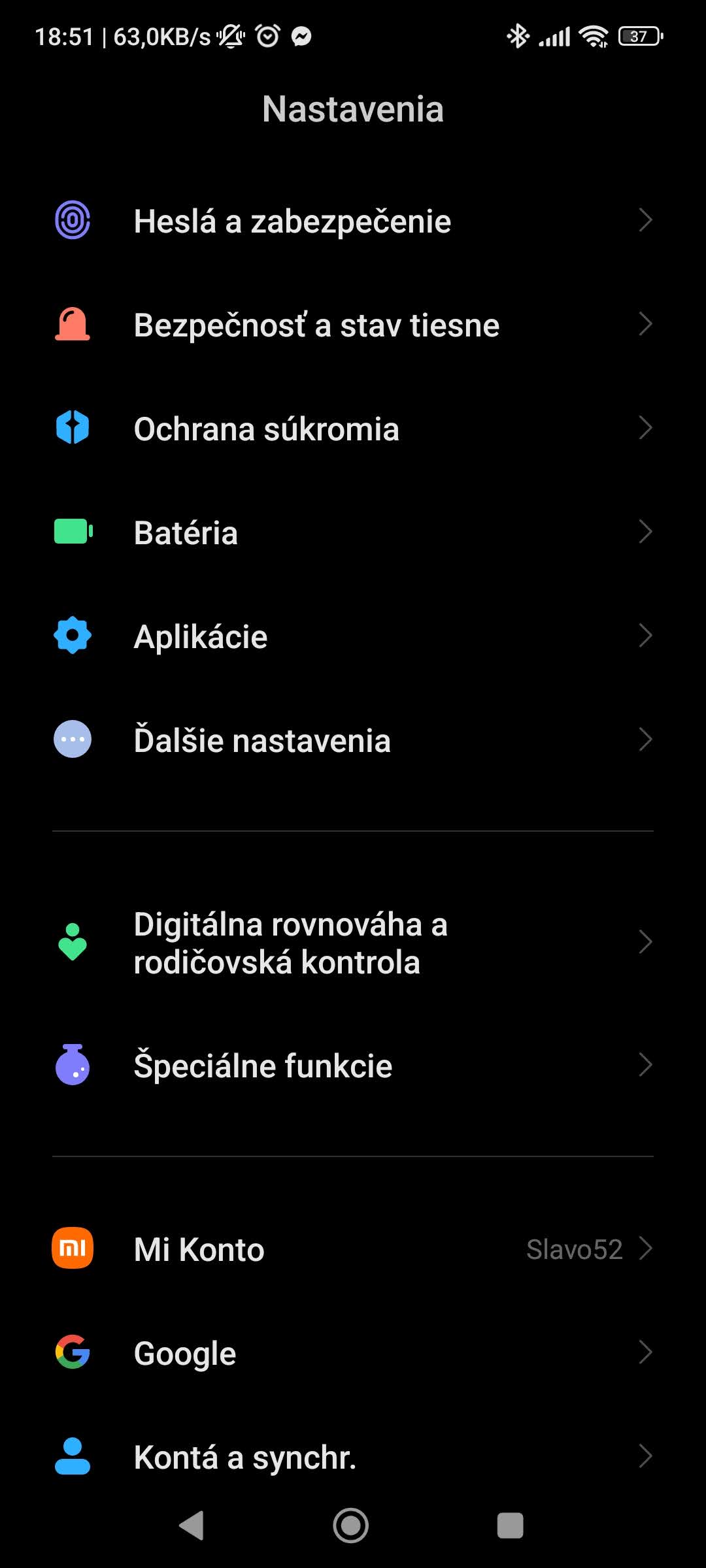
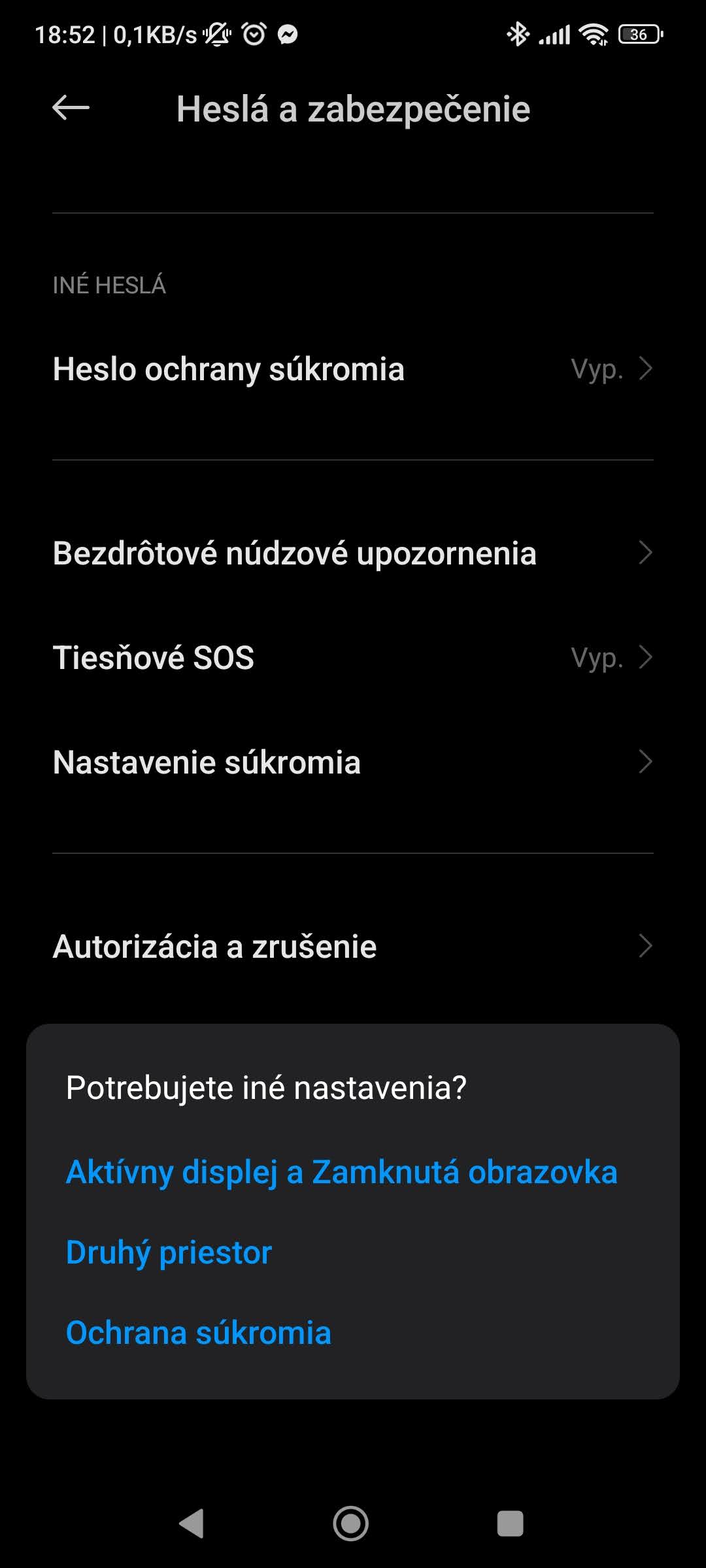
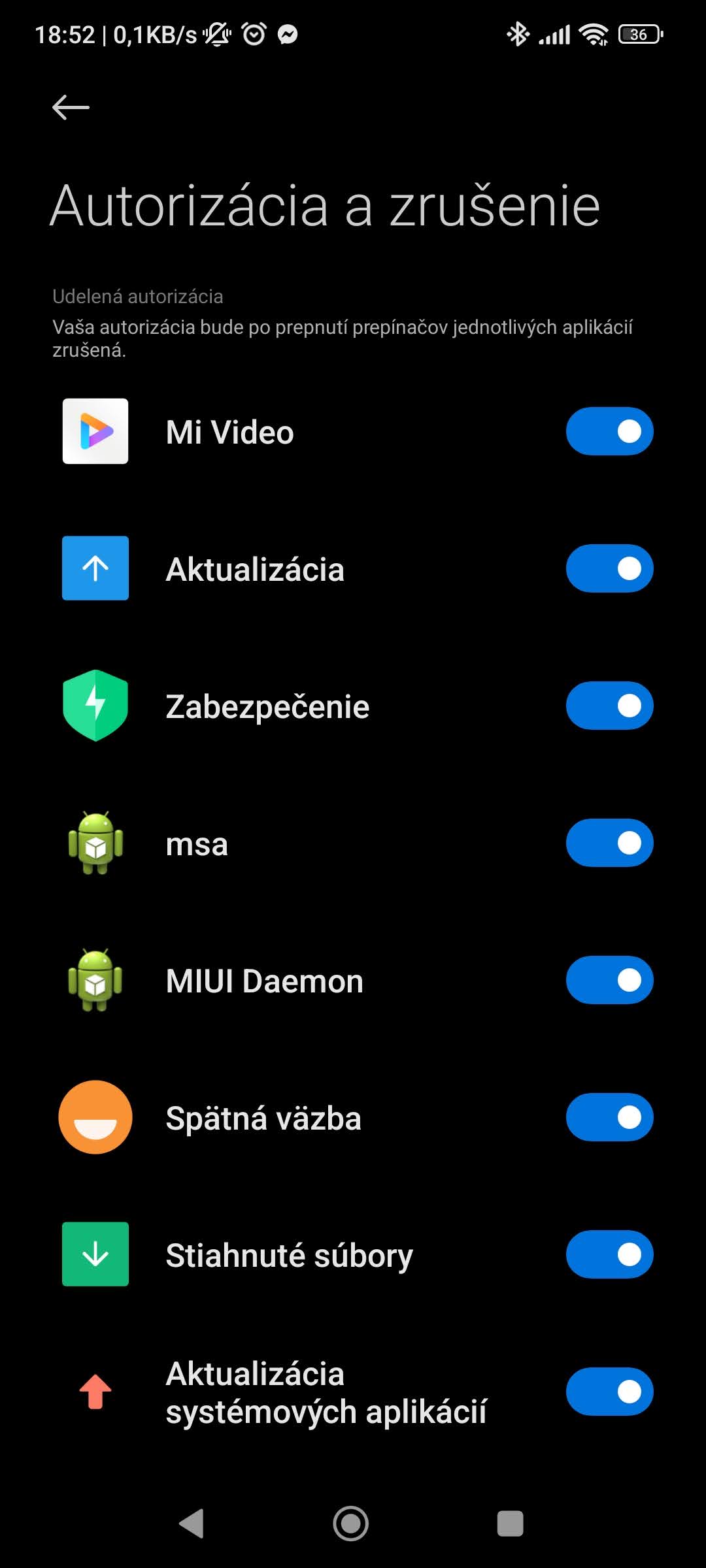
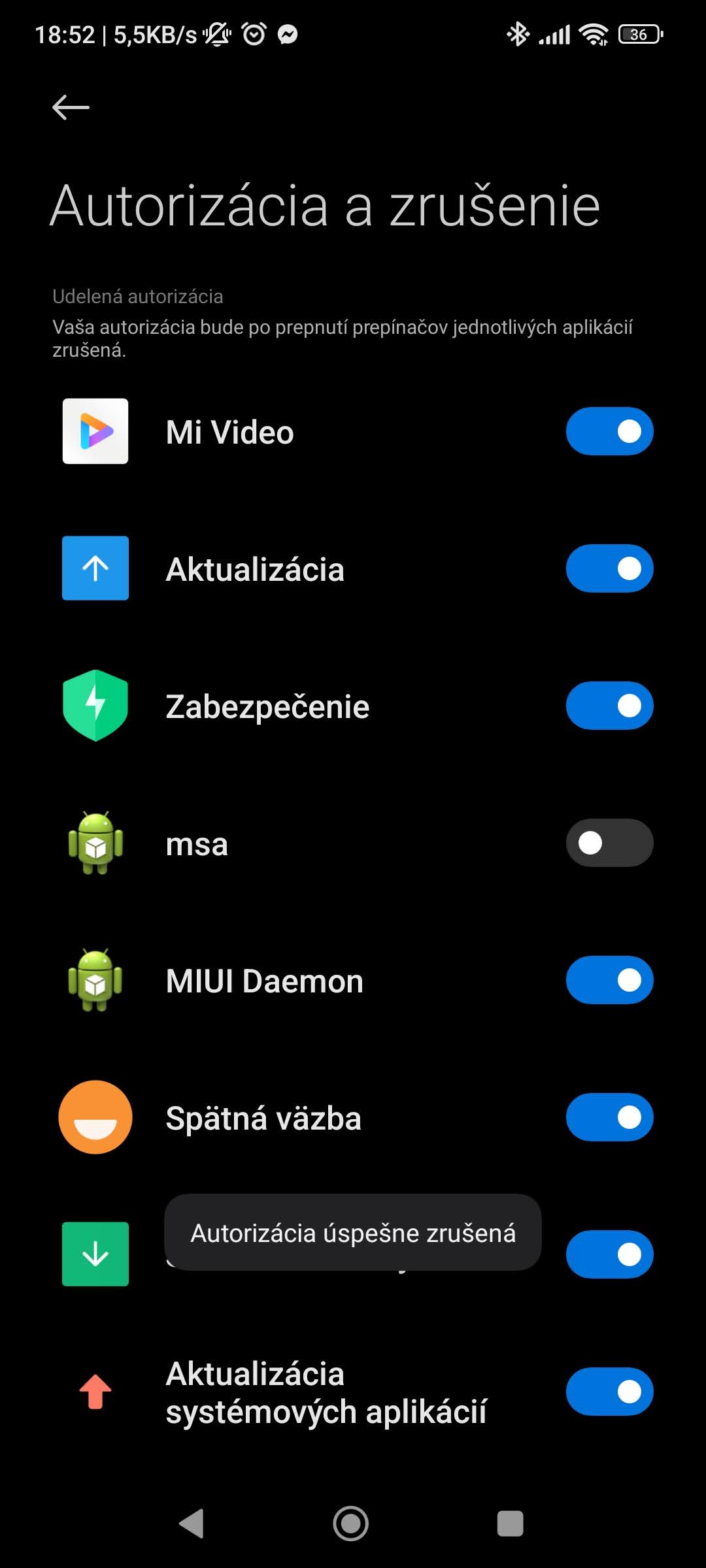
The first step, or option, is to disable the MSA system app (so-called “MIUI System Ads”, i.e., system ads in MIUI). Just go to settings, to the Passwords & security folder, and then to the Authorization & cancellation menu.
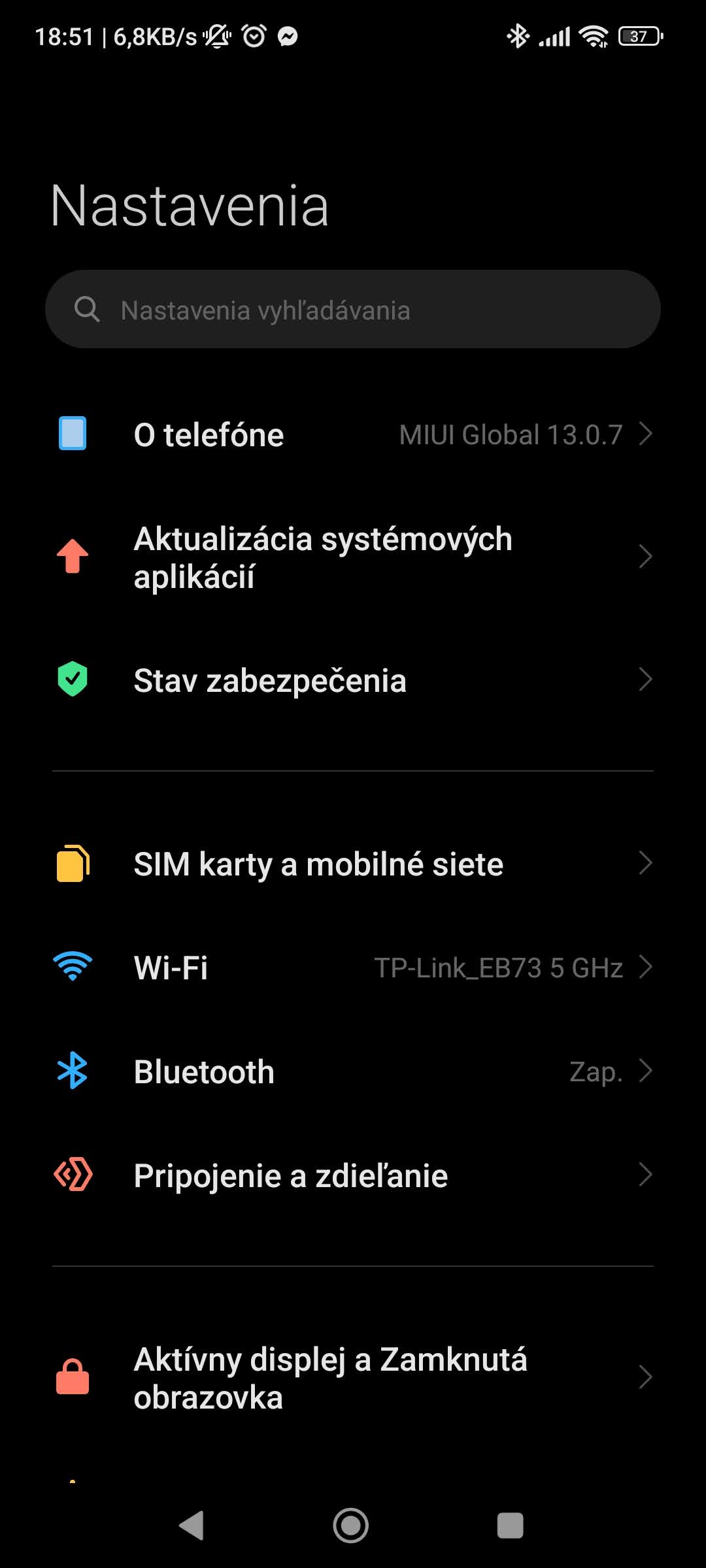
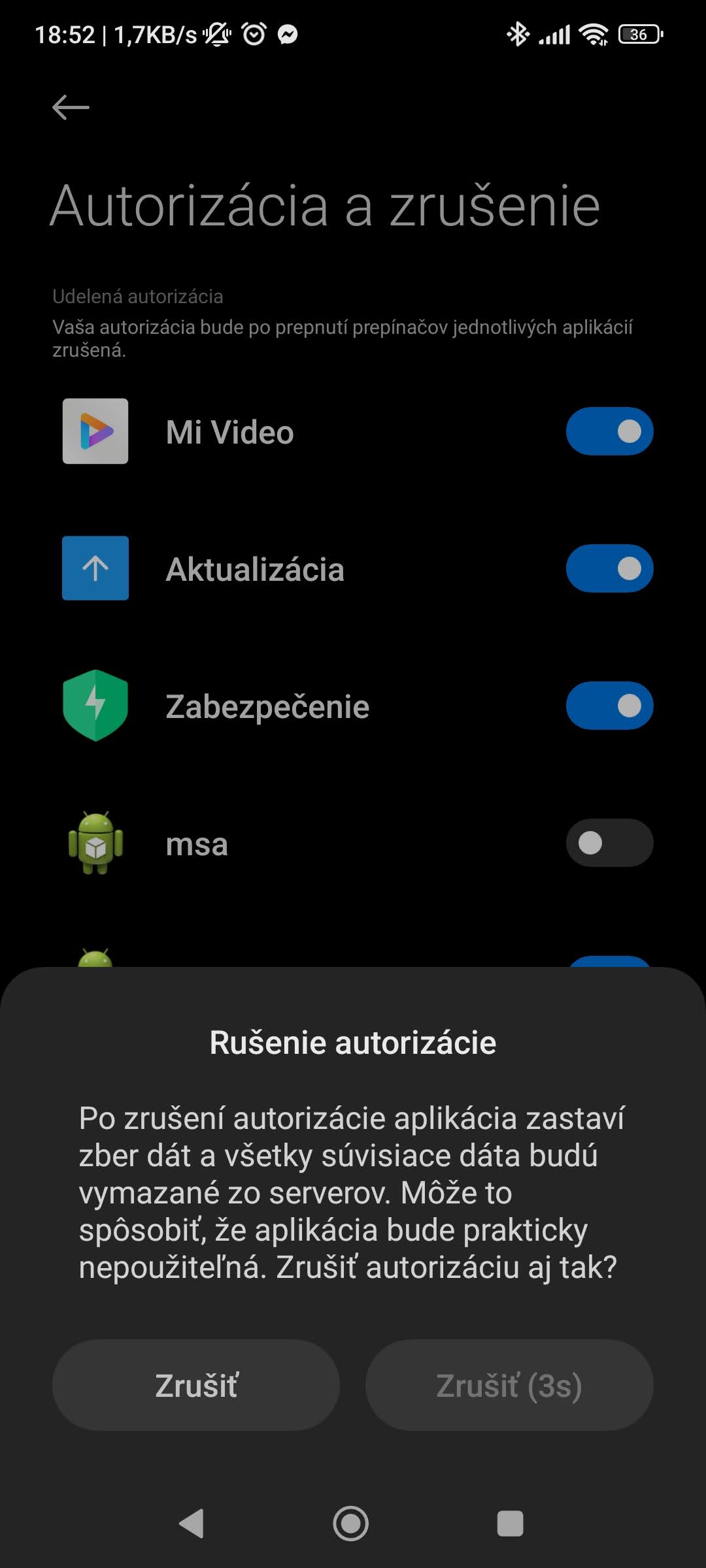
In this menu you’ll find a wide list of apps, but you need to cancel the one labeled “msa”. If you do that, the phone will confirm it by showing a cancellation authorization message.
Turn off personalized ads, i.e., the collection of user data
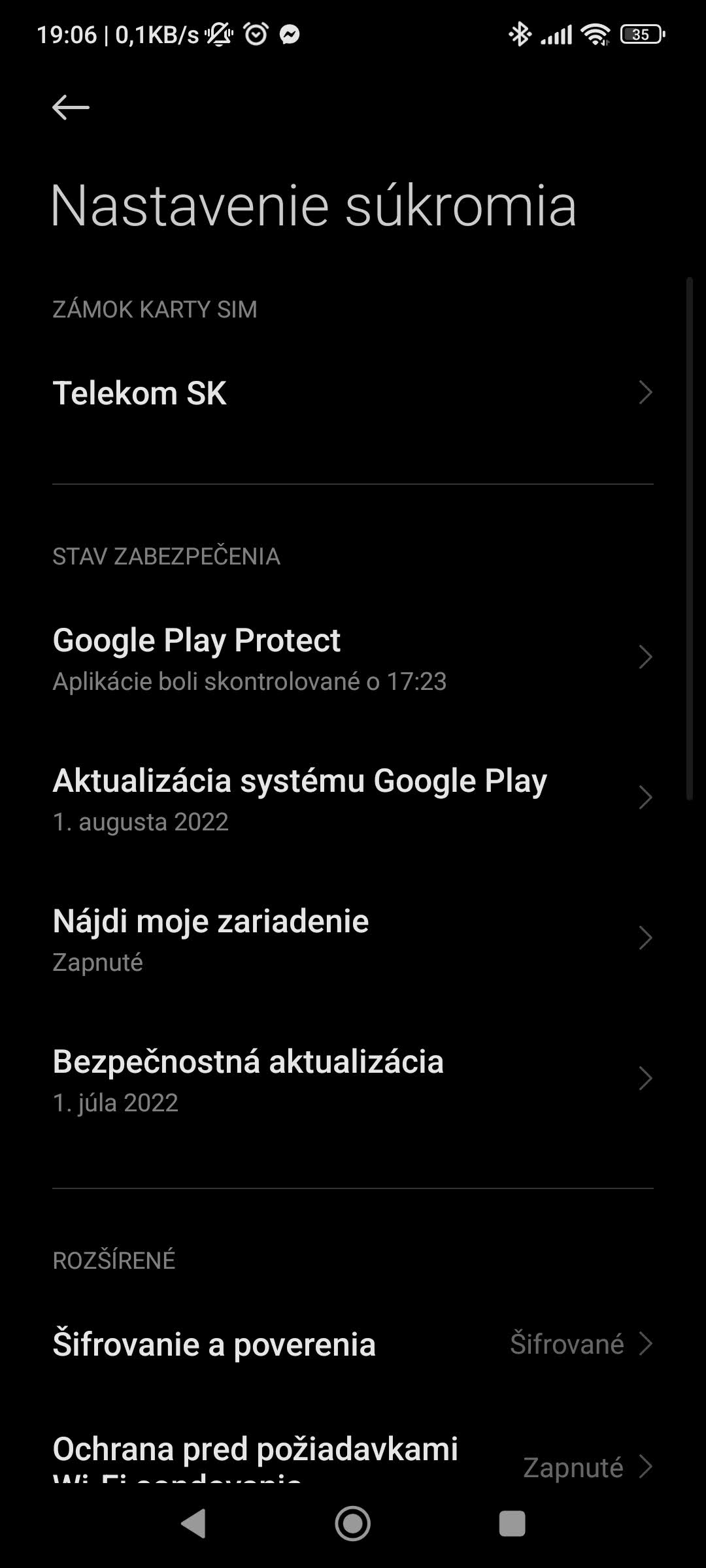
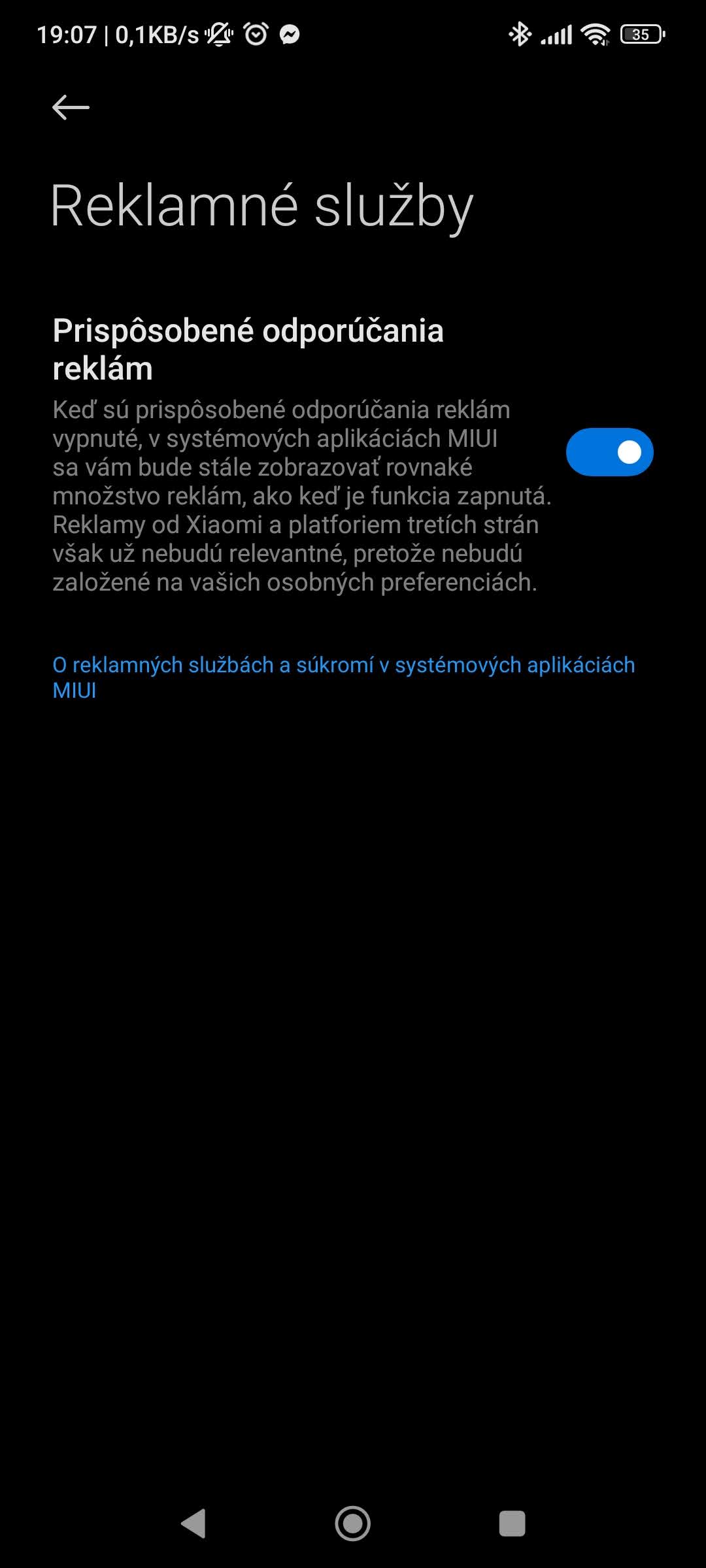
Collecting user data is also an important part of the system, and if you want to get rid of various recommendations or suggestions from MIUI or Xiaomi, do the following. Go to settings, to the folder Passwords & security, then to the Privacy settings menu, and here choose Ad services. To eliminate ads, turn off Personalized ad recommendations.


Turn off ads in individual system apps
As we mentioned above, ads are also found in the system as part of some built-in apps. Unfortunately, you have to go through each one separately, but the process is practically the same—whether it’s the music player, the downloads app, the file browser, or the internet browser.
Go to the settings of the specific app, then go to the About the app menu and turn off anything that looks like an ad, recommendation, or suggestion from the manufacturer. An example in the Files app can be found in the photos below:
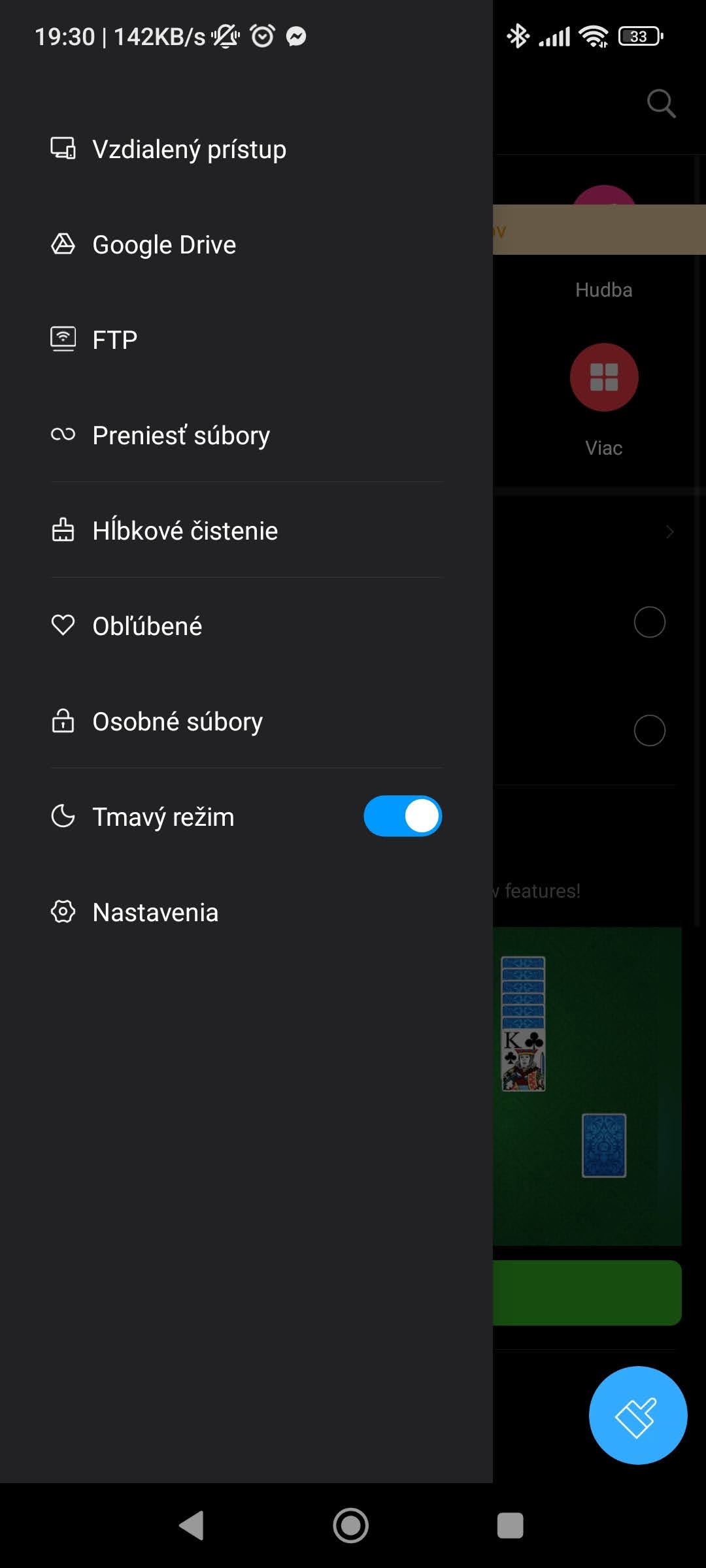
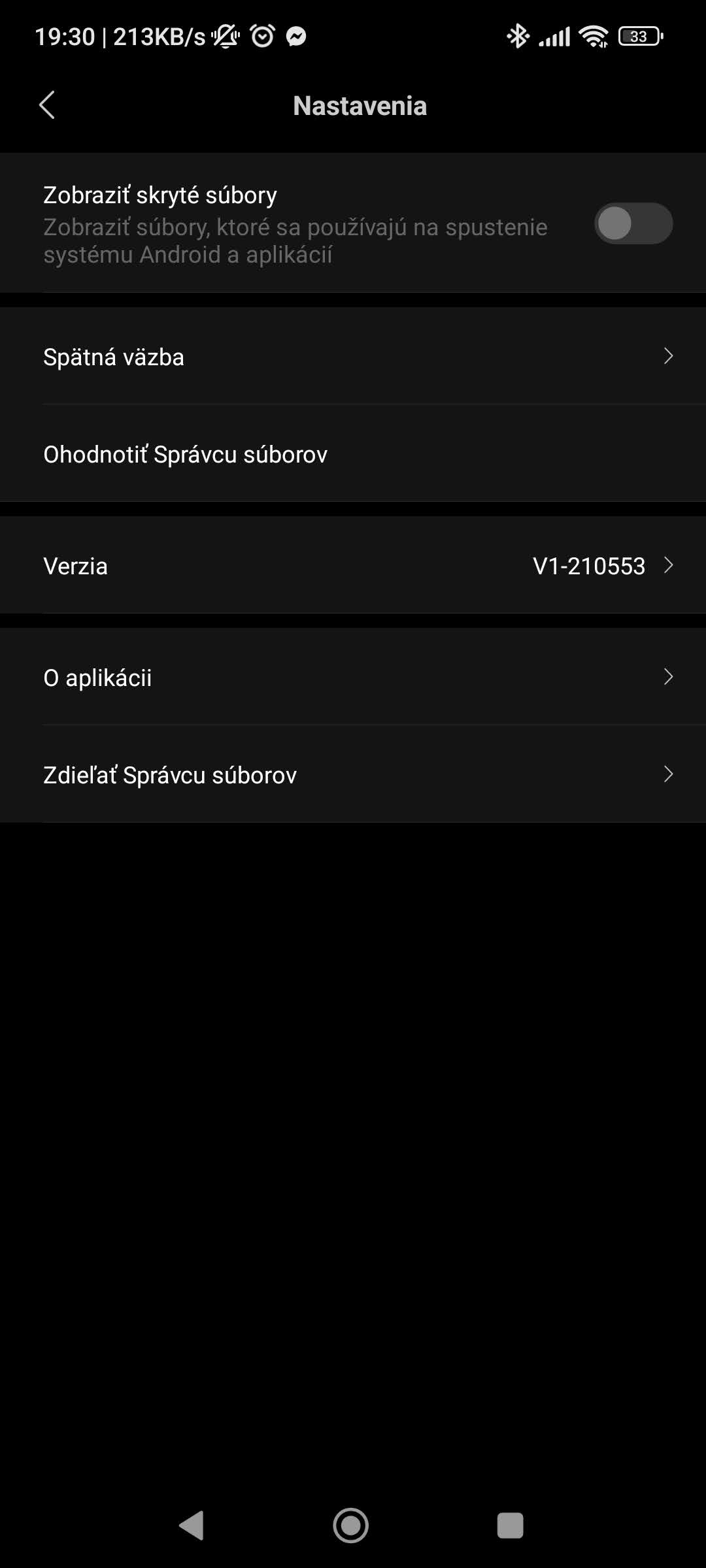
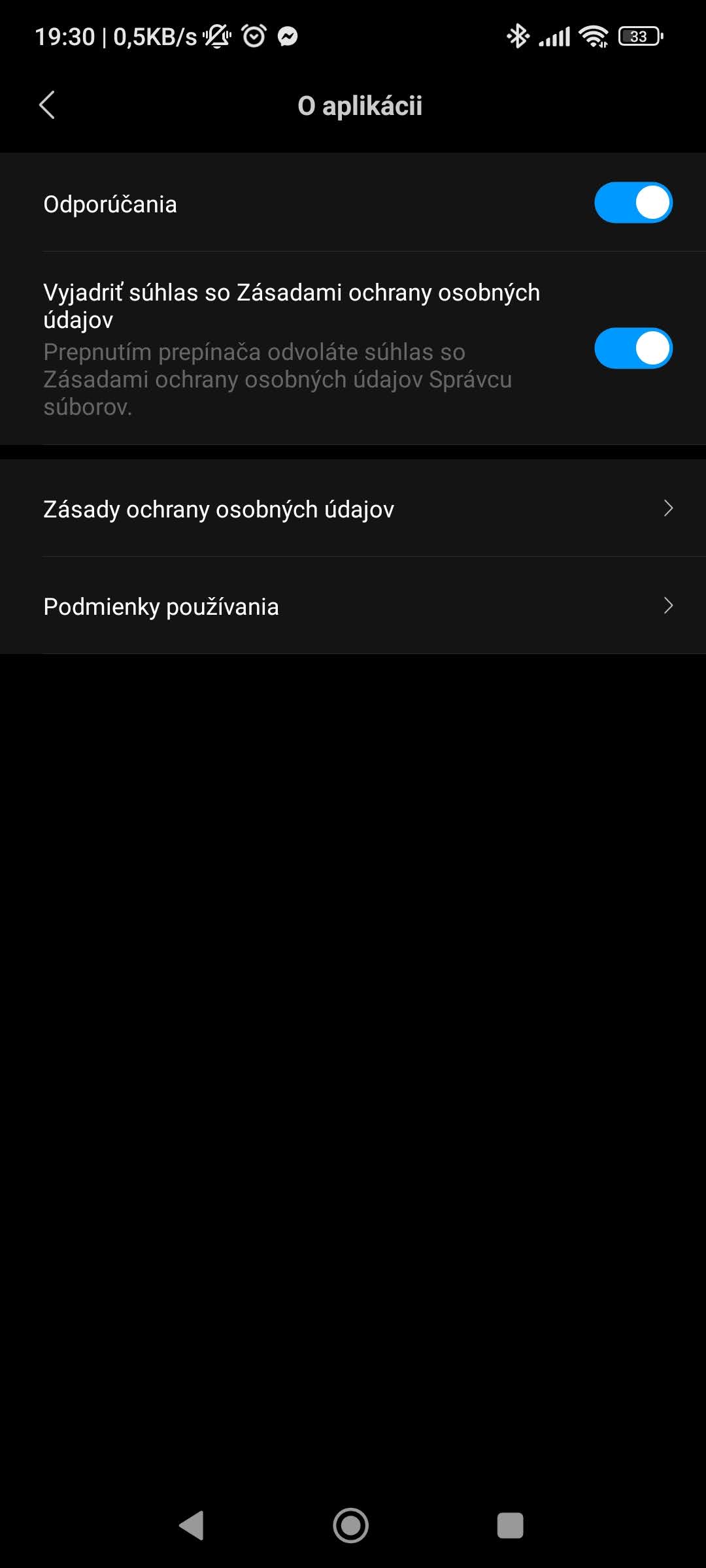
Note from the editor: The shortcut to settings is also available directly on the screen for “checking the installed app”, and in this menu you can also disable suggestions for ad offerings.
Turn off ads on the home screen as well
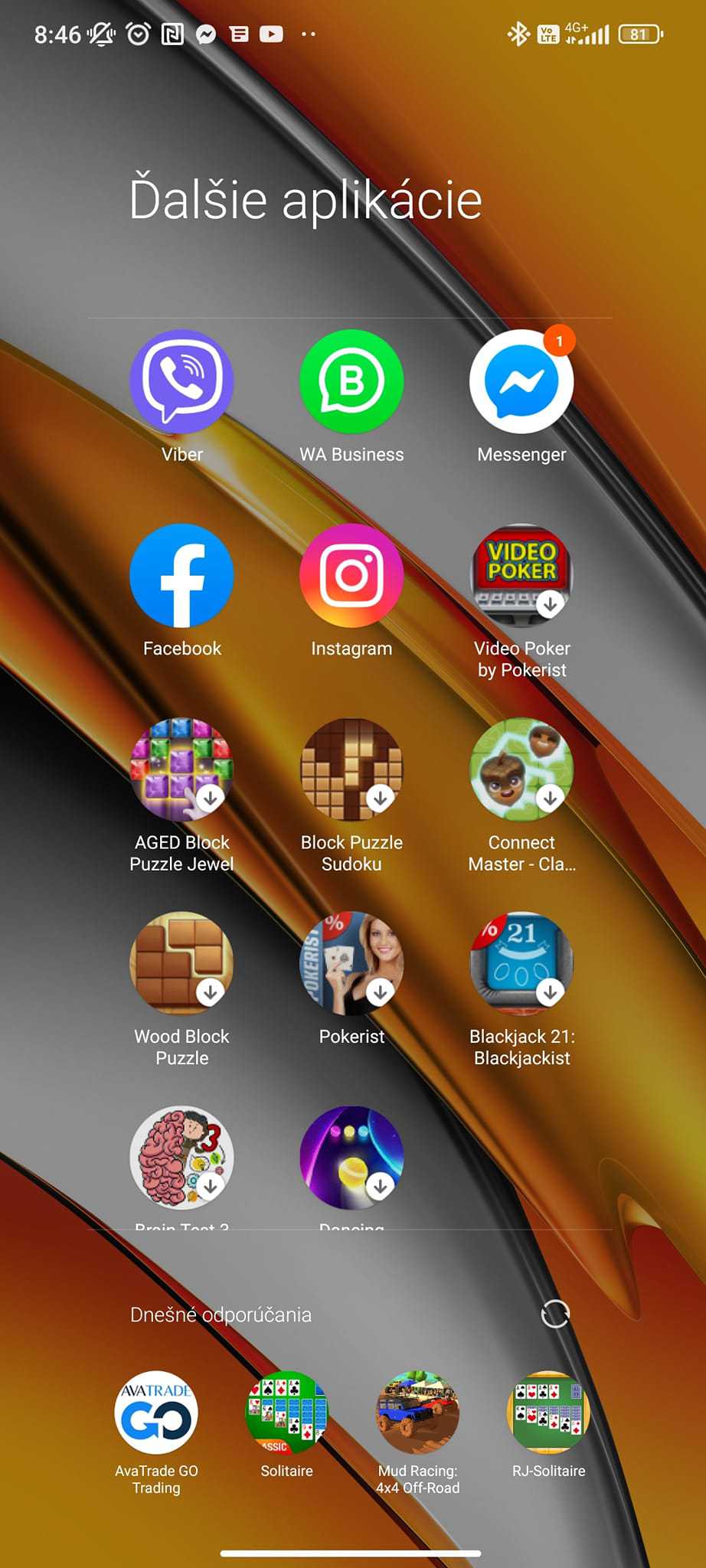
It may sound unbelievable, but Xiaomi hid ad recommendations even in the apps folder. These are app suggestions—mostly mobile games—that you’ll find in the Play Store, but in your folder they show up for faster access and installation. You can also eliminate this offer.
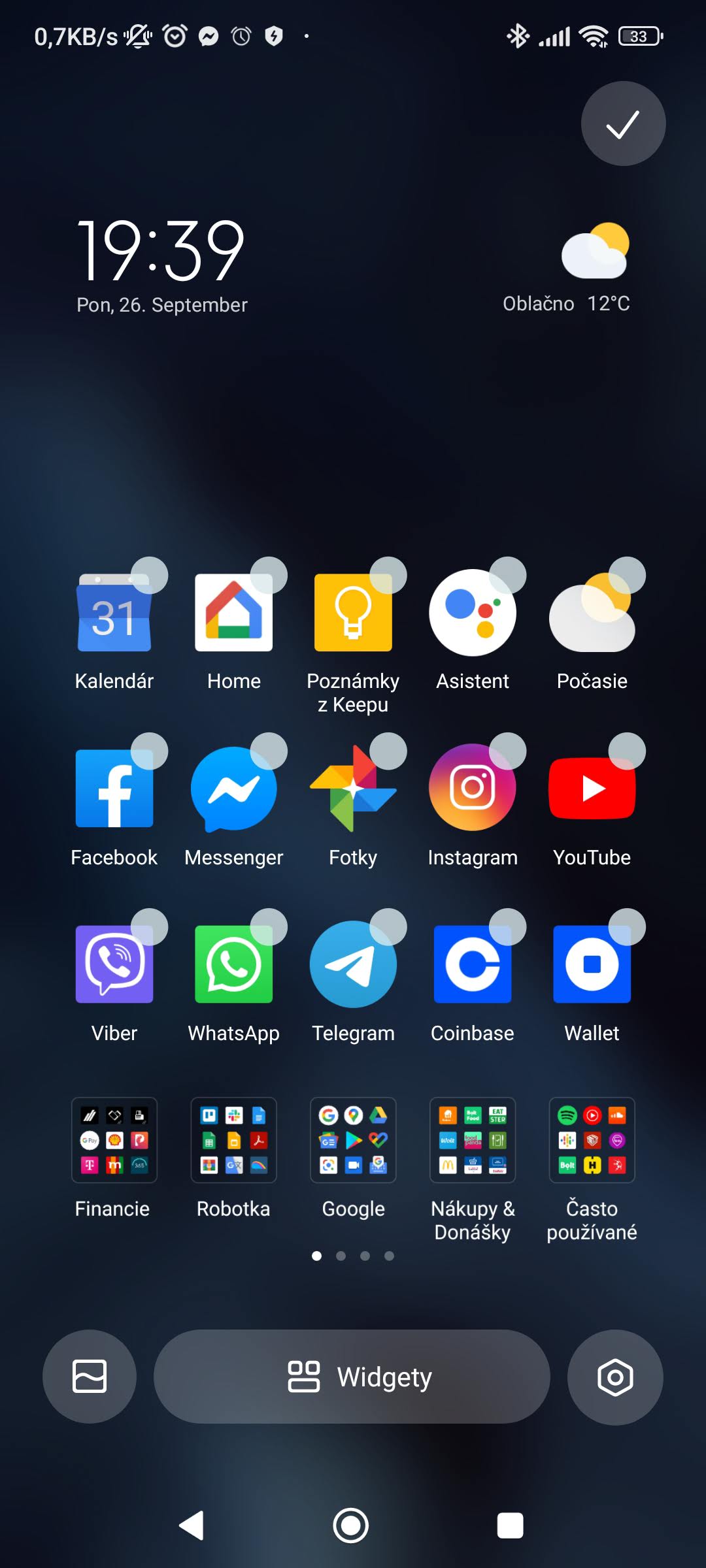
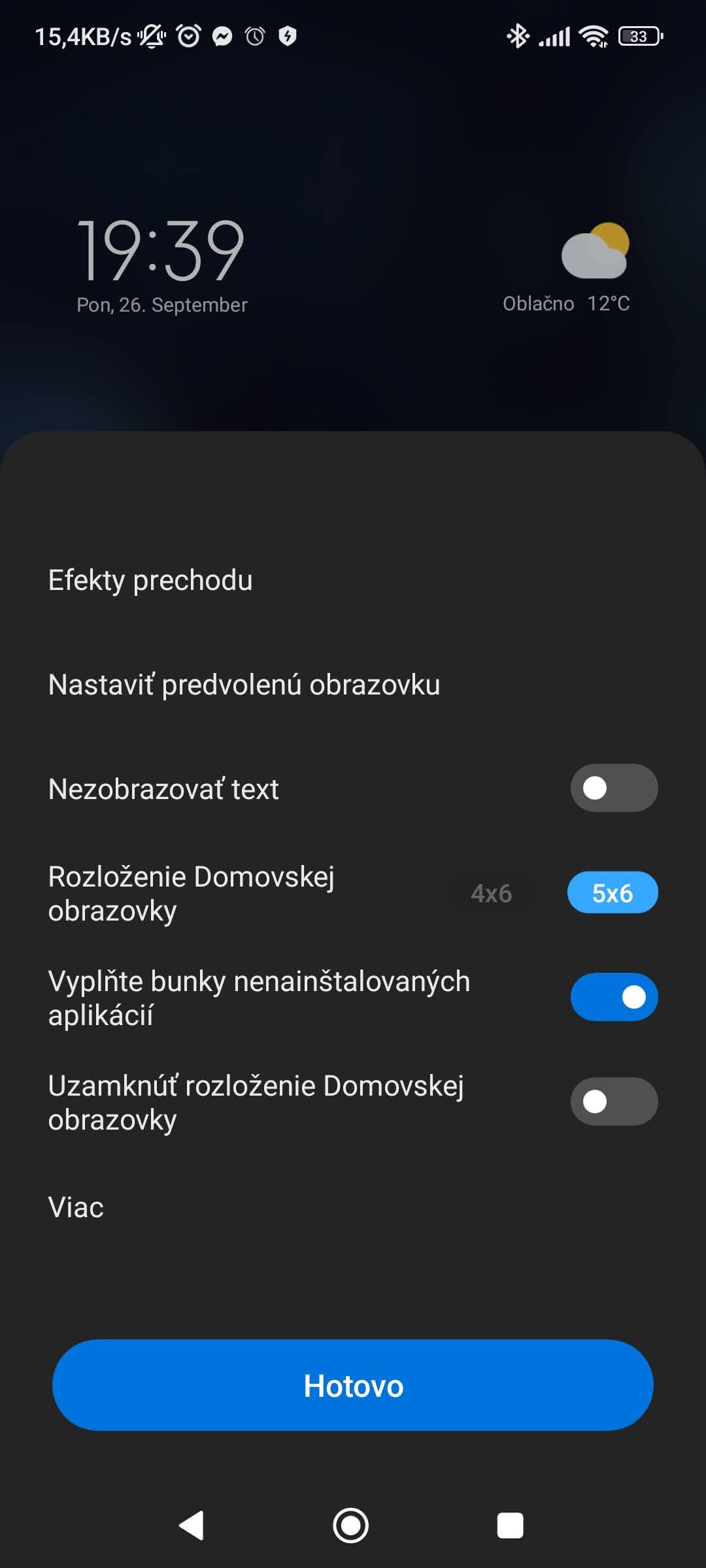
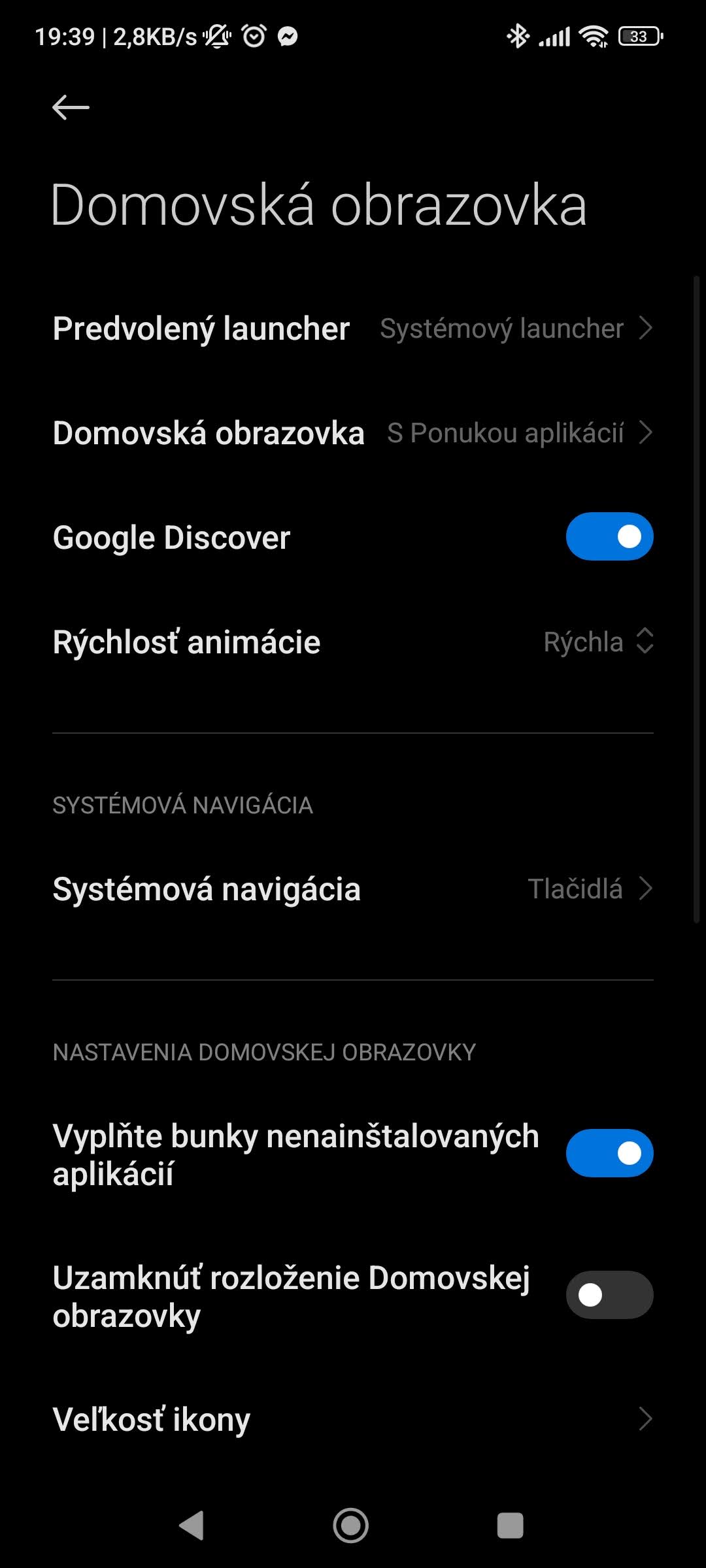
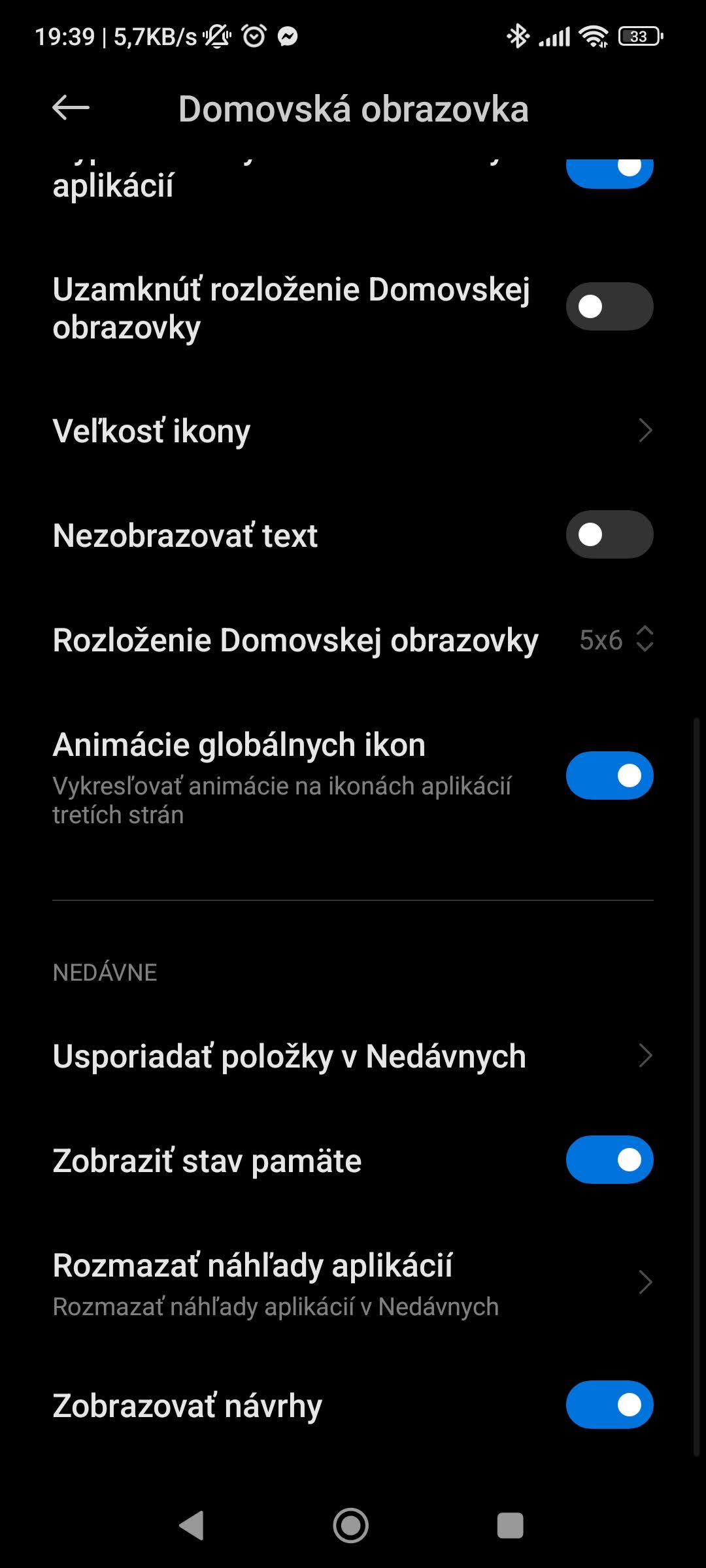
Go to Settings, then to the Home Screen folder and completely turn off the Show suggestions function at the very bottom. You can also access the same menu from the home screen via the “pinch-to-zoom” gesture, in the settings folder for displaying the home screen. You can view a summary of these settings in a video from WRTech—find it below:
After these steps, your smartphone should show significantly fewer ads and app suggestions. How do you like our guides? Do you also block ads on your Xiaomi, Redmi, or POCO device? If you have any additional questions, feel free to write them to us below in the discussion under the article. Also follow our Facebook group: Xiaomi Planet – The place for true Xiaomi fans and check out our Xiaomi Planet portal to learn more information.
Don’t miss the best coupons 📩
Subscribe and we’ll email you new coupons before they expire. We only send it once a month — no spam.