
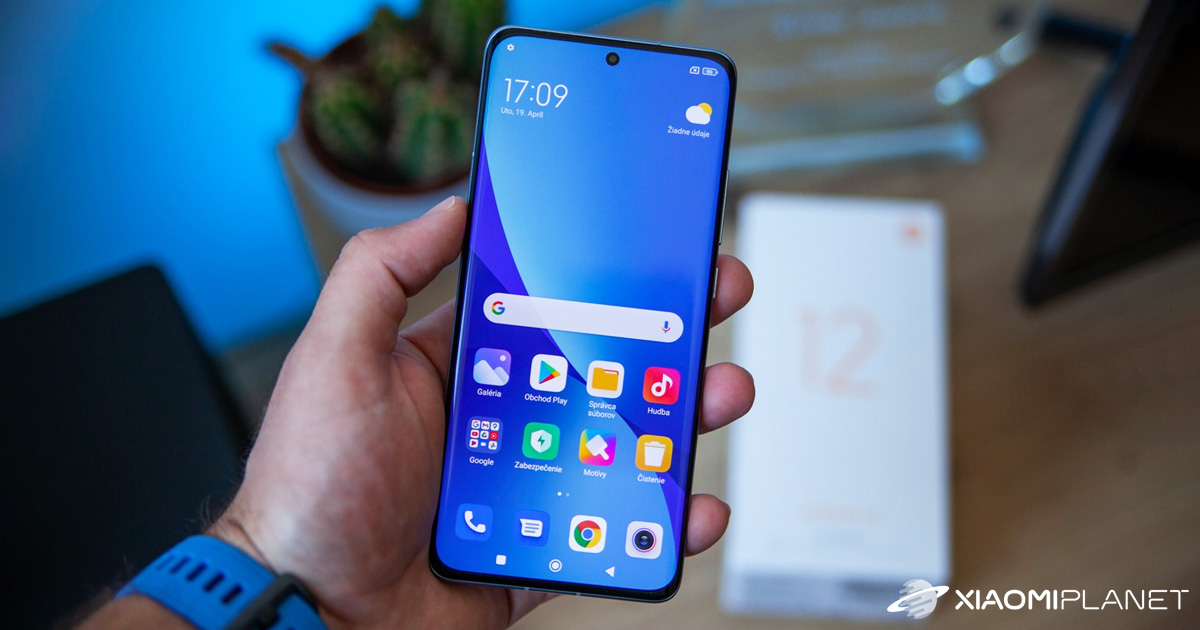
The well-known MIUI 13 graphical overlay from Xiaomi hides a few secrets that can improve how you use your smartphone—including screen responsiveness. Today, we’ll take a closer look at the settings for the device’s physical response.
MIUI 13 also hides the device’s physical response setting
You can also improve the smoothness and performance of your Xiaomi, Redmi, or POCO smartphone through software. Especially if you feel your screen isn’t reacting fast enough to touch.
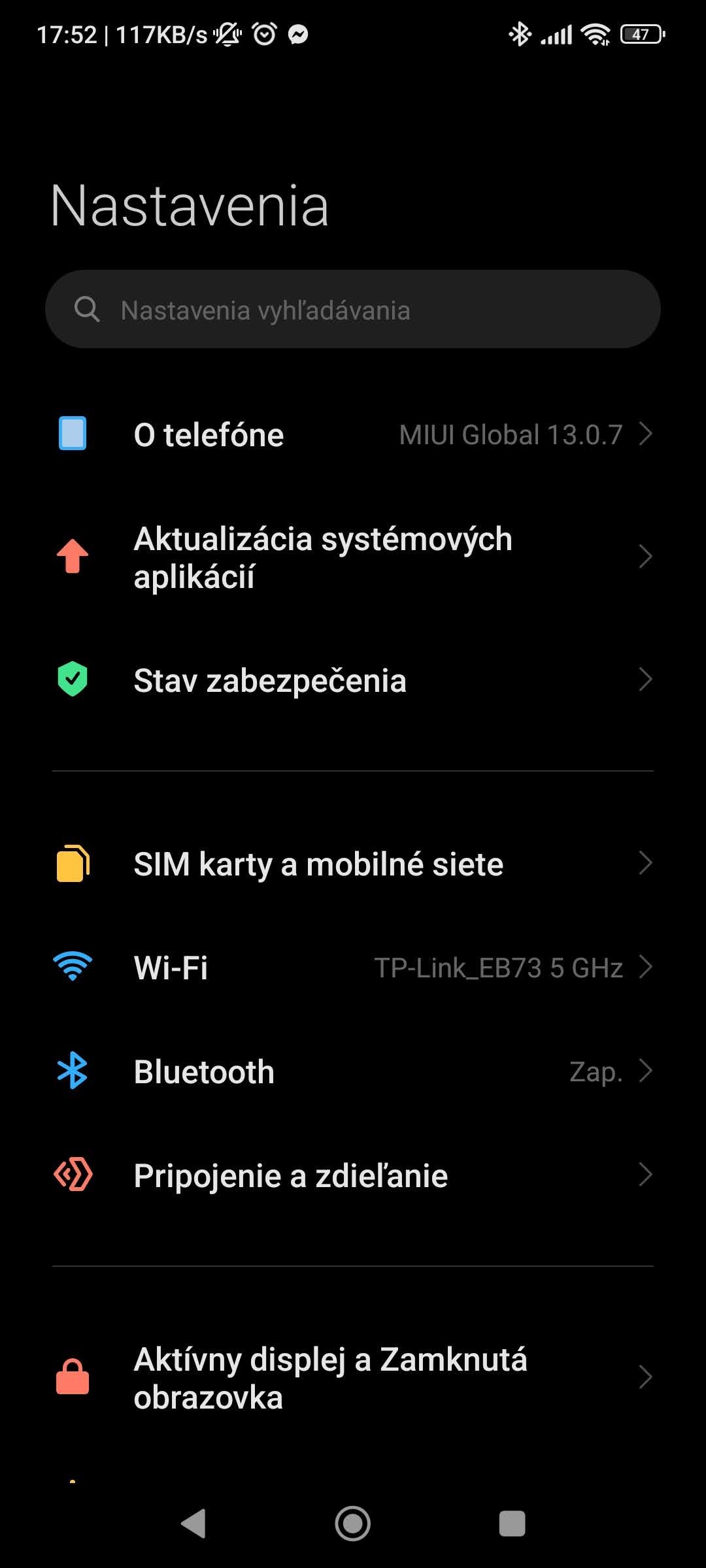
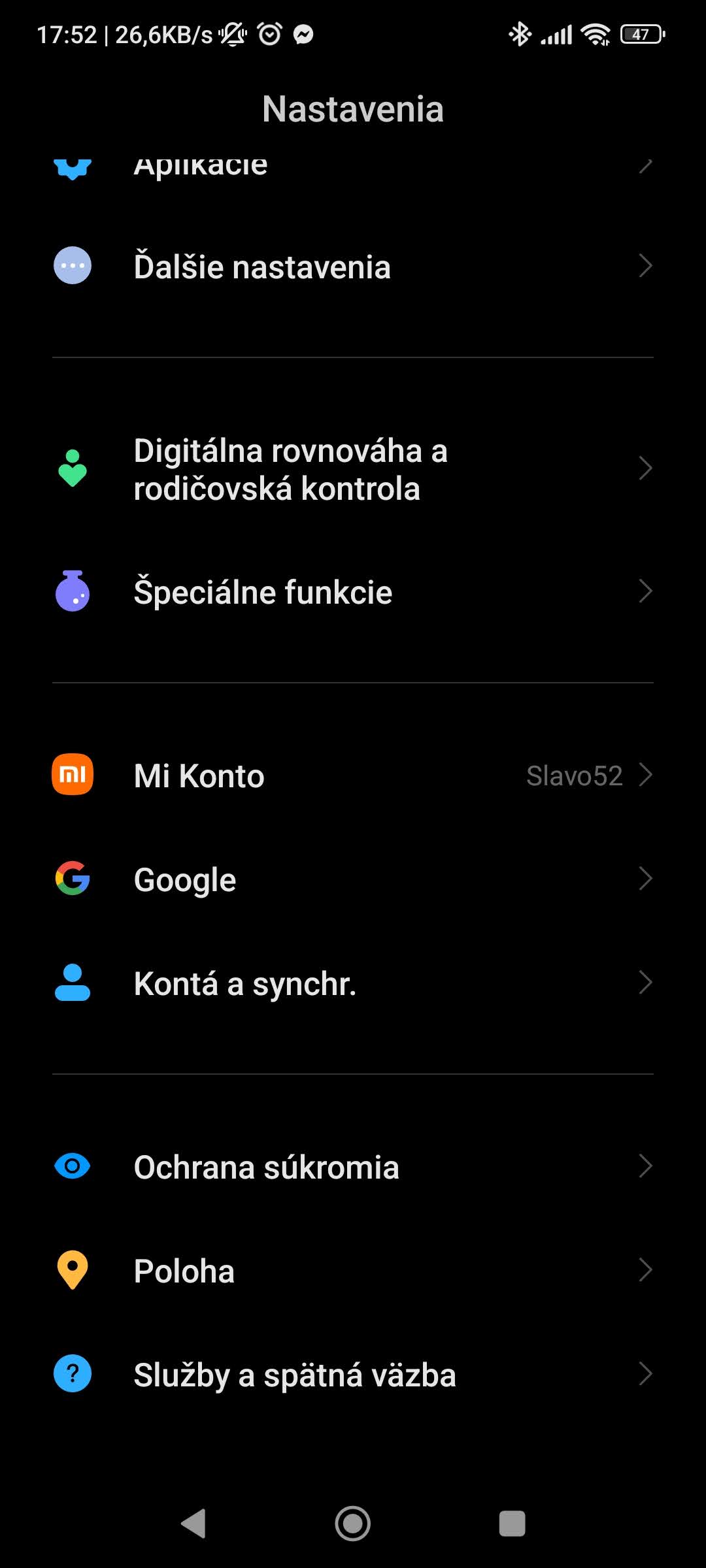
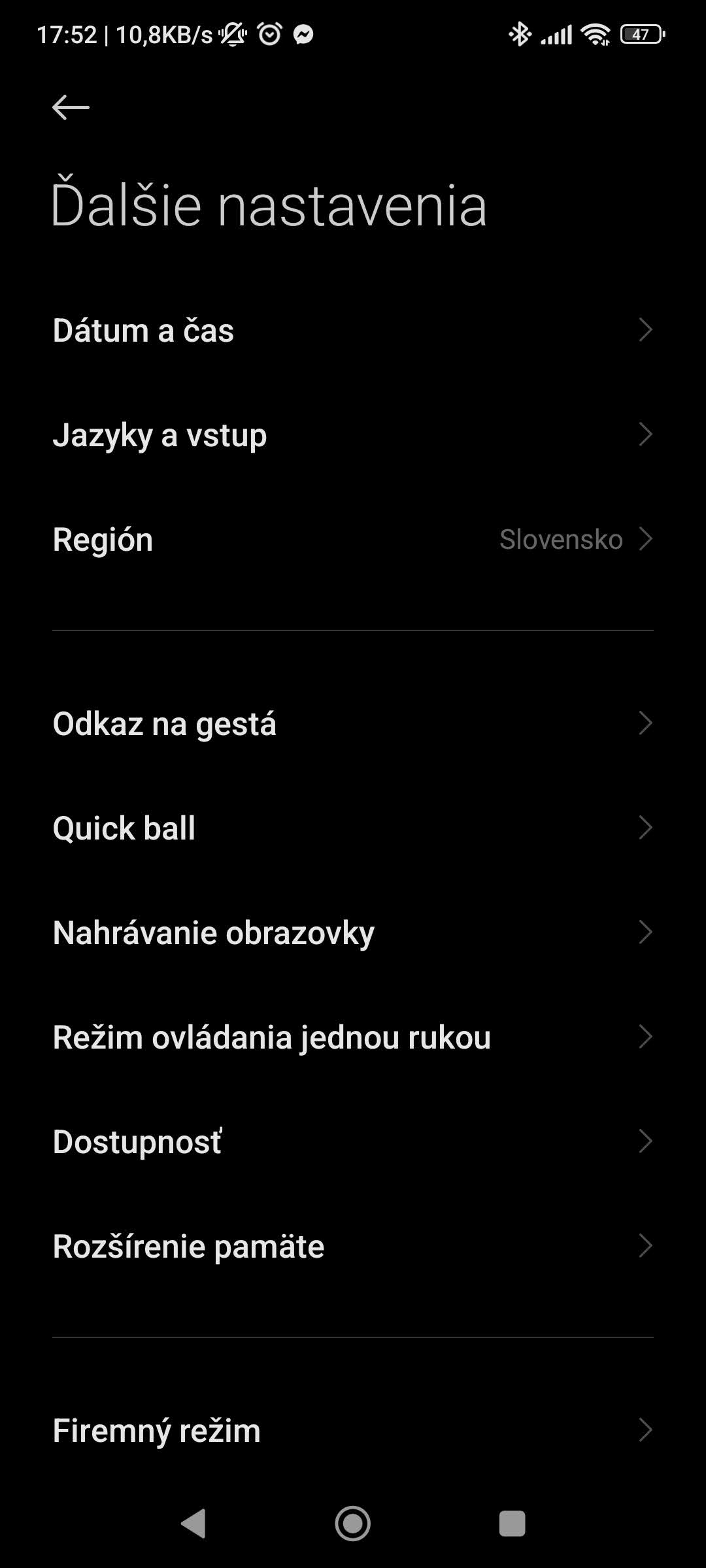
As long as your screen doesn’t have any physical damage, cracks, or bumps, you can try adjusting the haptic response in your device settings. This setting is available in the MIUI 13 graphical overlay, and to apply it, you only need a few simple steps.
This is how you adjust your smartphone’s haptic response settings
You can find the steps to adjust the settings in the following steps:
- Go to the settings on your Xiaomi, Redmi, or POCO smartphone
- Tap on the item “Additional settings”
- Next, tap on “Accessibility”
- At the top of the screen, switch to the option called “Physical”
The settings we need are on the screen right now. The adjustment itself comes down to configuring the right pair of them correctly. If you want to speed up your smartphone, the first thing you need to do is enter the section “Vibrations and haptic feedback”.
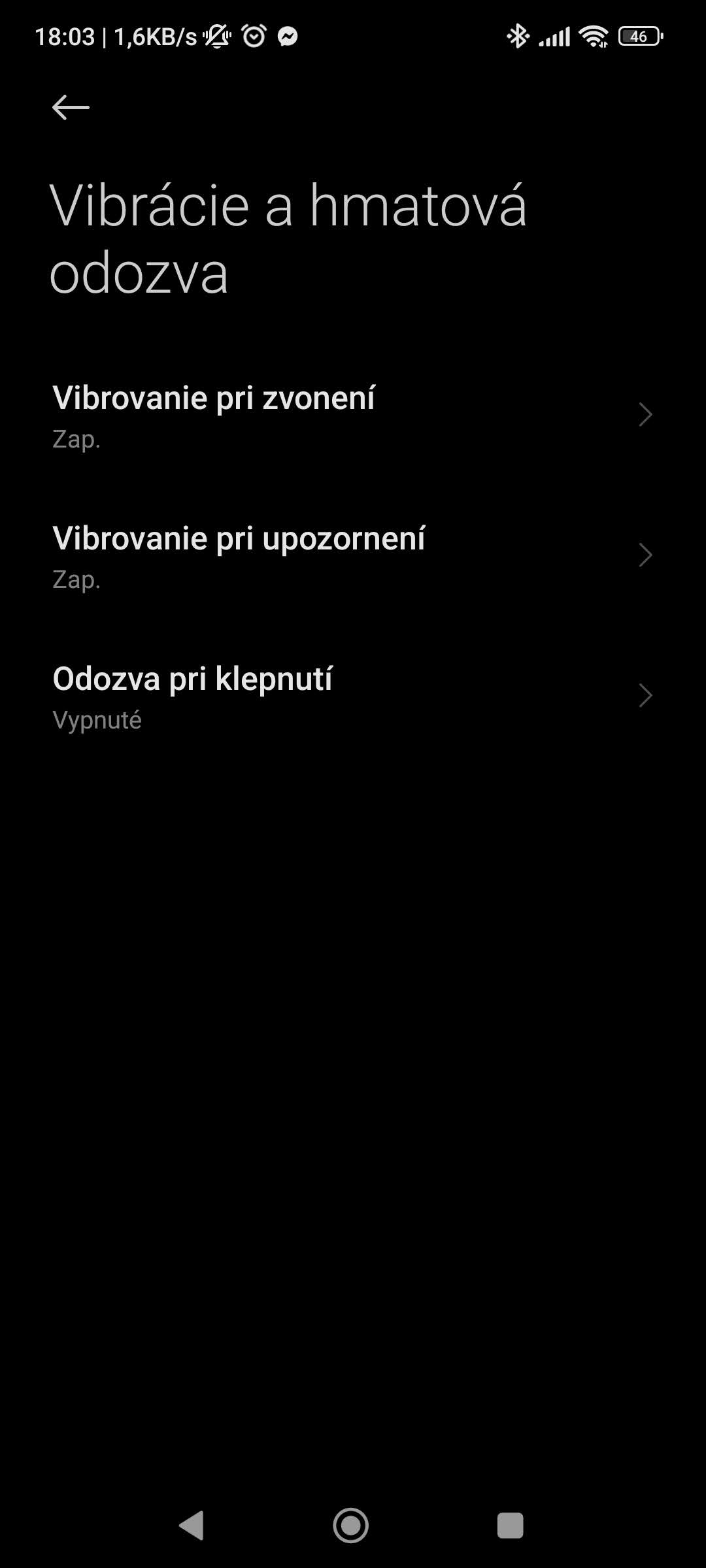
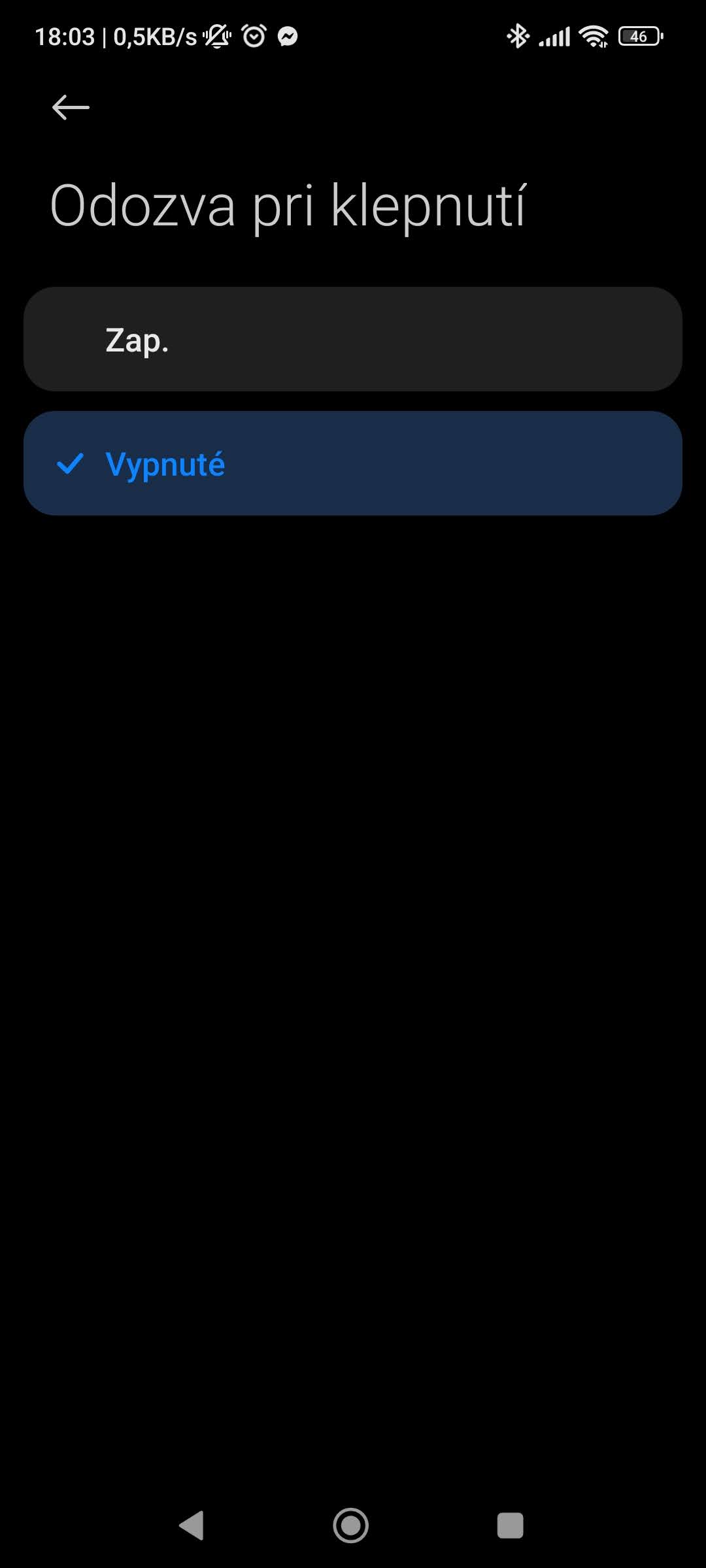
In this section, you’ll find a subcategory translated as “Tap response”. You need to turn this option off, or deactivate it, if it’s enabled on your smartphone. However, it’s likely that on newer devices — for example, our editorial Xiaomi 11T smartphone — this option is already disabled directly by the manufacturer.
So what does deactivating this feature mean? In short, this option makes it so that there’s no delay between the physical touch we make with our finger on the screen and the action we requested. That’s the delay you need to eliminate.
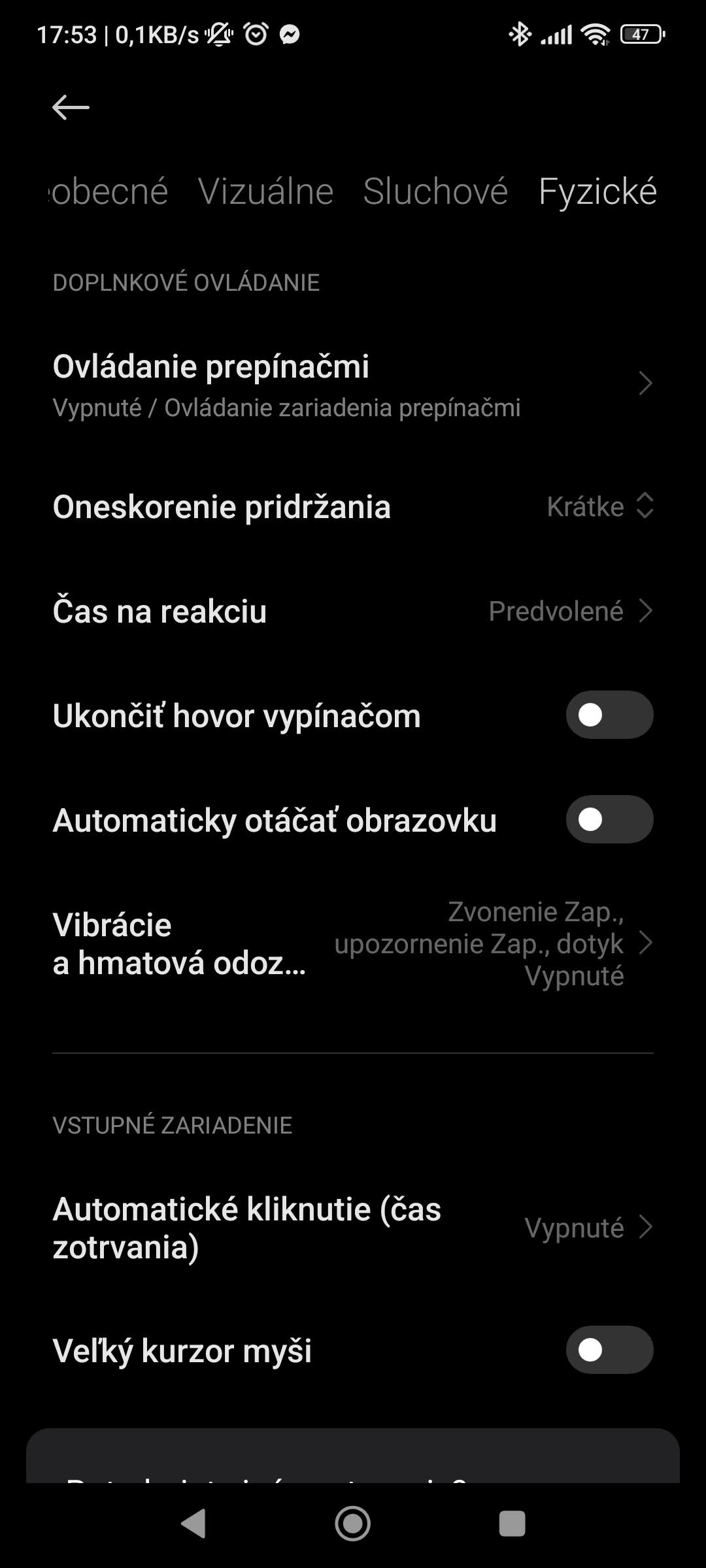
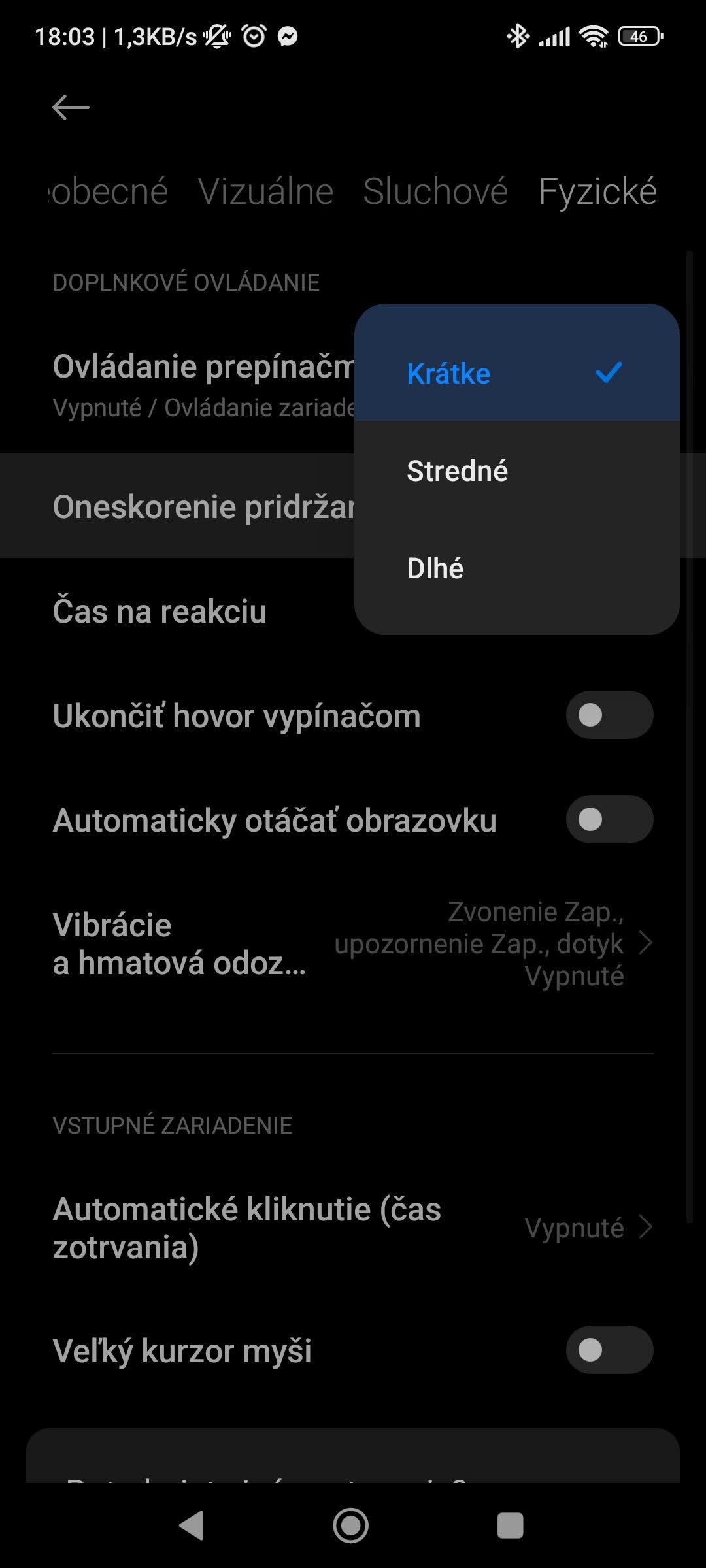
However, this is not the only functional setting you can make. In the section “Physical”, which we mentioned above, you can go to the menu translated as “Hold delay”. For this item, select the shortest possible option, labeled “Short”. Then the setting is complete and the response to your display touch should noticeably improve.
How do you like our guides? Would you use this setting on your Xiaomi smartphone too? If you have any other questions about this topic, feel free to write them below in the comments under the article. Also follow our Facebook group: Xiaomi Planet – A place for true Xiaomi fans — and visit our Xiaomi Planet portal to learn more.
Don’t miss the best coupons 📩
Subscribe and we’ll email you new coupons before they expire. We only send it once a month — no spam.